---
title: Configuring your Distribution Portal
description: Learn all the aspects of the Distribution Portal you can configure and white label for your customers!
---
[Skip to content](https://help.pointerpro.com/configuring-your-distribution-portal#main-content)
[](https://pointerpro.com/)
- [Pricing](https://pointerpro.com/pricing)
- [Customer stories](https://pointerpro.com/case-studies)
Open main navigation
Close main navigation
- [Pricing](https://pointerpro.com/pricing)
- [Customer stories](https://pointerpro.com/case-studies)
- [New here? Explore what Pointerpro can do](https://www.pointerpro.com/)
[New here? Explore what Pointerpro can do](https://www.pointerpro.com/)
How can we help you?
- There are no suggestions because the search field is empty.
1. [Knowledge Base](https://help.pointerpro.com/?hsLang=en)
2. [Distribution Portal](https://help.pointerpro.com/distribution-portal?hsLang=en)
3. [Configuration](https://help.pointerpro.com/distribution-portal?hsLang=en#configuration)
# Configuring your Distribution Portal
## Our online Distribution Portal allows to sell your assessments as valuable digital products, to a maximized audience. As a consultant, coach or agency, you want to deliver quality advice to as many customers as possible and Distribution Portal allows you to plug into e-commerce websites through the magic of our developers’ API.
##### You'll need this:
- One of these Pointerpro plans:
 Professional  Enterprise  ReportR  DistributR
---
**DEFINITION**
The **DistributR plan** is a subscription package that includes the entire suite of Pointerpro products: Questionnaire Builder, Report Builder, Dashboard Builder and Distribution Portal. Access the full feature list of the DistributR plan [here](https://pointerpro.com/features/).
The **Distribution Portal** is a feature included in the DistributR plan. It allows for seamless assessment and report distribution by utilizing three different access levels: the admin zone, the customer zone, and the contact zone.
##### On this help guide page:
1. [Custom account activation emails (user invitations)](https://help.pointerpro.com/configuring-your-distribution-portal#custom-account)
2. [Questionnaire settings](https://help.pointerpro.com/configuring-your-distribution-portal#questionnaire)
2.1 [Questionnaire description](https://help.pointerpro.com/configuring-your-distribution-portal#questionnaire-description)
2.2 [Invitation variables](https://help.pointerpro.com/configuring-your-distribution-portal#invittion-variables)
2.3 [Invitation template](https://help.pointerpro.com/configuring-your-distribution-portal#invitation-template)
3\. [Portal settings](https://help.pointerpro.com/configuring-your-distribution-portal#portal-settings)
3.1 [Team Descriptions](https://help.pointerpro.com/configuring-your-distribution-portal#team-descriptions)
3.2 [Team Help Guide](https://help.pointerpro.com/configuring-your-distribution-portal#team-help-guide)
3.3 [Domain verification](https://help.pointerpro.com/configuring-your-distribution-portal#domain-verification)
3.4 [Two Factor Authentication](https://help.pointerpro.com/configuring-your-distribution-portal#two-factor-auth)
4\. [Help guides](https://help.pointerpro.com/configuring-your-distribution-portal#help-guides)
5\. [Distribution Portal white labeling](https://help.pointerpro.com/configuring-your-distribution-portal#distribution-portal-white-labeling)
5.1 [Distribution Portal URL](https://help.pointerpro.com/configuring-your-distribution-portal#distribution-portal-URL)
5.2 [API URL](https://help.pointerpro.com/configuring-your-distribution-portal#api-url)
5.3 [Distribution Portal logo and main color](https://help.pointerpro.com/configuring-your-distribution-portal#distribution-portal-logo)
6\. [Pre-configured and quick campaigns (*optional*)](https://help.pointerpro.com/configuring-your-distribution-portal#pre-configured-campaigns)
---
#### 1. Custom account activation emails (user invitations)
We offer the possibility to create **custom activation emails** to send a personalized activation email to new users.
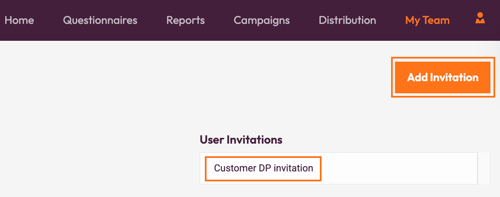
On the **My Teams** page, click on the **View User Invitations** button.

Then click **Add Invitation** to configure new template. All your user invitation templates will be also visible in the list below.
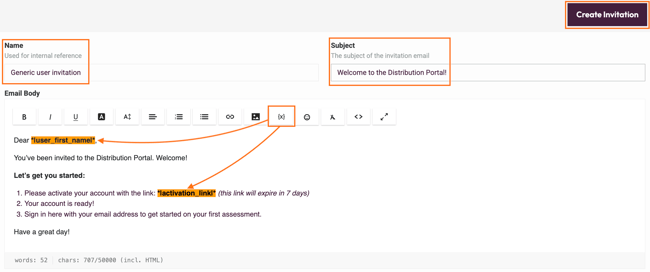
Add the **name** of the invitation for your personal reference, the **email subject**, and the **email body**. Make sure you use the [variables](https://help.pointerpro.com/migration/knowledge/piping-variables?hsLang=en) (by clicking on the {x} button) to insert the activation link. Click on the **Create Invitation** button when you're ready to save the invitation.
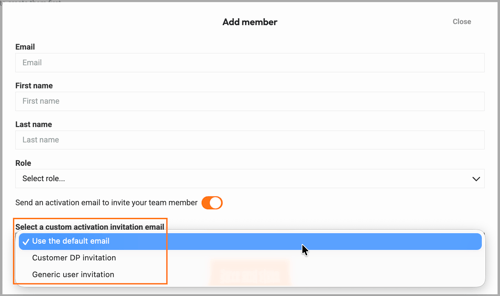
You can select which invitation mail to send when creating a new user account in **My Team**.
#### 2. Questionnaire settings
##### 2.1 Questionnaire description
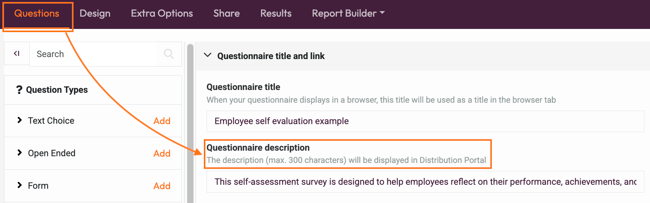
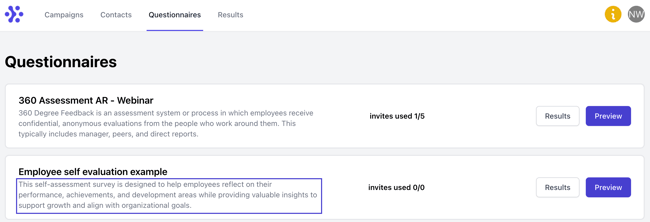
As an administrator, you can add an extra **questionnaire description**. This could help your Distribution Portal users to understand what your questionnaire is about or what report they can expect at the end.
To modify it, open your questionnaire, and add a description at the top of the Questions tab.
NOTE
Questionnaire description has a **300 characters** limit.
This description will be visible to **Customers** on the Questionnaires and Results tabs in the **Customer Zone** and to **Contacts** in the **Contact Zone** of the Distribution Portal.
##### **2.2 Invitation variables**
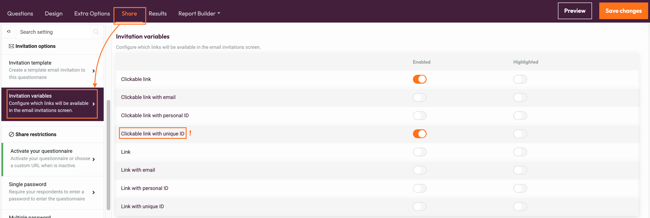
Under the **Share** of your questionnaire, you can configure which **Invitation variables** (links) are allowed to be used for that questionnaire. We recommend you only enable the ones that are relevant to each specific questionnaire. Highlighted variables will always be shown on top.
NOTE
We strongly recommend the use of the **Clickable link with unique ID**.
##### 2.3 Invitation template
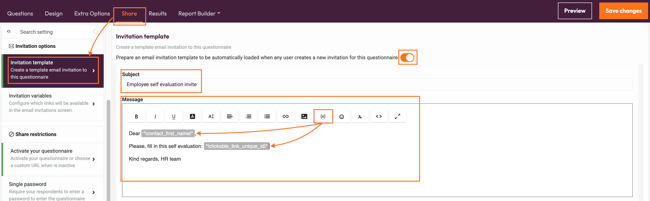
Under the **Share** tab, you can set an **Invitation template** for the this specific questionnaire. When this setting is configured, this template will be loaded when creating a new invitation or campaign for this questionnaire. Doing so reduces the work for your users and the risk of mistakes. Users can still adjust the email subject and body before scheduling the invitation or campaign.
NOTE
This template is not loaded when sending a single invitation for multiple questionnaires.
Add the **Subject** and the **Message**. Make sure you use the [variables](https://help.pointerpro.com/migration/knowledge/piping-variables?hsLang=en) (by clicking on the {x} button) to personalize your email and insert the questionnaire link.
Don't forget to click **Save changes** once you are done!
#### 3. Portal settings
Pointerpro Distribution Portal has many modules that can be customized according to your own brand. Let's check them in detail!
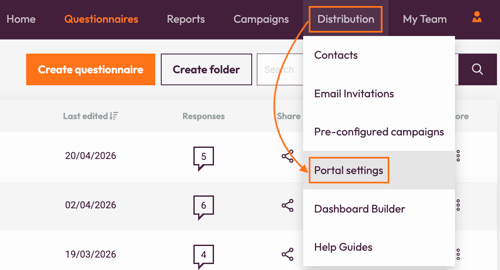
Open **Distribution** tab and then select **Portal settings**.
##### 3.1 **Team Descriptions**
You can add your descriptions to the Distribution Portal to welcome your users or share some information.
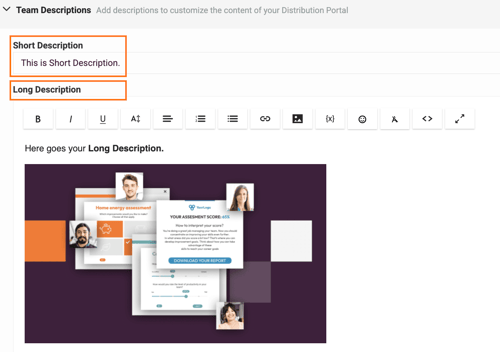
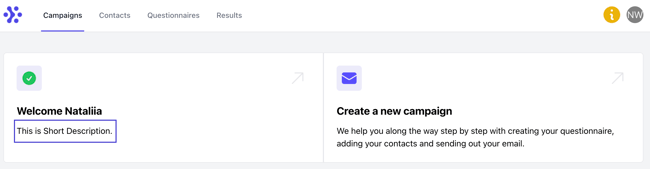
**Short description** is visible immediately on the main page (*Campaigns tab*) when Customer logs into the Distribution portal.
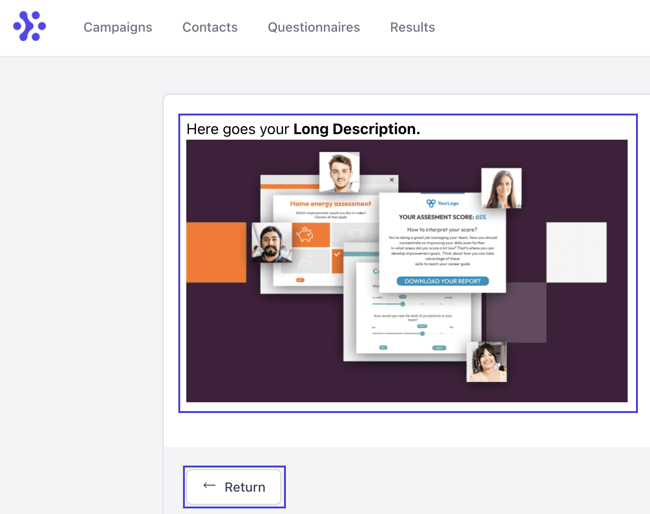
**Long Description** opens when Customer clicks on the short description in the Distribution Portal. Click **Return** button to go back to the main screen.
NOTE
As the Long Description can contain an **HTML layout**, we recommend adding images and hyperlinks where needed.
NOTE
Short description has a **255 characters** limit and long description has **5,000 characters** limit
##### 3.2 Team Help Guide
You can also configure the content of your own **built-in Help Guide page**. There's a **[template](https://help.pointerpro.com/built-in-help-guide-for-customers?hsLang=en)** available to start from which will be loaded into your organization.
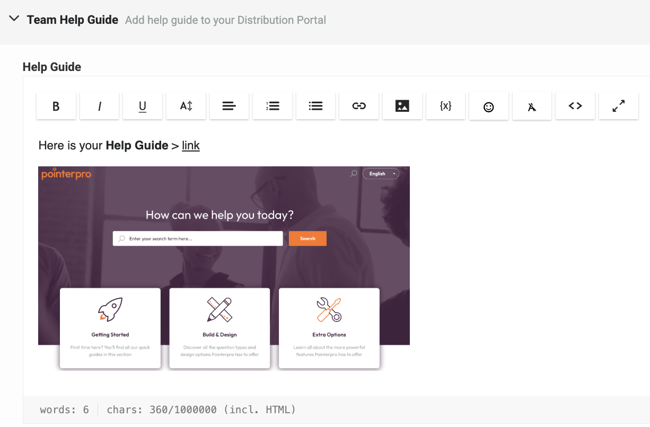
We recommend **updating** it to describe your own use case as the platform supports multiple scenarios. It's important to remove or adjust steps that do not fit yours to make user experience smooth!
NOTE
Help Guide has **1,000,000 characters** limit and can contain an **HTML layout**, we recommend adding images and hyperlinks where needed.
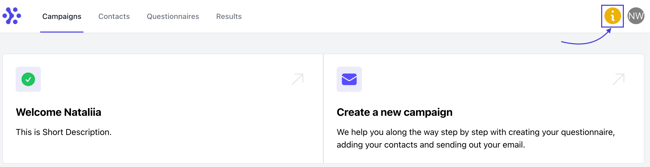
Help Guide can be accessed in the Customer Zone using the **Information** **icon** at the top right of the screen.
##### 3.3 Domain verification
You'll find information on how to **verify domains** so you can send emails from your **own email address**.
For example: you'll need to **verify** the domain 'thisismycompany.com' *before* you'll be able to send emails from 'johndoe@thisismycompany.com'.

If you or your customers would like to send out emails from their domain, then you would need to send them the **domain verification code**, for them to verify their domain. You could also add this information to your [built-in help guide](https://help.pointerpro.com/configuring-your-distribution-portal#team-help-guide), descriptions, or even the custom activation email.
NOTE
Each domain needs to be verified **once**, so if you have a lot of customers from the same company, they need to verify their company domain only once.
##### 3.4 Two Factor Authentication
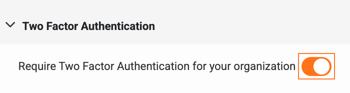
as additional level of security for your Distribution Portal you can enable **mandatory** [two factor authentication](https://help.pointerpro.com/two-factor-authentication?hsLang=en) for your organization.
NOTE
When the admin turns on 2FA, users who are already logged in can continue working without setting it up for up to **7 days**. However, after these 7 days, users who log in will need to configure 2FA before using the Pointerpro platform.
#### 4. Help Guides
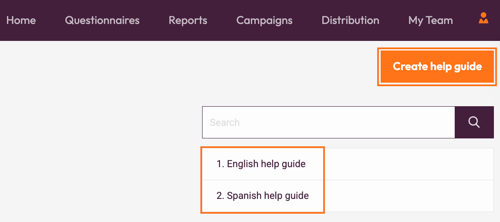
If you use Distribution Portal to cover different use cases or your audience is multilingual you can also add **multiple help guides**. For example, you can have one help guide in English and one in Spanish, or a help guide explaining distribution of a simple self-assessment and a 360 survey.
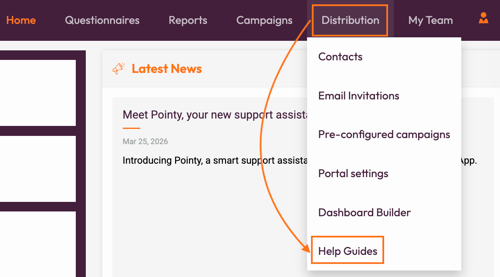
Navigate to Distribution tab and click Help Guides.
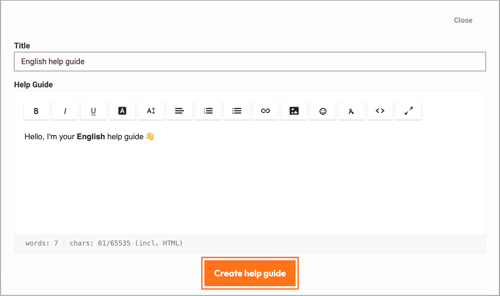
Click **Create help guide** to configure a new help guide. If you already created help guide those will be visible here in the list.
Give your help guide a title (*only visible internally*) and add your content.
NOTE
This Help Guide has **65,535 characters** limit and can contain an **HTML layout**, we recommend adding images and hyperlinks where needed.
When adding a **Customer** user account you can choose which help guide will be visible to them.
Choose between [organizational help guide](https://help.pointerpro.com/configuring-your-distribution-portal#team-help-guide) (the one you added via Portal settings) and custom ones that you created.
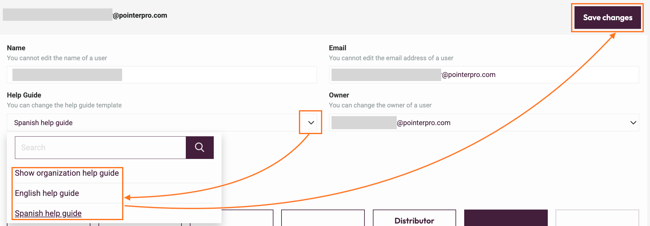
Do not forget to click **Save changes** when you finish configuring the user account!
#### 5. Distribution Portal white labeling
To make Distribution Portal match your own brand you can set up white labeling.
##### 5.1 Distribution Portal URL
Create a DNS CNAME record that points to **dp.whitelabel.pointerpro.com**.
Example: dp.\[yourdomainname\].com \>\> dp.whitelabel.pointerpro.com.
WARNING
Whitelabel users can only log in on their white label domain, and not on our dp.pointerpro.com domain.
##### 5.2 API URL
Create CNAME record that points to **api.whitelabel.pointerpro.com**.
Example: api.\[yourdomainname\].com \>\> api.whitelabel.pointerpro.com
##### 5.3 Distribution Portal logo and main color
You can also change the logo and main color of the Distribution Portal. For that configure Pointerpro [editor white lableing](https://help.pointerpro.com/white-labeling#editor). The same logo and colors will be applied to your Distribution Portal.
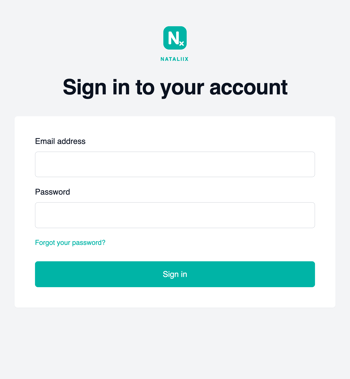
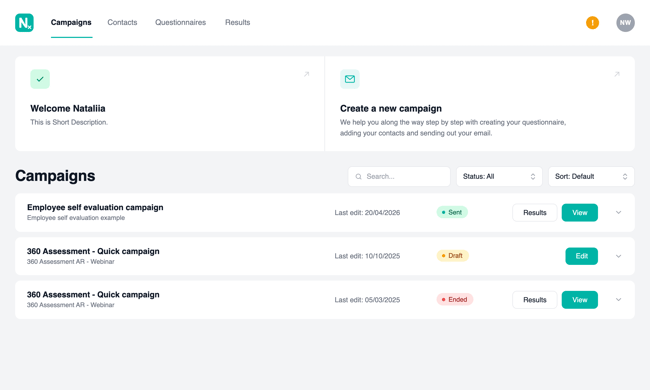
Here is how the Distribution Portal can potentially looks like when white labeled.
*Login screen:*
*Campaigns page:*
#### 6. Pre-configured and quick campaigns (*Optional*)
As an administrator, you have the flexibility to determine whether the customers can independently create their assessment distribution campaigns from scratch within the Customer Zone or are *required* to use pre-configured campaigns created by the administrators.
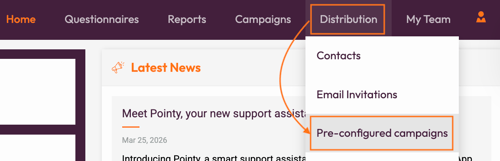
Open Distribution tab and select **Pre-configured campaigns**.
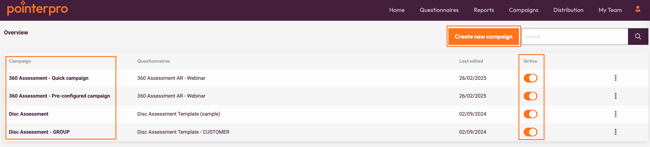
Here you can create a new campaign by clicking **Create new campaign** button or view all the campaigns you already created. Use the toggle to activate or deactivate a certain campaign.
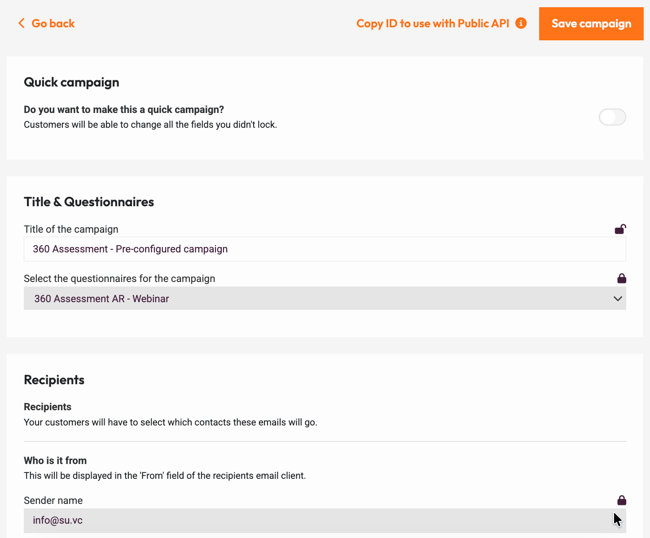
Clicking into a campaign to adjust the configuration.
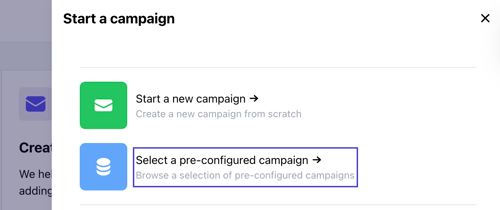
If enabled, your customers can select these campaigns in the Customer Zone so they don't have to create the campaigns from scratch. In this way, you can ensure the consistency and structure of the campaigns sent out by your customers.
Learn more about pre-configured campaigns in [this detailed article](https://help.pointerpro.com/pre-configured-campaigns?hsLang=en)!
#### What is next?
- When you've collected your results and you want to download them, there are different download options available. You can either download a bulk of survey results or choose to download files relating to individual responses. Read our guide [Download your results](https://help.pointerpro.com/migration/knowledge/download-your-results?hsLang=en) to learn how you can do it.
- [Require Contact](https://help.pointerpro.com/migration/knowledge/require-contact?hsLang=en) is a feature that allows you to control who can access your survey and makes the questionnaire only accessible to contacts. If validation fails, the participant is not able to fill in the survey but a configurable message will be displayed instead.
- Do not forget to monitor your results with [Google Analytics](https://help.pointerpro.com/migration/knowledge/google-analytics?hsLang=en). Google Analytics is a freemium web analytics service offered by Google that tracks and reports website traffic. Google Analytics is currently the most widely used web analytics service on the Internet.
#### Don't want to build it yourself? Contact our professional services team
[](https://calendly.com/anna-golumbovskaia-pointerpro/let-s-discuss-your-project)
- [Getting Started](https://help.pointerpro.com/getting-started?hsLang=en#main-content)
- [Getting Started](https://help.pointerpro.com/getting-started?hsLang=en#getting-started)
- [How To Guides](https://help.pointerpro.com/getting-started?hsLang=en#how-to-guides)
- [Glossary](https://help.pointerpro.com/getting-started?hsLang=en#glossary)
- [Build & Design](https://help.pointerpro.com/build-design?hsLang=en#main-content)
- [Intro Screen & Final Screen](https://help.pointerpro.com/build-design?hsLang=en#intro-screen-final-screen)
- [Question Types](https://help.pointerpro.com/build-design?hsLang=en#question-types)
- [Media & Variables](https://help.pointerpro.com/build-design?hsLang=en#media-variables)
- [Design your survey](https://help.pointerpro.com/build-design?hsLang=en#design-your-survey)
- [Campaigns](https://help.pointerpro.com/build-design?hsLang=en#campaigns)
- [FAQ](https://help.pointerpro.com/build-design?hsLang=en#faq)
- [Extra Options](https://help.pointerpro.com/extra-options?hsLang=en#main-content)
- [Text options](https://help.pointerpro.com/extra-options?hsLang=en#text-options)
- [Question logic](https://help.pointerpro.com/extra-options?hsLang=en#question-logic)
- [Custom scoring](https://help.pointerpro.com/extra-options?hsLang=en#custom-scoring)
- [Quiz Options](https://help.pointerpro.com/extra-options?hsLang=en#quiz-options)
- [Kiosk mode options](https://help.pointerpro.com/extra-options?hsLang=en#kiosk-mode-options)
- [Data collection options](https://help.pointerpro.com/extra-options?hsLang=en#data-collection-options)
- [Other options](https://help.pointerpro.com/extra-options?hsLang=en#other-options)
- [Integrations & API](https://help.pointerpro.com/extra-options?hsLang=en#integrations-api)
- [FAQ](https://help.pointerpro.com/extra-options?hsLang=en#faq)
- [Share & Results](https://help.pointerpro.com/share-results?hsLang=en#main-content)
- [Sharing your questionnaire](https://help.pointerpro.com/share-results?hsLang=en#sharing-your-questionnaire)
- [View Results](https://help.pointerpro.com/share-results?hsLang=en#view-results)
- [Results Dashboard](https://help.pointerpro.com/share-results?hsLang=en#results-dashboard)
- [Uploading and Downloading Results](https://help.pointerpro.com/share-results?hsLang=en#uploading-and-downloading-results)
- [FAQ](https://help.pointerpro.com/share-results?hsLang=en#faq)
- [Report Builder](https://help.pointerpro.com/report-builder?hsLang=en#main-content)
- [General](https://help.pointerpro.com/report-builder?hsLang=en#general)
- [Widgets](https://help.pointerpro.com/report-builder?hsLang=en#widgets)
- [Aggregate Reports](https://help.pointerpro.com/report-builder?hsLang=en#aggregate-reports)
- [FAQ](https://help.pointerpro.com/report-builder?hsLang=en#faq)
- [Legacy Report Builder \[deprecated\]](https://help.pointerpro.com/report-builder?hsLang=en#legacy-report-builder-deprecated)
- [Dashboard Builder](https://help.pointerpro.com/dashboard-builder?hsLang=en#main-content)
- [General](https://help.pointerpro.com/dashboard-builder?hsLang=en#general)
- [Widgets items](https://help.pointerpro.com/dashboard-builder?hsLang=en#widgets-items)
- [Distribution Portal](https://help.pointerpro.com/distribution-portal?hsLang=en#main-content)
- [Configuration](https://help.pointerpro.com/distribution-portal?hsLang=en#configuration)
- [Management & Administration](https://help.pointerpro.com/management-administration?hsLang=en#main-content)
- [Account & Billing](https://help.pointerpro.com/management-administration?hsLang=en#account-billing)
- [GDPR compliance](https://help.pointerpro.com/management-administration?hsLang=en#gdpr-compliance)
- [FAQ](https://help.pointerpro.com/management-administration?hsLang=en#faq)
[](http://pointerpro.com)
Can't find what you're looking for? Contact us at [support@pointerpro.com](mailto:support@pointerpro.com)
Copyright © 2026, Pointerpro