
You'll need this:
-
One of these Pointerpro plans:
 Professional
  Enterprise ReportR DistributR
Dashboard Builder is an add-on with an additional fee.
Please contact sales@pointerpro.com.
On this help guide page:
- Create a new dashboard
- Add widget items to your dashboard
- Connect dataset to your widget items
- Basic dashboard settings
- Export your dashboards
1. Create a new dashboard
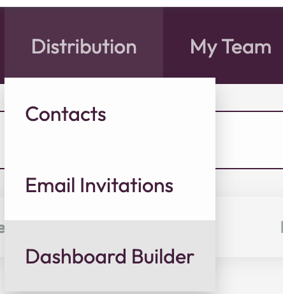
1.1 In the Distribution dropdown on the navigation bar, select Dashboard Builder.
1.2 On the Dashboard Builder page, click 'Create dashboard'.
1.3 Select the questionnaire you want to connect the dashboard with.
1.4 Choose the flow: create dashboard with system-generated handles or configure your own handles first
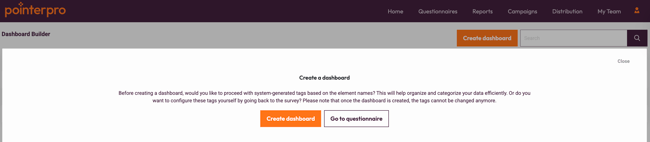
- Create dashboard - a basic dashboard is created and opened in "view mode".
- Go to questionnaire - your questionnaire is opened in the Edit mode to configure handles
NOTE
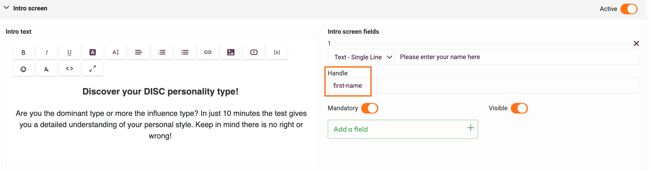
Handle is a short name that can be system-generated or configured by admins; it is used as a title in Dashboard Builder dataset. It should be short and easy for you to understand what data option from the questionnaire this handle refers to.For example, you have a question 'When working in team, what role do you take?' so the handle could be 'role-in-team'.
Handle is a text field that can be configured for:
-
Intro screen questions
-
Regular questions
-
Outcomes
- Formulas
This is how it looks like in the Questionnaire Builder for Intro screen question:
 or for regular question:
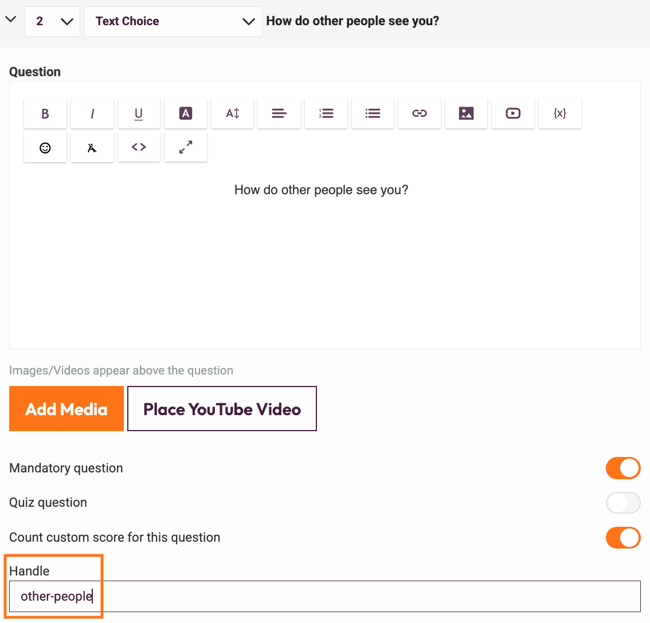
A system generate handle will be a copy of your actual question, formula or outcome title. However, if you have long questions we recommend adding your own handles for ease of use.
If this is the first dashboard you're creating for this questionnaire, the basic dashboard will not contain any data at first. Your data is still being processed and will gradually become available. It could take a minute (or two) before the first responses are visible in the dashboard. You'll need to refresh the page to see the change.
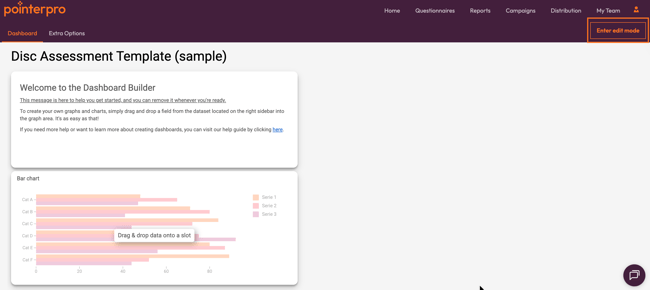
1.5 Click "Enter edit mode" to customize the dashboard
2. Add widget items to your dashboard
2.1 On the top left corner, Click + Add item
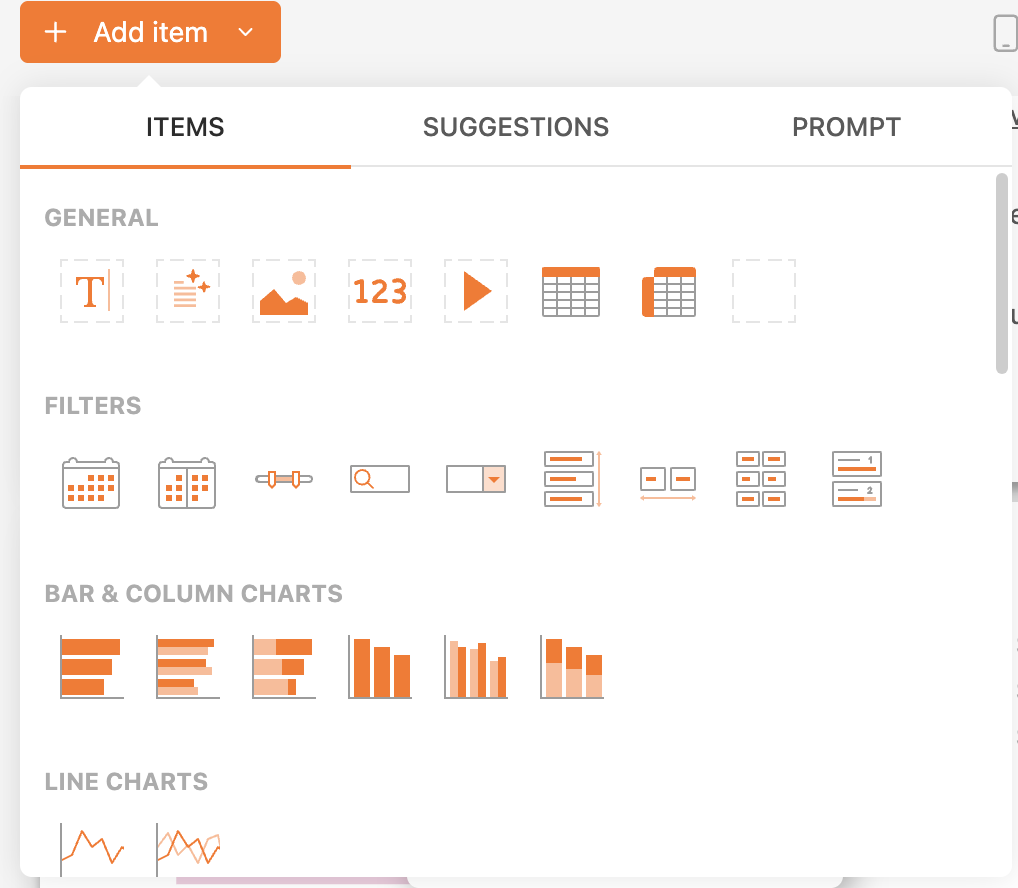
You have more than 50 widgets and charts to add to your dashboard.
2.2 Example: Add text blocks for additional information
- Add a Text widget to your dashboard
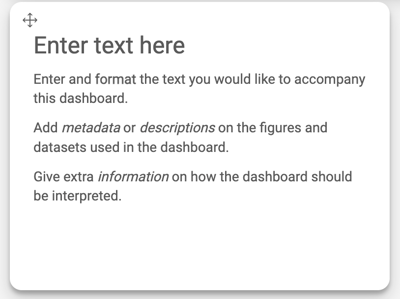
- Write your content in the text editor
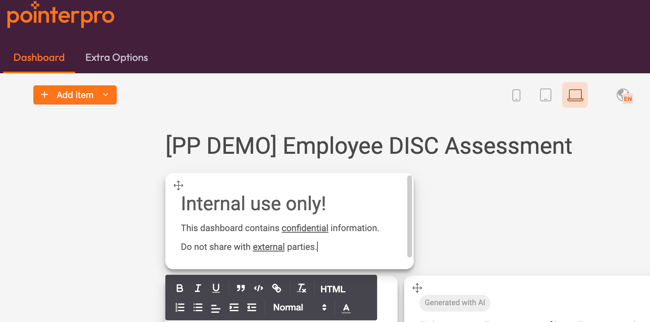
2.3 Example: Add image blocks to include a logo of your brand
- Add an Image widget to your dashboard
- Click on the Settings button on the top right corner of the image widget. The settings of the image will appear. Click the Upload button and select your image to upload.
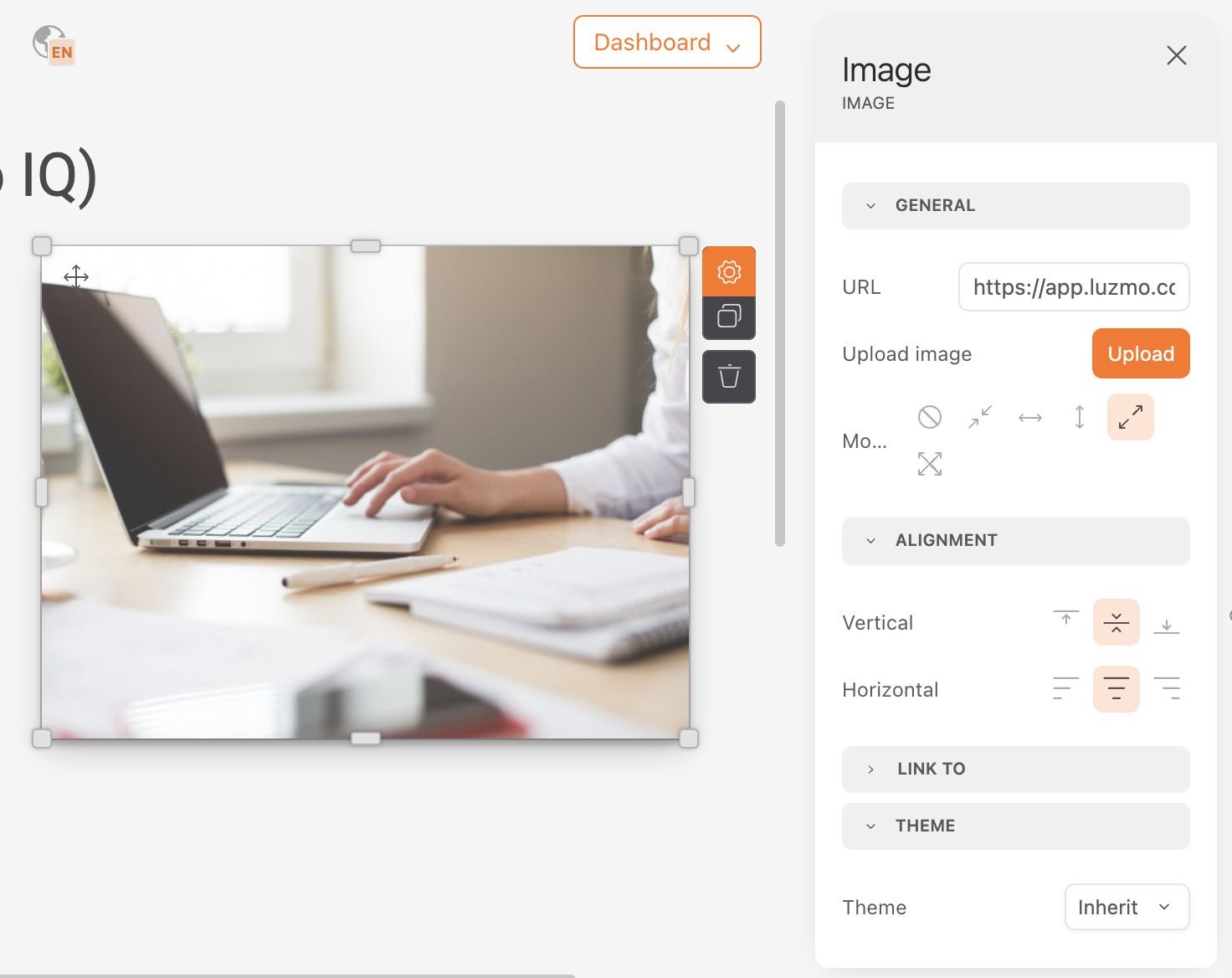
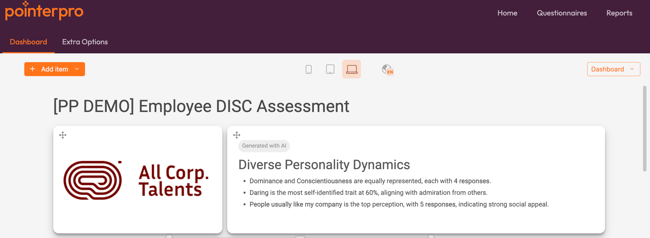
- There you go! Now your logo is added to the dashboard. You can also upload any other images to make this dashboard unique and fit your brand.
3. Connect dataset to your widget items
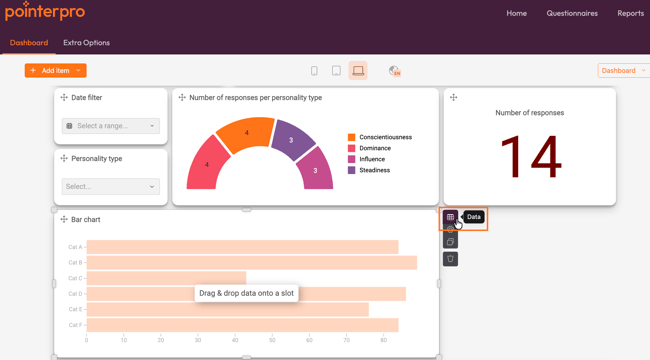
Click on the widget and you will see some options on the right hand side of the widget. Click on the first option 'Data'.
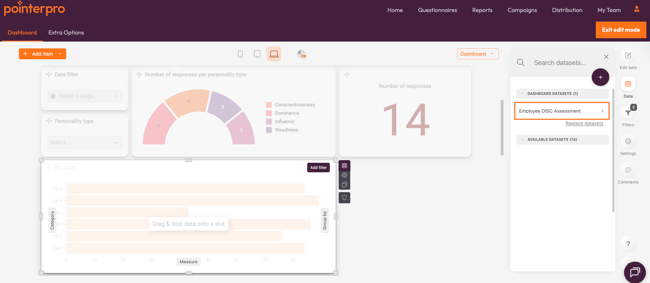
Now on the right side of the screen you have a list of datasets available for you to add to this dashboard. Open the dataset by clicking on it
3.1 Configure a bar chart
Let's see how we can visualize all the responses to Question 1 in the bar chart.
- In the dataset find the handle you added or the system-generated handle for Question 1 and drag and drop it on the Category label on the bar chart:
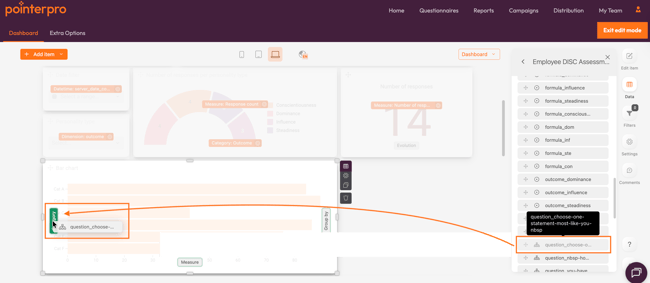
- Done! All the answer options for Question 1 automatically loaded into the bar chart.
You can now further configure and customize your chart:
-
Change the title of the chart. For example, change it to the question title.
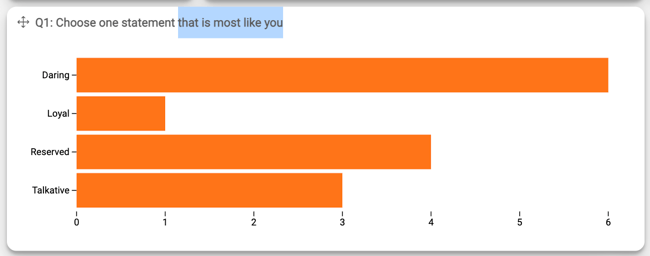
-
Click on the chart and open Settings (gear icon) in the upper right corner menu to access additional configuration options
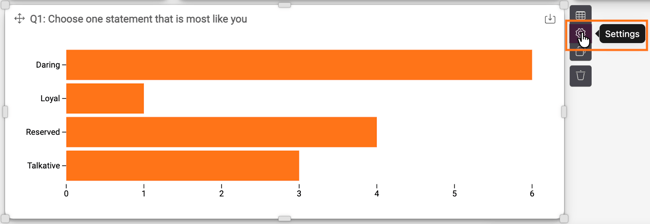
- In the example below we selected Show value in bar > absolute and put toggle Bar color by category on. This is how the result looks like:
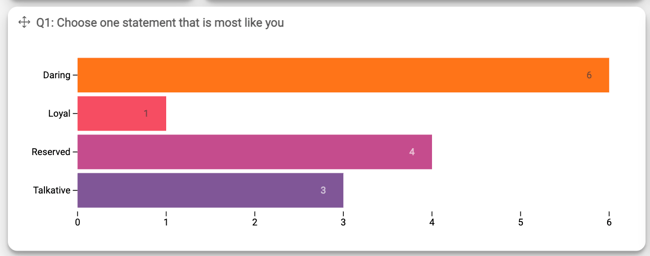
3.2 Configure a donut chart
Lets add a donut chart to our dashboard. For example, we would like to visualize Outcomes % distribution
- Click +Add item and select a donut chart (or any other option in this category)
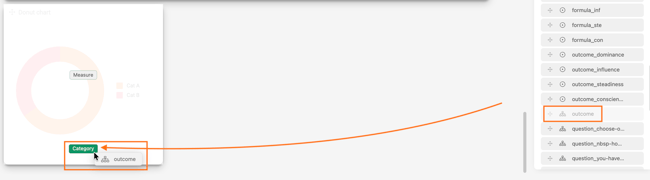
- Select Outcome column from your dataset, drag and drop it on the Category label of the donut chart.
-
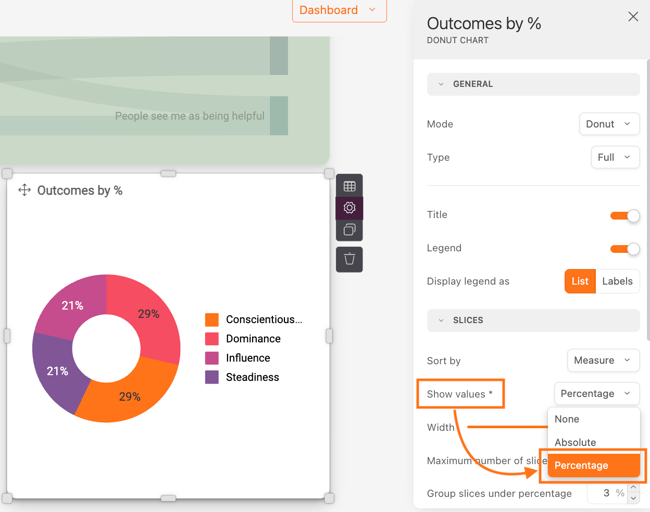
There you go! The data is connected and now you can see a distribution of the Outcomes. Just like before we also change the chart title and in settings switch to Show values > Percentage
-
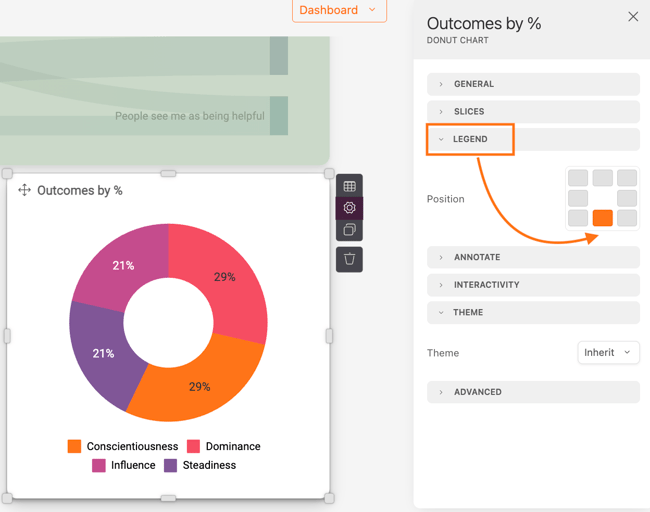
To adjust the position of the legend, click Legend in the settings of the donut chart and select the layout.
4. Basic dashboard settings
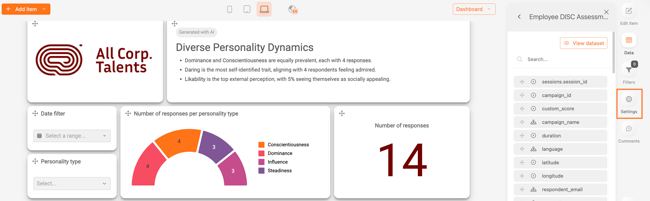
To adjust the overall settings of the dashboard, click on the settings icon on the right hand side. Let's go over some of the fundamental options.
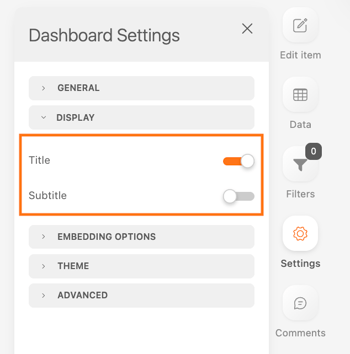
4.1 Dashboard title and subtitle
You can toggle on and off the options to show title and subtitle of the dashboard, depending on the information you want to display.
4.2 Themes and colors
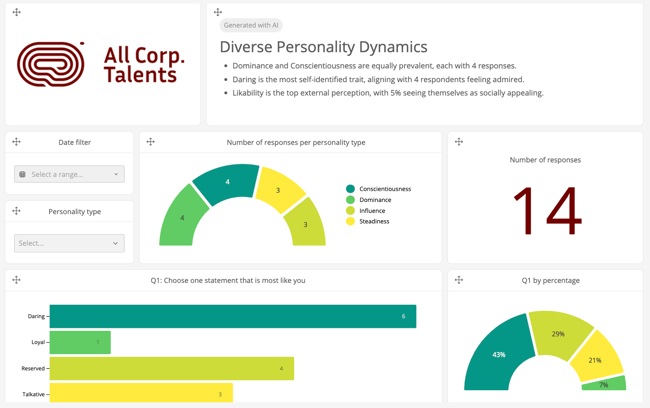
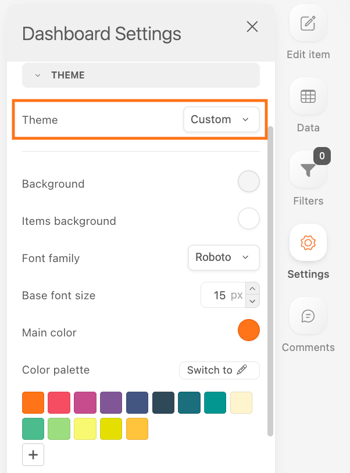
In the Theme section of the dashboard settings, you can choose one of the default color palettes or customize your own
Example of one of the themes:
If you choose Custom theme, you have the total control over how your dashboard looks like.
5. Export your dashboards
Do you need to send the results in your dashboard to your manager or colleagues by email? Do you want to show the dashboard in a presentation?
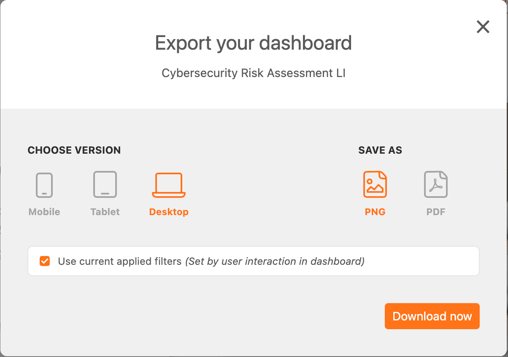
You can easily export your dashboards as PDF or PNG file.
- Click on the Dashboard dropdown button on the top right corner and select Export.
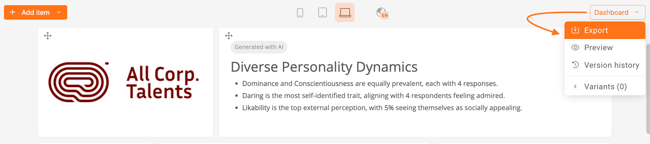
- A pop-up will appear and then you can export your dashboard.
- Dashboard Builder: datasets explained: Check detailed explanations on the datasets available for your to connect to your
- Getting started with the basic widgets on your dashboard: Widget items: general.
- Create filter widgets on your dashboard for an interactive data analytics experience: Widget items: filters
Don't want to build it yourself? Contact our professional services team