---
title: Final screen
description: The final screen aims to give a final message to your respondents, thank them for participating or add social media buttons. Test drive it for free today 👉
---
[Skip to content](https://help.pointerpro.com/final-screen#main-content)
[](https://pointerpro.com/)
- [Pricing](https://pointerpro.com/pricing)
- [Customer stories](https://pointerpro.com/case-studies)
Open main navigation
Close main navigation
- [Pricing](https://pointerpro.com/pricing)
- [Customer stories](https://pointerpro.com/case-studies)
- [New here? Explore what Pointerpro can do](https://www.pointerpro.com/)
[New here? Explore what Pointerpro can do](https://www.pointerpro.com/)
How can we help you?
- There are no suggestions because the search field is empty.
1. [Knowledge Base](https://help.pointerpro.com/?hsLang=en)
2. [Build & Design](https://help.pointerpro.com/build-design?hsLang=en)
3. [Intro Screen & Final Screen](https://help.pointerpro.com/build-design?hsLang=en#intro-screen-final-screen)
# Final screen
## Final screen aims to give a final message to your respondents, thank them for participating, give further instructions or leave some extra information.
Final screen is the last things your respondents will see before closing the questionnaire.This is also the page where you can add your [social media icons](https://help.pointerpro.com/migration/knowledge/social-media?hsLang=en) to enable your respondents to like or share your questionnaire, your Facebook page or website.
##### You'll need this:
- One of these Pointerpro plans:
 Professional  Enterprise  ReportR  DistributR
---
NOTE
If you are planning to set up [outcomes](https://help.pointerpro.com/migration/knowledge/outcomes?hsLang=en) to show a variable final page depending on the conditions that you set, the outcome will be displayed **instead** of the final screen discussed in this guide.
TIP
Are you wondering how to get started with building your own assessments with personalized feedback? Try our onboarding cookbook: a tool that provides you with a personalized cookbook of all the information and Pointerpro features to build what you need. [Start the assessment](https://s.surveyanyplace.com/rronboarding?cf1=helpguide)
##### On this help guide page:
1. [Setting the Final screen](https://help.pointerpro.com/final-screen#setting-final-screen)
2. [Additional options](https://help.pointerpro.com/final-screen#additional-options)
---
#### 1. Setting the Final screen
#### 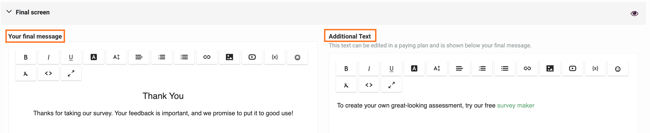
- **Your final message** - Edit the text that will be shown on your last page. Learn how to use the [text editor](https://help.pointerpro.com/migration/knowledge/text-editor-wysiwyg?hsLang=en) to make your text bigger, change the color, add emojis, personalize with variables, and more.
- **Additional Text** - If you’re using [outcomes](https://help.pointerpro.com/outcomes?hsLang=en) and you want to show some text that will be the *same* in each outcome, add it here in the additional text box since the additional text won't be overwritten by the outcomes. Originally there is a link that redirects the respondent to our website. This link can be deleted or changed (if you are not a *free* user).
#### 2. Additional options
You can add two buttons for your respondents on the final screen:
- **Final button** - This is great for the last call to action, like book a meeting or redirect respondents to your website
- **Download button** - Is used by respondents to download their personalised PDF report (for *ReportR* and *DistributR* plans)
**Final button settings**
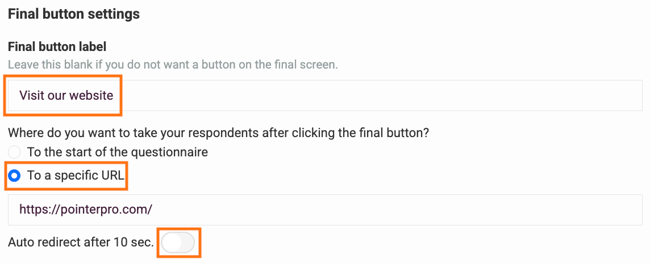
1. **Final button label** - If you want to redirect users to another web page, add text here that will appear on the button. For example, '*Visit our website*', or '*Go to the Facebook page*' or '*Return to start*' to get back to the start of the questionnaire. If you don't want a button on your last page just leave this field **empty**.
2. **Where do you want to take your respondents after clicking the final button?** - Choose between a redirect 'To the start of the questionnaire' or 'To a specific URL'.
3. **Auto redirect after 10 sec.** - Toggle the button to set this auto-redirect. If it is set to off, the respondent will stay on the last page until they click the button or leave the survey. If you switch it on, the page will automatically redirect to the beginning of the survey, or to the link you have set.
**Download button settings**
**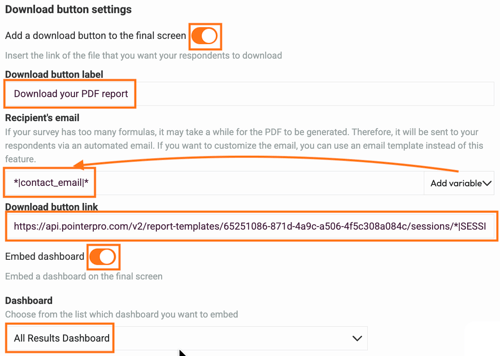**
1. **Add a download button to the final screen** - To initiate the download of a file. This can be a file of your choice or a personalised PDF report for each respondent (the download button feature is only available on the ReportR and DistributR plans).
2. **Download button label** - Add text here that will appear on the button. For example, '*Download your PDF report*'. Note that the download button label cannot exceed 30 characters and the PDF file will be opened in a *new tab* of the browser.
3. **Recepient's email** - If your survey has too many formulas (as of *100 formulas*), it may take time for the PDF to be generated. Therefore, it will be sent to your respondents via an automated email. Choose recipient's email address from the *Add variable* menu.
If you want to customise the email, you can use an [email template](https://help.pointerpro.com/email-templates?hsLang=en) instead of this feature.
4. **Download button link** - Add a link to your own file or a personalised PDF report by copying a link from Share tab of the Report Builder (*see image below*).
5. **Embed dashboard** - Add a dashboard to your final screen. You can choose a dashboard from a list. You can find more information on how to set up the dashboard [here](https://help.pointerpro.com/migration/knowledge/embed-a-dashboard-on-the-final-screen?hsLang=en).
NOTE
If you have set up a [personalized PDF report](https://help.pointerpro.com/migration/knowledge/create-your-first-pdf-with-renewed-report-builder?hsLang=en) for each respondent, copy the download link from the Share tab in the ReportR settings and then simply paste it into the download button link box.
TIP
You can also add [Survey Widgets](https://help.pointerpro.com/migration/knowledge/survey-widgets?hsLang=en) at your last page. Choose between gauge chart, thermometer or bar chart, and include variables in their data fields, to display customized data from the responses. Survey widgets are available for Enterprise and ReportR plans.
NOTE
When a questionnaire has the [limit responses per device](https://help.pointerpro.com/migration/knowledge/limit-the-responses-of-your-questionnaire?hsLang=en) feature enabled and the respondent has already taken the questionnaire, he is immediately redirected to the last page on load of the questionnaire without any notice.
---
#### What's next?
- The [email templates](https://help.pointerpro.com/migration/knowledge/email-templates?hsLang=en) feature allows you to send emails to your respondents based on their selected answers or a quiz/survey score. This is a great way to keep your respondents engaged! Email templates are so useful because each email can be customized according to each respondent's answers or score using editor variables.
- [Multiple outcomes](https://help.pointerpro.com/migration/knowledge/multiple-outcomes-example?hsLang=en) feature allows you to show to your respondents a final screen with multiple different results based on their answers or other criteria you have specified. This is a very useful feature that can you can use to show multiple messages at your quiz results and to categorize, and personalize your last page.
- Use [Question grouping & Question blocks](https://help.pointerpro.com/migration/knowledge/question-grouping-question-blocks?hsLang=en): You might want to show more than one question on the screen to make your questionnaire seem shorter. Question grouping is just what you need! You can also activate or de-activate all questions in the question block with one click of a button.
---
#### Don't want to build it yourself? Contact our professional services team
Our team can help you design and set up your assessment from scratch. [Find out more and get in touch](https://calendly.com/anna-golumbovskaia-pointerpro/let-s-discuss-your-project).

- [Getting Started](https://help.pointerpro.com/getting-started?hsLang=en#main-content)
- [Getting Started](https://help.pointerpro.com/getting-started?hsLang=en#getting-started)
- [How To Guides](https://help.pointerpro.com/getting-started?hsLang=en#how-to-guides)
- [Glossary](https://help.pointerpro.com/getting-started?hsLang=en#glossary)
- [Build & Design](https://help.pointerpro.com/build-design?hsLang=en#main-content)
- [Intro Screen & Final Screen](https://help.pointerpro.com/build-design?hsLang=en#intro-screen-final-screen)
- [Question Types](https://help.pointerpro.com/build-design?hsLang=en#question-types)
- [Media & Variables](https://help.pointerpro.com/build-design?hsLang=en#media-variables)
- [Design your survey](https://help.pointerpro.com/build-design?hsLang=en#design-your-survey)
- [Campaigns](https://help.pointerpro.com/build-design?hsLang=en#campaigns)
- [FAQ](https://help.pointerpro.com/build-design?hsLang=en#faq)
- [Extra Options](https://help.pointerpro.com/extra-options?hsLang=en#main-content)
- [Text options](https://help.pointerpro.com/extra-options?hsLang=en#text-options)
- [Question logic](https://help.pointerpro.com/extra-options?hsLang=en#question-logic)
- [Custom scoring](https://help.pointerpro.com/extra-options?hsLang=en#custom-scoring)
- [Quiz Options](https://help.pointerpro.com/extra-options?hsLang=en#quiz-options)
- [Kiosk mode options](https://help.pointerpro.com/extra-options?hsLang=en#kiosk-mode-options)
- [Data collection options](https://help.pointerpro.com/extra-options?hsLang=en#data-collection-options)
- [Other options](https://help.pointerpro.com/extra-options?hsLang=en#other-options)
- [Integrations & API](https://help.pointerpro.com/extra-options?hsLang=en#integrations-api)
- [FAQ](https://help.pointerpro.com/extra-options?hsLang=en#faq)
- [Share & Results](https://help.pointerpro.com/share-results?hsLang=en#main-content)
- [Sharing your questionnaire](https://help.pointerpro.com/share-results?hsLang=en#sharing-your-questionnaire)
- [View Results](https://help.pointerpro.com/share-results?hsLang=en#view-results)
- [Results Dashboard](https://help.pointerpro.com/share-results?hsLang=en#results-dashboard)
- [Uploading and Downloading Results](https://help.pointerpro.com/share-results?hsLang=en#uploading-and-downloading-results)
- [FAQ](https://help.pointerpro.com/share-results?hsLang=en#faq)
- [Report Builder](https://help.pointerpro.com/report-builder?hsLang=en#main-content)
- [General](https://help.pointerpro.com/report-builder?hsLang=en#general)
- [Widgets](https://help.pointerpro.com/report-builder?hsLang=en#widgets)
- [Aggregate Reports](https://help.pointerpro.com/report-builder?hsLang=en#aggregate-reports)
- [FAQ](https://help.pointerpro.com/report-builder?hsLang=en#faq)
- [Legacy Report Builder \[deprecated\]](https://help.pointerpro.com/report-builder?hsLang=en#legacy-report-builder-deprecated)
- [Dashboard Builder](https://help.pointerpro.com/dashboard-builder?hsLang=en#main-content)
- [General](https://help.pointerpro.com/dashboard-builder?hsLang=en#general)
- [Widgets items](https://help.pointerpro.com/dashboard-builder?hsLang=en#widgets-items)
- [Distribution Portal](https://help.pointerpro.com/distribution-portal?hsLang=en#main-content)
- [Configuration](https://help.pointerpro.com/distribution-portal?hsLang=en#configuration)
- [Management & Administration](https://help.pointerpro.com/management-administration?hsLang=en#main-content)
- [Account & Billing](https://help.pointerpro.com/management-administration?hsLang=en#account-billing)
- [GDPR compliance](https://help.pointerpro.com/management-administration?hsLang=en#gdpr-compliance)
- [FAQ](https://help.pointerpro.com/management-administration?hsLang=en#faq)
[](http://pointerpro.com)
Can't find what you're looking for? Contact us at [support@pointerpro.com](mailto:support@pointerpro.com)
Copyright © 2026, Pointerpro