
NOTE
When would you want to convert your Excel to a CSV file?
- If you are sending out your survey in multiple languages, one of the ways to set up the translations is to download the list of everything that needs translating and do the translation work in Microsoft Excel. You will then need to upload all of the translations back to Pointerpro. After editing your Excel files, follow the steps above to convert your file to a CSV file ready for importing.
- A Typeahead Form question is perfect when you have many answers which you want the respondent to choose from. The respondent can search the list by typing the first letters of the word, and the corresponding answers will appear. The Typeahead Form has an added benefit over the Typeahead Autosuggest as you can upload extra information which will be automatically filled in when the respondent chooses the answer from the first field. The list of possible answers must be uploaded as a CSV file.
- Uploading a list of contacts. If you have more than a handful of contacts, uploading a CSV file of the contact details is the efficient way to do it! Contacts are the people you invite to participate in a questionnaire or campaign. Your contact list is the list of people to whom you will email a questionnaire invitation.
- Before launching your questionnaire or campaign, uploading contacts will allow you to subsequently make a unique link to the questionnaire which will allow the system to automatically identify the contact.
- You can track contacts' progress and pre-fill certain parts of the questionnaire with their data - always a good idea to save people time!
On this help guide page:
1. Microsoft Excel
Open your file and click the File menu. Click on Save As. Go to File Format and choose CSV UTF-8 (Comma delimited) (.csv).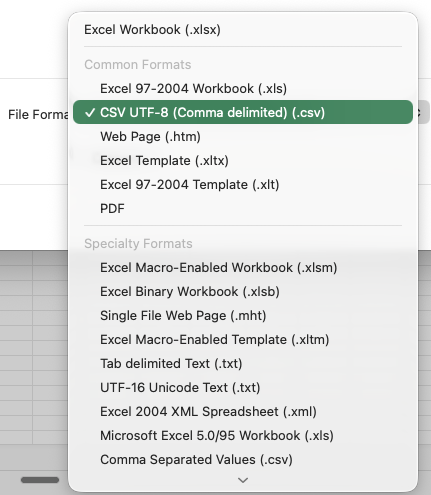
Click OK and save your file.
2. Google Sheets
Click on File to open the File menu. Choose Download and Comma Separated Values (.csv).
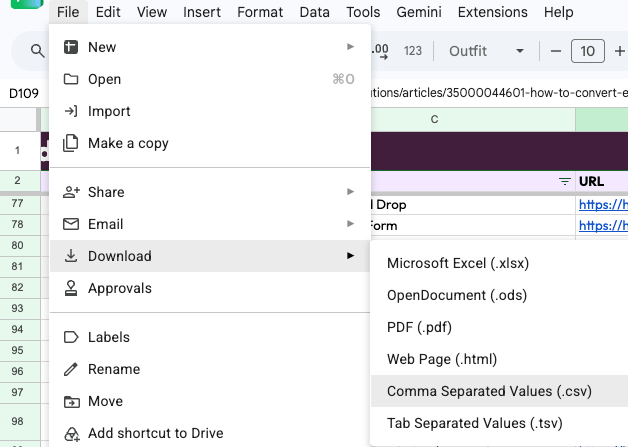
Now you have downloaded your file as a CSV.
Important Note:
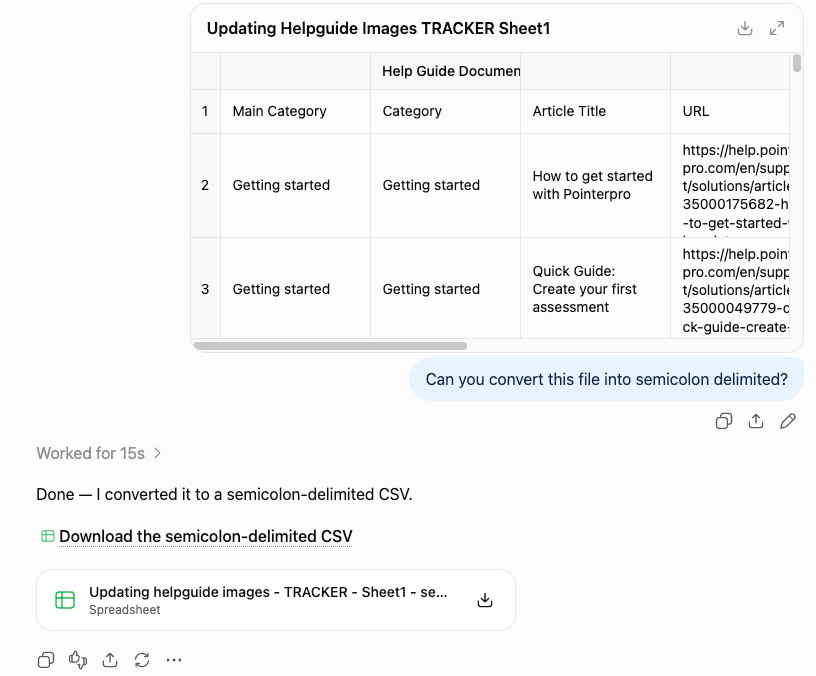
Pointerpro generally requires semicolon-delimited CSV files. You can easily convert comma-delimited files into semicolon-delimited files using ChatCPT or Claude.
What's next?
- Presentation view, to use your results in a presentation. You can easily switch between questions and show the answers and graphs in a clean and visual way to your audience. You can also use it when you are polling your audience at an event and show the live results as they come in.
- View question results feature allows you to show to your respondents how many people answered the same way or differently. It can be interesting for respondents to see how other people answered the same question and compare their results.
- Charts view: allows you monitor the number of responses, the completion rate and the average duration of your surveys. You can also see graphical representations of the results of each question separately and the results of each question block of your survey.