
You'll need this:
-
One of these Pointerpro plans:
 Professional
  Enterprise ReportR DistributR
On this help guide page:
- How to copy your Questionnaire
- How to copy your PDF report
- How to link a questionnaire to a PDF report
1. How to copy your Questionnaire
You can access all your questionnaires either from your homepage or the Questionnaires tab.
Go to the Questionnaires tab to view a list of all your questionnaires. If you're currently working in a questionnaire, make sure you've saved your changes first, then click Questionnaires at the top of the page.
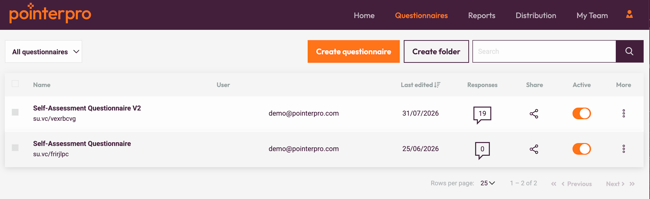
To quickly find the questionnaire you want to copy, use the search bar.

Next, click the three dots next to the questionnaire you want to copy, then select Copy.
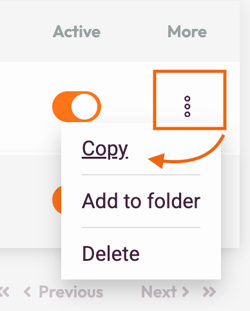
A dialog will appear asking what you would like to copy:
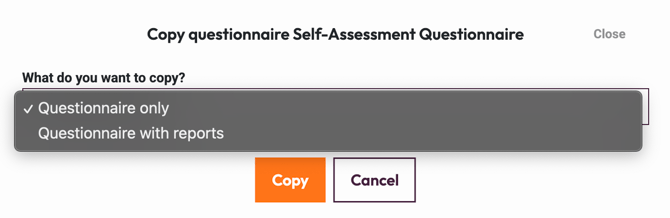
- Questionnaire only - Creates a copy of the questionnaire without its PDF report.
- Questionnaire with reports - Creates a copy of both the questionnaire and its linked PDF report (s).
Click Copy to start the process.
Copying is performed in the background. Once the copy is complete, you'll receive an email containing a link to your newly created questionnaire.
Responses collected in the original questionnaire are not copied!
Your new PDF report copy will have to be manually linked to the copy of the questionnaire! Read section 3 of this guide to learn how to link them.
Once your copy has been created, you can rename it by opening the questionnaire and editing its title at the top of the Questions tab.
2. How to copy a PDF report
You can create a copy of an existing PDF report to use as a starting point for a new report while keeping the original unchanged.
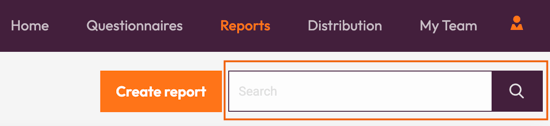
Go to the Reports tab to view all of your PDF reports.
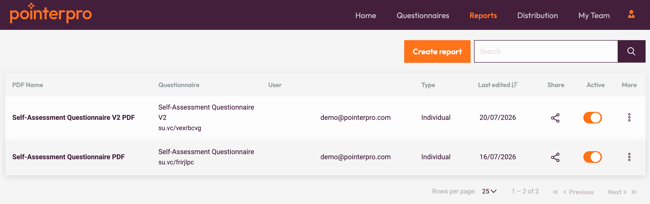
If you have many reports, use the Search bar to quickly find the one you want.
Click the three-dot menu next to the report you want to copy, then select Copy.
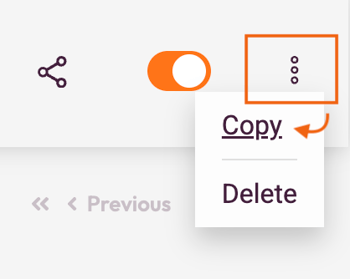
You'll be redirected to the copied report, where you can begin making changes immediately.

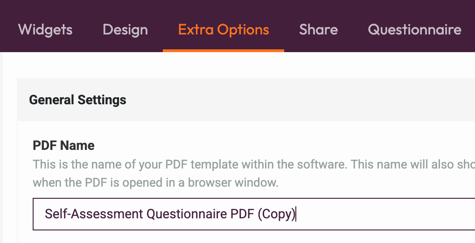
To rename the copied report, open the Extra Options tab and update the PDF Name field.
3. Updating your questionnaire to use the copied PDF report
After copying a PDF report, you'll need to update any download links that point to the original report. This ensures respondents receive the copied version instead.
Update the download button
-
Open the copied PDF report.
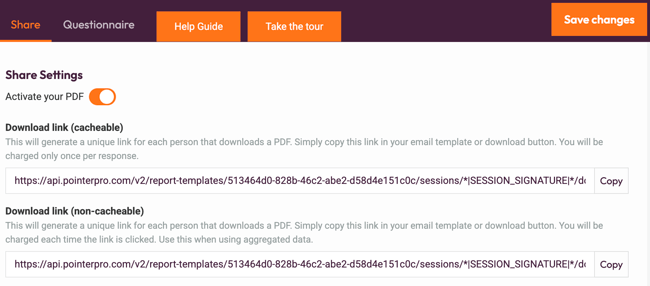
- Select the Share tab.
- Copy the Download link (cacheable) or Download link (non-cacheable), depending on your use case.
Now, open the questionnaire that should use the copied report and navigate to the Final Screen settings.
If needed, enable the Download button, and paste the copied download link into the Download button link field.
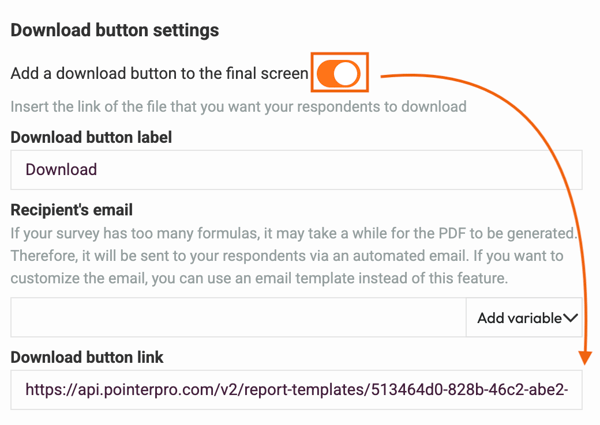
Don't forget to save your changes!
A questionnaire can only use PDF reports that belong to the same questionnaire. If a download link points to a report from a different questionnaire, respondents will receive an Unauthorized error when attempting to access it.
To transfer a PDF from one survey to another, please contact support@pointerpro.com
A copied questionnaire does not automatically update download links. If the questionnaire's final screen or any email templates contain a download link, you'll need to replace it with the link from the copied PDF report.
Take a look here for the details of updating email templates.
What is next?
- Create a Custom Button with HTML and add it into an outcome or the final page of your questionnaire, in order to embed a hidden hyperlink and redirect your respondents to the webpage of your choice. For example, you can send the respondents that suit specific criteria to a webpage or to allow them to download their report!
- Add formulas: Formulas is a great feature that allows you to calculate an average, custom score, average results and any advanced calculations, using the data and items from your questionnaire. You can use the /*-+() characteristics to create formulas that use variables like answers or quiz scores to calculate an average, for example.
- Add outcomes: Outcomes feature offers the possibility to make personality quizzes and business tests that end with advice based on the respondent's answers. That way, you can show to the respondents a final screen based on their answers to all questions or show a screen based on criteria that you have specified.