
Invitation variables are a way to set up and customize the variables that will be accessible when you create an email invitation either in Pointerpro or in the Distribution portal. This feature is particularly helpful when you need to include or exclude specific variables in the emails that you or your customers create.
-
One of these Pointerpro plans:
 Professional Enterprise ReportR
  DistributR
On this help guide page:
- Configure invitation variables
- Add the invitation variables in an email invitation
- Distribution portal invitation
1. Configure invitation variables
When you finish with the creation of your assessment and you are ready to share it, go to the Share tab and scroll down to find the Invitation variables tab.
Upon clicking on it, you will see a list with all the available additional variables. You can toggle on and off the buttons of the first column to activate or deactivate them. In below example, we only want a link with unique ID to be available in the email invitation to avoid that users select a survey link without contact unique ID (making the response untraceable).
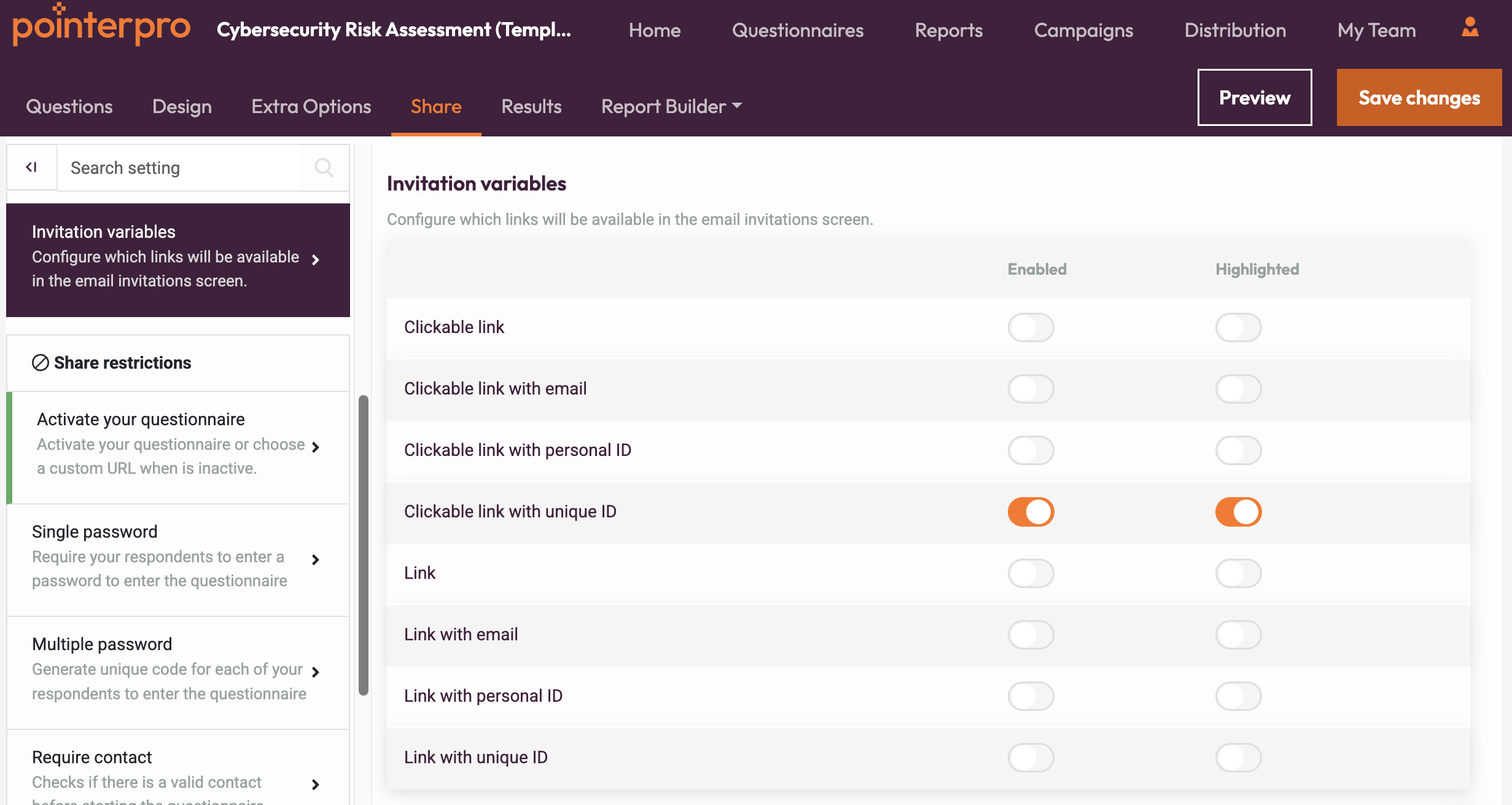
The second column allows you to highlight the selected variable and add it in a separate variables list on the email invitation screen.
Once you configure your variables, don't forget to save your changes.
2. Add the invitation variables in an email invitation
Create a new email invitation for your assessment. If you are not sure how to do it, you can find the step by step instructions here.
After adding the email title, sender name, email address, contact list and email subject, go to the email body and add your variables by clicking on the {X} button.
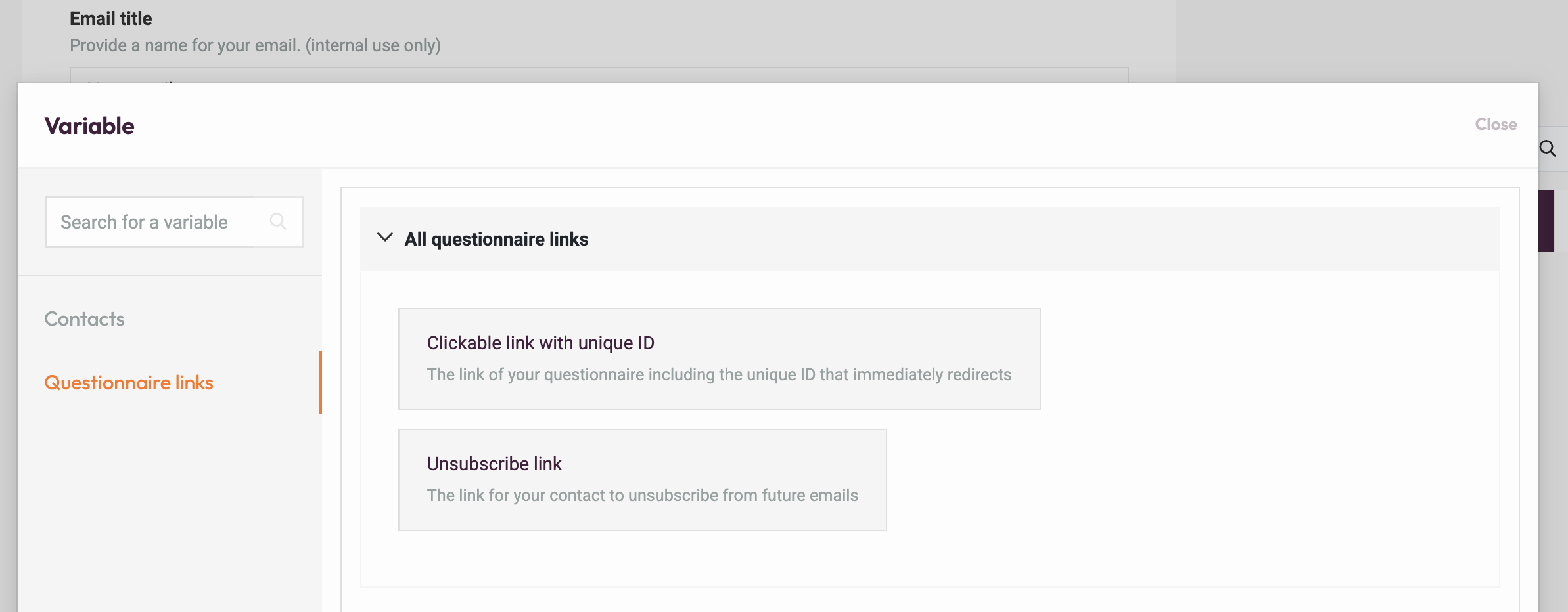
A pop up window will open, where you can select the variables you want to add in the email. If you haven't enabled any additional variables, then you will just use the default list.
If you enabled some variables, then only those variables will be available. In below example, only the Clickable link with unique ID is available as configured (the Unsubscribe link is always available).
3. Distribution portal email content
The Distribution portal variables that your customers can access when they create their email content, depend in a similar way on your configuration at the Invitation variables tab: the Distribution portal user can only use the variables you have configured.
What's next?
- Invitation template: Create a standardized email invitation template for your questionnaire, that will automatically load whenever a user creates a new email invitation for this questionnaire.
- Email notifications: Email notification feature allows you to receive a message every time the survey was completed. Enter your address and the address of colleagues who need to receive the messages as well.
- Configuring your Distribution Portal: Our online Distribution Portal endows you with a great opportunity: to sell your assessments as valuable digital products, to a maximized audience. As a consultant, coach or agency, you want to deliver quality advice to as many customers as possible and Distribution Portal allows you to plug into e-commerce websites through the magic of our developers’ application programming interface