
You'll need this:
-
One of these Pointerpro plans:
 Professional Enterprise ReportR DistributR
On this help guide page:
- Leaderboard
- Quiz timer
- Show quiz score as percentage
- Show quiz score in gauge
- View correct answer options
- View question results
- Question pool
- Randomize questions
- Outcomes screen at end of quiz
Features are available in all plans unless otherwise specified. Here is an example of a quiz you can take.
1. Leaderboard
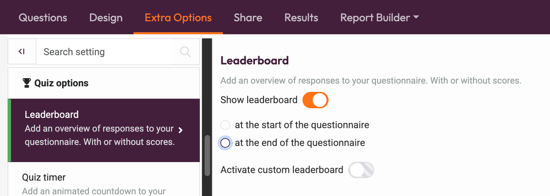
Use the leaderboard to add an overview of responses to your questionnaire, so your respondents can see how their score compares to their peers or colleagues.
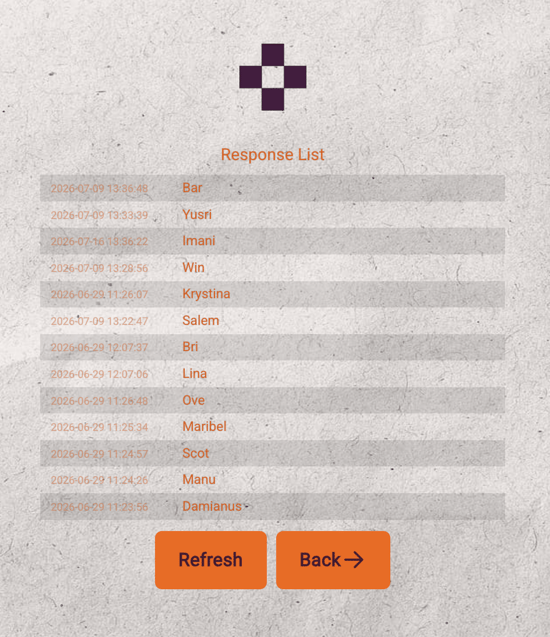
A leaderboard looks like this:
You'll find the Leaderboard in the Extra Options tab in the Quiz options section. You can choose to show the leaderboard at the beginning or the end of the questionnaire. Also, you can select whether your leaderboard will display scores or not.
2. Quiz timer
Add the quiz timer to limit the time your respondents will have to complete each question. This ensures the user will not have enough time to search for the answers on the web. You'll find this feature in the Extra Options tab in the Quiz options section.
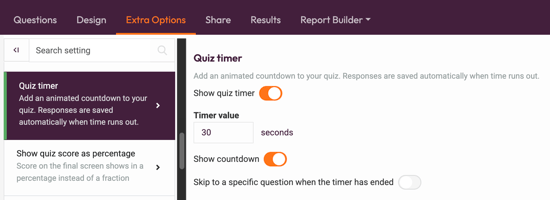
Choose how many seconds you want to allow for each question, whether to display the timer or not, and which question to skip to when the time is up.
3. Show quiz score as a percentage
The score a respondent obtains is shown on your final screen by default as a fraction, e.g., 3/5. You can select Show quiz score as a percentage, e.g., 60%. Find this in Quiz options at the Extra options tab.
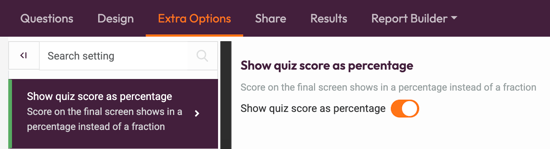
To be able to Show quiz score as a percentage you need to use the Show quiz score as a gauge feature first.
4. Show quiz score in a gauge
Turn on this option to show the quiz score as an animated gauge on the final screen. Find the button in the Quiz options on the Extra Options tab.
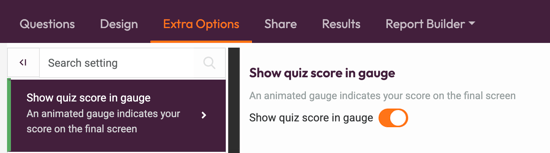
If you want to show your quiz score in a gauge and use Outcomes, we recommend choosing the basic outcomes screen.
5. View correct answer
When you turn this question into a quiz question, you'll see a text box where you can explain the correct answer.
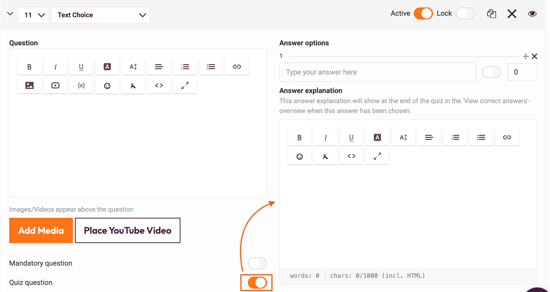
Only the following question types can be turned into a quiz question: Text Choice, Image Choice and Ranking question.
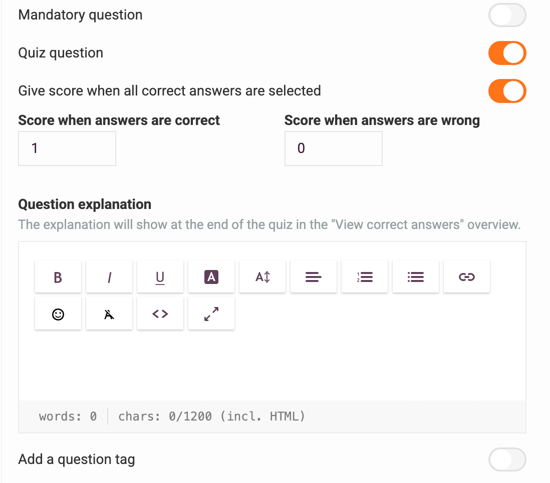
After you turn the question into a quiz question, the View correct answers is activated automatically, and more options become available. Toggle the buttons to choose which specific options are enabled/disabled. These selections will determine how your respondents will view their answers on the final screen.
The toggle Leave out indications on answers that weren't selected allows you to control whether the correct answer will be shown or not when the respondent selects the wrong answer. When enabled and the answer is wrong, the correct answer is not shown because that answer was not selected. The correct answer is shown only when the toggle is disabled. You can find this feature in the Extra Options tab in the View correct answers window.
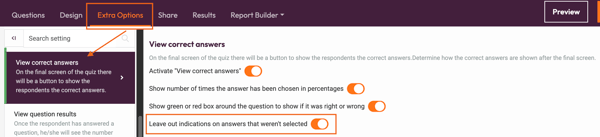
You can turn View Correct Answers off in the Extra Options tab.
At the end of the quiz, there will be a button for respondents to click View correct answers.
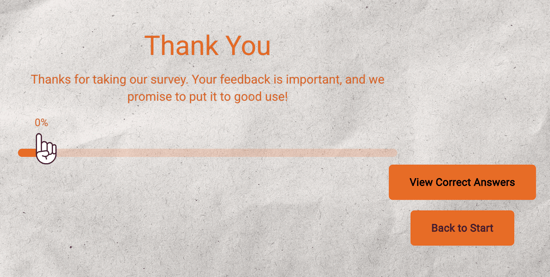
If you are using the survey in Offline Mode, then View Correct Answers can still be used, except for the option "Show number of times the answer has been chosen in percentages".
If you deactivate the last quiz question, View Correct Answers will also be disabled
6. View question results
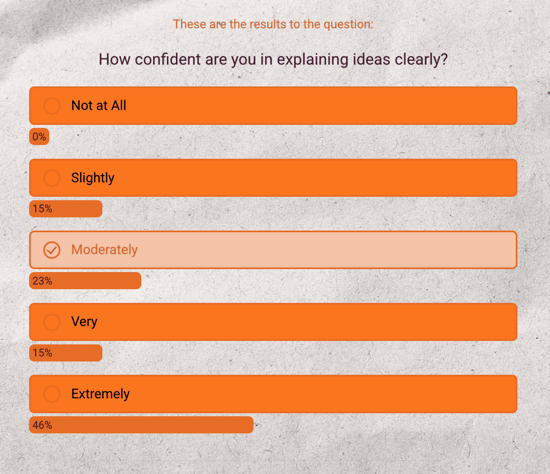
The feature view question results shows how many people answered the same way or differently. It can be interesting for respondents to see how other people answered the same question. To use this feature, make sure you create an API key in the Account menu.
7. Question pool
Use the question pool to group your questions and specify how many questions from the pool should be shown to each respondent. The questions will be randomly selected. If you have a quiz of 10 questions, a selection of 5 questions could be shown to each respondent, and you should get a better response rate with a shorter quiz.
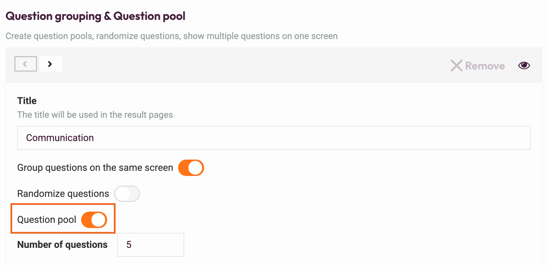
To group your questions into a question pool, click the Question grouping & Question pool option. You'll find it in the Question logic section at the Extra Options tab. You can put all your questions into one question pool or have some questions fixed and others in the question pool.
This feature is available in all paying plans.
8. Randomize questions
Randomize questions means that all of your questions will be shuffled in a random order every time someone opens the questionnaire. This can be useful for a quiz when you don't want respondents to look at each other's answers, as everyone will answer their questions in a different order.
You can choose to have some questions in a random order, and some questions, such as demographic data questions, fixed to show at the beginning of the survey.
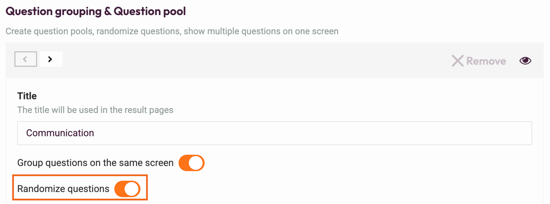
Randomise questions can only be done on question block level currently.
9. Outcomes screen at end of quiz
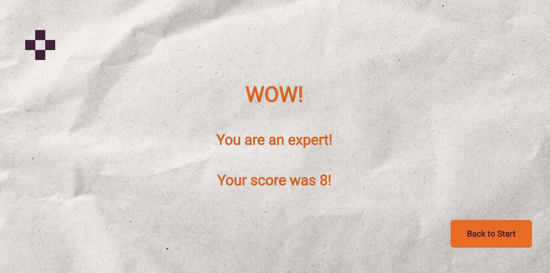
End your quiz on a high note by showing respondents a final screen based on their answers or score. For example, you could make three different screens for Expert, Intermediate, and Beginner. All correct answer options will be linked with the Expert screen, and other answers can be linked with the other screens. Whichever answer is chosen most frequently will determine which screen the respondent will see as the final screen.
Here's how your outcome screen could look:
What's next?
- Overview of different question types: we offer a large choice of question types to make your questionnaire entertaining and interactive. Select between Text Choice, Open-Ended, Image Choice, Radio Button Rating, Rating, Form, Ranking question and other!
- Create your first quiz: a quiz differs from a survey in that it is a short test of knowledge, often informal, and uses specific question types. Allocate scores for each answer when you build the quiz and respondents will receive a total score when they've taken the quiz.
- Edit Design Settings: customise your survey's design to match your company colors and identity. There are loads of different features for you to play around with. Each one works independently, so choose as many or as few as you fancy to customize your design!