
You'll need this:
-
One of these Pointerpro plans:
 Professional Enterprise
  ReportR DistributR
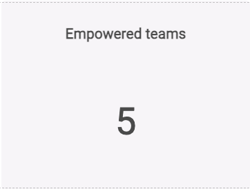
This is how the formula KPI will be displayed in the PDF report:
On this help guide page:
1. Add a Formula KPI widget to the page
To add the widget to the page, all you have to do is click on it and drag and drop it on the page.

If you would like to create columns and split your content in more widgets, then first you would need to select the number of columns you want.
You can find all the different column formats at the layout widgets.
Then you can drag and drop the column widget on your page and add the widget in the column.
Once you add the widget a pop-up window will open where you can setup your formula KPIs.
2. Setup the widget
Click Add KPI, then from the dropdown select the formulas which you want to display.
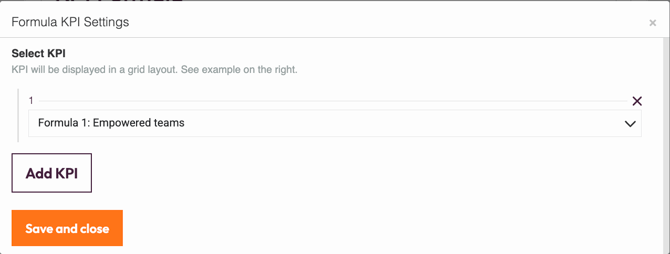
Click Add KPI to add as many formulas as you want to display.
3. Additional settings
Select the widget and then at the right of the screen click on the gear button. The widget list will be replaced by the additional settings.
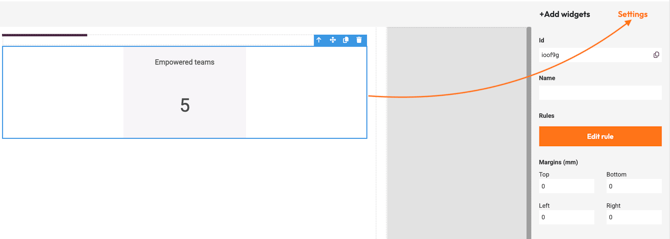
Here you can find the following settings:
1. ID
This is the ID of the widget.
2. Name
You can name your widget in order to identify it easier.
3. Rules
You can add your widget logic rules to ensure that your content will be visible only when the conditions are true.
4. Margins
Add margins to create space around elements and move them in your page. By default the margins are set to 0, but you can change that anytime and add the margin you prefer.
4. Additional buttons
When you click on your widget four blue buttons appear to the right.
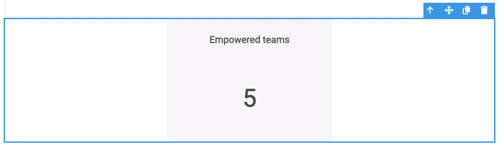
The Arrow allows you to move between the different layers of the page. For example if you add a widget in a column then you have 3 layers: the page, the column and the widget. The arrow allows you to quickly select a different layer.
The second icon, the four arrow sign, allows you to move your widget up or down to the page.
The third icon, the page, allows you to copy this widget and the forth icon, the bin, to delete it.
What's next?
- Renewed Report Builder-PDF step by step example: Check out our step by step guide to create an attractive and stylish PDF. It includes videos but also very detailed instructions.
- Basic Widgets: Table: The Table widget allows you to display results clearly and concisely to your respondents. It is an easy and fast way of displaying any data in rows and columns. Rather than writing your data in text, you can make it more understandable and easy to read with this widget.
- Basic Widgets: Text: The Report Builder text widget allows you to write and display your content in your report. You can use it to give further information about questions, give feedback or explain a particular answer. This is an absolutely essential building block of your PDF report.
Don't want to build it yourself? Contact our professional services team
Our team can help you design and set up your assessment from scratch. Find out more and get in touch.