
Every assessment you create in Pointerpro Core opens on the same assessment overview screen. Four tabs at the top take you through the whole journey — from building your assessment to designing how it looks, sending it out, and reading the results. This guide gives you a quick tour of each tab, so you know where to find everything.
You'll need this:
- One of these Pointerpro plans: Any plan, including a free account
- These additional assets: An assessment you've already created — see How to build and publish your assessment in the Build editor
On this help guide page:
- Build your assessment
- Brand your assessment and its results
- Publish your assessment
- Review your results
- Preview your assessment at any time
1. Build your assessment
Open an assessment from Questionnaires and you land on the Build tab. This is the build editor, where you create and edit the questions, groups, and logic of your assessment.
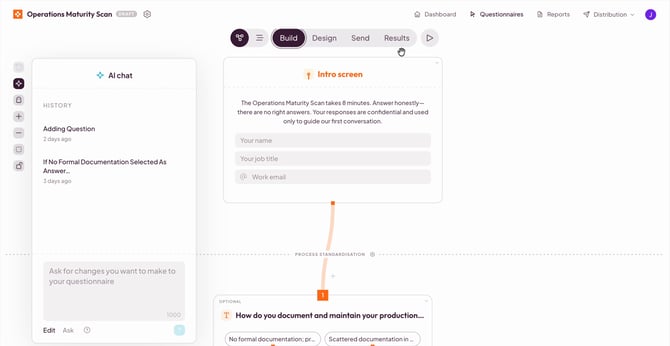 The Build tab, with the four tabs at the top of the screen.
NOTE
The build editor has a guide of its own - see How to build and publish your assessment in the Build editor
2. Brand your assessment and its results
Click Brand to control how your assessment looks. Use Logo, Colors, Fonts, and Layout at the top of the screen to adjust the styling. A live preview on the left shows your response form, and a preview on the right shows the personalized dashboard respondents get with their results.
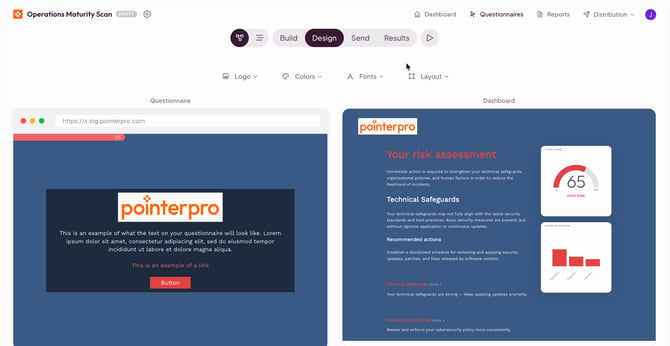 The Brand tab, with a response form preview on the left and a personalized dashboard preview on the right.
3. Publish your assessment
Once your assessment is built and designed, click Publish to share it with the people who need to complete it. You can send it by Email, Embed it on a web page, or share a Link. For email, choose your recipients with Select contacts, add a subject, and write your message.
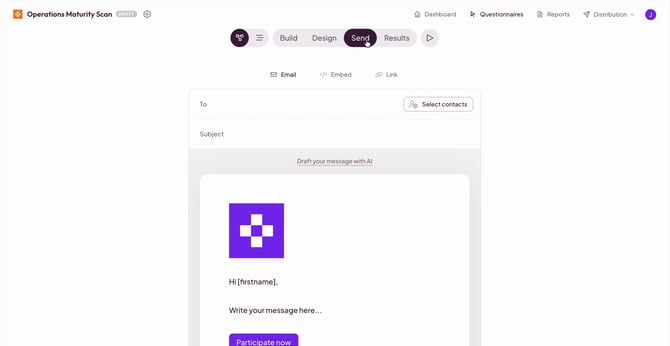 The Publish tab, with options to send by email, embed, or link.
TIP
Not sure what to write? Click Draft your message with AI to get a starting point for your email.
4. Review your results
Click Review to see how your assessment is performing. The Dashboard gives an overview of all responses, including the total number of responses, average score, average duration, and how respondents are spread across your outcomes. Switch to Responses to look at individual responses.
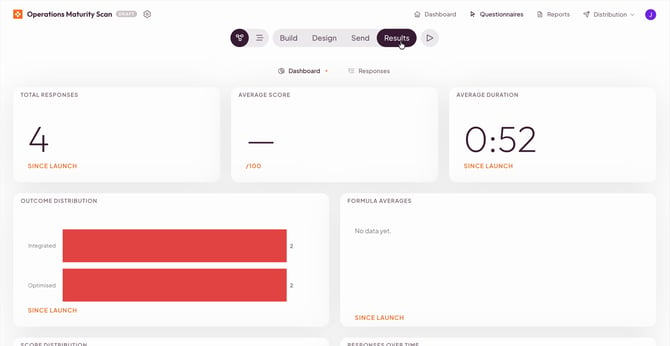 The Review tab, with a dashboard of overall responses.
5. Preview your assessment at any time
While you work on your assessment, click the play button next to the tabs (Preview questionnaire) to see it the way your respondents will. The preview works just like it always has in Pointerpro.
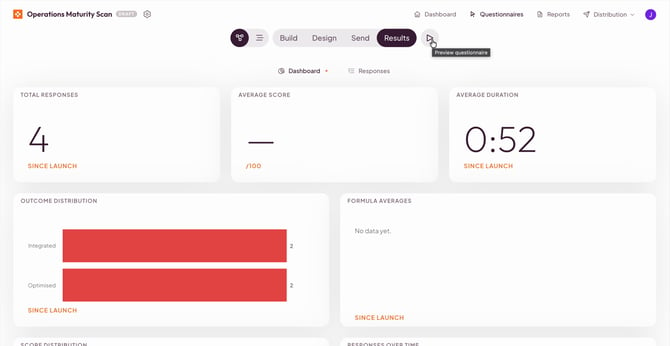 The Preview questionnaire button, next to the Review tab.
What's next?
- How to build and publish your assessment in the Build editor
- How to design your assessment's look and feel
- How to send your assessment to respondents
- How to review your results
Don't want to build it yourself? We offer professional services. Our team can help you design and set up your assessment from scratch. Find out more and get in touch.