
You'll need this:
-
One of these Pointerpro plans:
 Professional Enterprise ReportR
  DistributR
DistributR
The DistributR Plan is a subscription package that includes the entire suite of Pointerpro products: Questionnaire Software, Report Builder, and Distribution Portal. Access the full feature list of the DistributR plan here.
Distribution Portal
The Distribution Portal is a feature included in the DistributR Plan. It allows for seamless assessment and report distribution by utilizing three different access levels: the admin zone, the customer zone, and the contact zone.
On this help guide page:
1. Distribution Portal zones and user roles
2.2 Administrator
2.3 Distributor
2.4 Customer
2.5 Contact
4. How to configure user accounts
6. Contact zone
1. Distribution Portal zones and user roles
The Distribution Portal has different zones:
- Admin zone: The admin zone is accessible to users with the Administrator, Team Member or Distributor role in Pointerpro. Here, user accounts can be added and their access to functionalities, questionnaires, reports,... can be configured.
- Customer zone: The customer zone is accessible to users with the customer role. It features a separate interface branded with the administrator's organization. Customers can invite their contacts and send questionnaires to them in this zone.
- Contact zone: The contact zone is accessible to users with the contact role. It features a separate interface branded with the administrator's organization. Contacts can see an overview of the assessments they have been invited to participate in and their previous reports.
There are different levels of permissions in the Distribution Portal, that are configurable as roles.
- Super Administrator role (optional): The super administrator is responsible for assigning administrators, managing the license, viewing general statistics, and accessing logs of the organization. This role is only used in specific organizational structures.
- Administrator role: The administrator is responsible for managing users and their permissions, creating/managing questionnaires, and creating/managing reports. These users have access to all data created within the organization, which includes that of all other users.
- Distributor role (optional): The Distributor can create and manage his own customer accounts, send questionnaire invitations to his contacts, and view his own and his customers' results. This role is optional in the use of the Distribution Portal but available to those who wish to incorporate another hierarchical layer.
- Customer role: Users with the customer role distribute assessments to their network of respondents. They use the Customer Zone to send questionnaire campaigns to their contacts and download reports. Customers cannot edit any questionnaire or report content. They can only view or share the ones to which administrators grant them access.
- Contact role (optional): Users with the contact role are the respondents who receive invitations to complete assessments. After submitting their responses, they can download a personalized PDF report based on their results. Optionally, they can be given an account that they can use to see an overview of pending invitations and past reports.
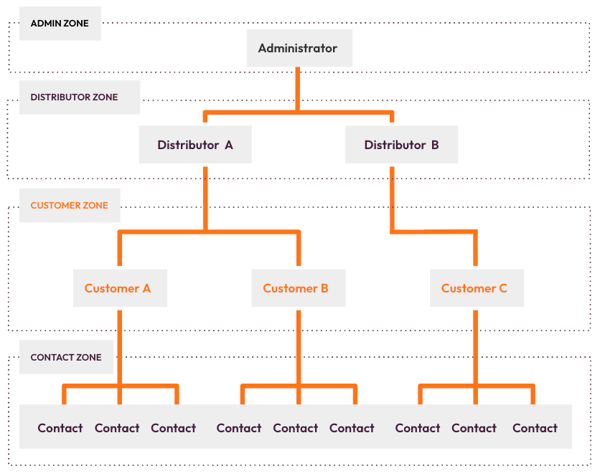
Now let's see all the role settings one by one and how you can create and manage your own Distribution Portal.
2. How to add users
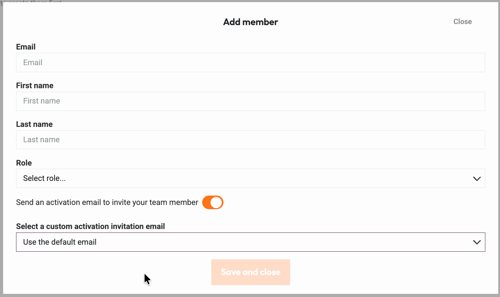
At the top right of the menu click on the My Team button. Then click the Add team member button.

Enter all the necessary information and select the needed role from the dropdown menu. If you configured custom activation invitation emails, you have the option to select one in the dropdown menu below.
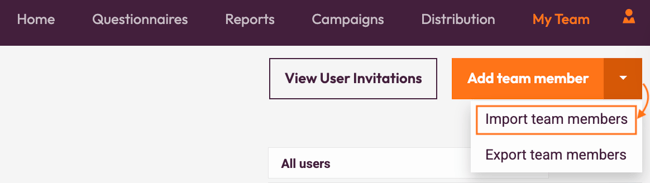
To create multiple users at once, upload a CSV file. Click on the arrow next to Add team member and then click on Import team members.
In the pop-up window you can download an example file or choose your file to select your CSV file to upload. Then click Upload and close.
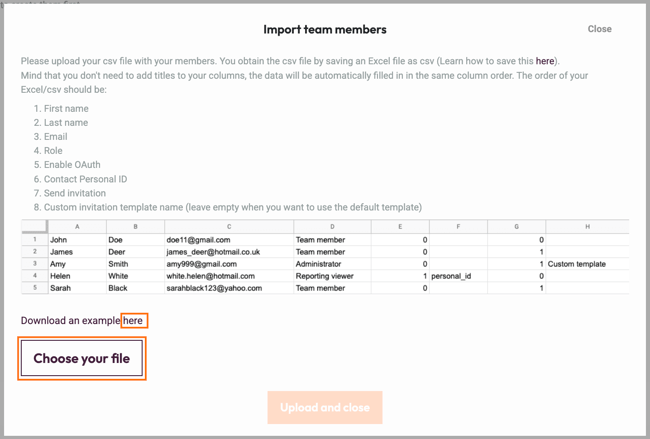
Depending on the amount of accounts, it could take some time to process.
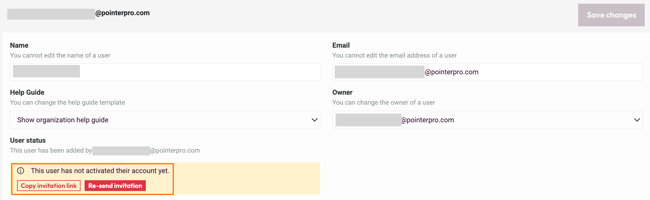
Once you added a user you will be able to see their status and if needed, re-send invitation.
2.1 Super Administrator
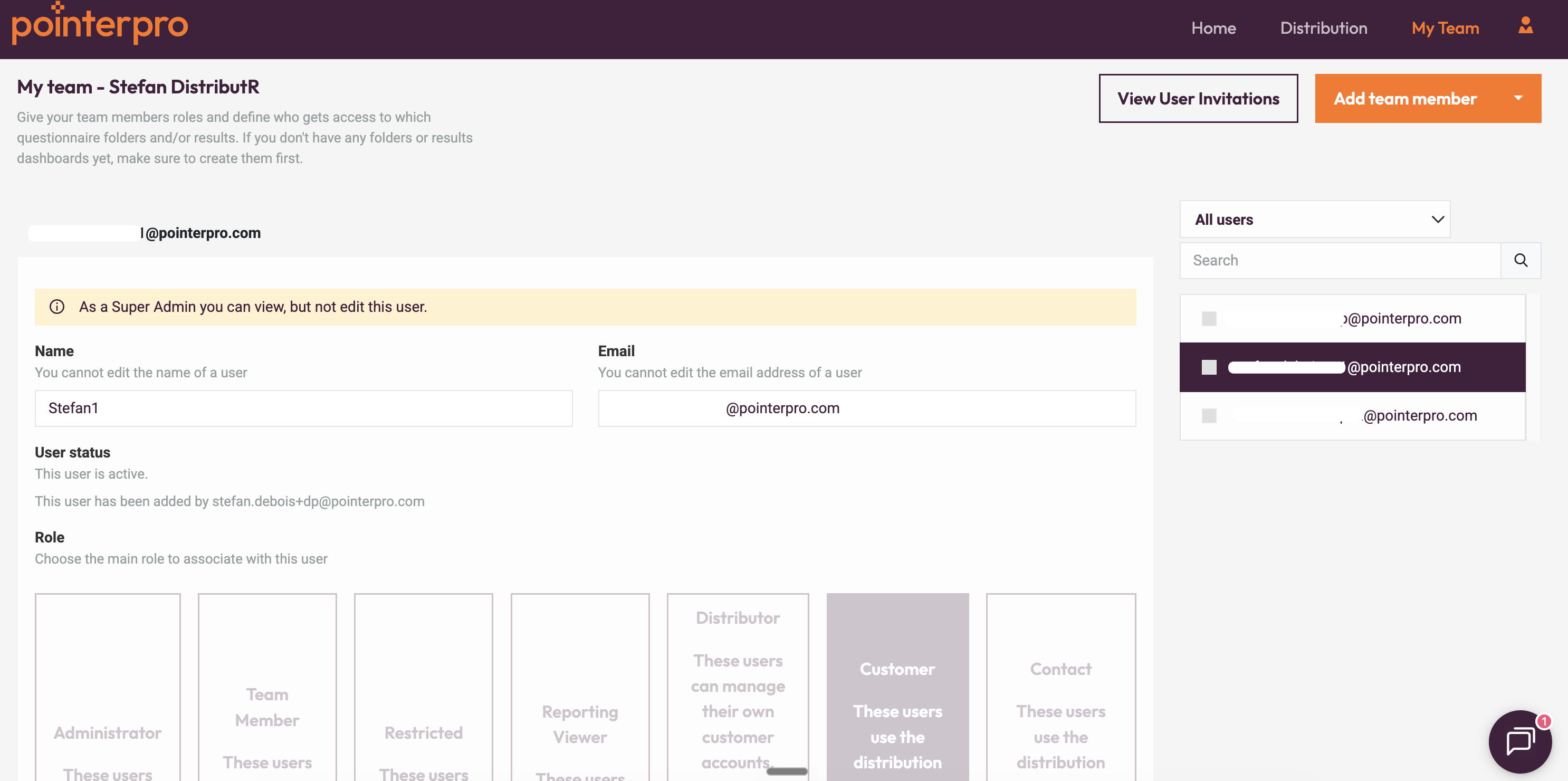
The Super Admin is at the top of the Distribution Portal hierarchy. The user with this role is responsible for assigning administrators and managing the license but cannot view or manage data like questionnaires, reports, contacts and invitations. They are only responsible for assigning administrators to manage that data.
It is not possible to create the Super Admin role from team management, contact us at support@pointerpro.com to do it for you.
2.2 Administrator
Administrators are the users who can use every aspect of the Pointerpro platform. They create & manage questionnaires, reports, dashboards, and users. They also have access to all data gathered by anyone in the organization.
In the DistributR plan, the main focus of an Administrator is to manage the content and the organization. The distribution of the questionnaires is still possible but can be delegated to other roles such as the Distributor and Customer.
2.3 Distributor
The main focus of a Distributor is to create and manage Customer accounts. You can still send questionnaire invitations directly to your own contacts and monitor your own and your customer's results if needed.
2.4 Customer
Customers can be created by Administrators, Team Members, or Distributors. They get access to the Customer zone of the Distribution Portal where they can add their Contacts and invite them to participate in questionnaires.
The main focus of a Customer is to manage their contacts, invite them to participate in questionnaires, and monitor the results.
In My Team, if you group some customers together in the same group, those customers will be able to see and use each other contacts in the Distribution portal.
The Customer role can also be used internally in larger organizations. For example: global HR employees are Administrators, local HR managers are Distributors, and local HR team members are Customers, who then invite local employees as Contacts.
2.5 Contact
Contacts are the respondents to your questionnaires. They can be invited via email, but it's also possible to create an account for them. This account is entirely optional and gives them access to the Contact Zone of the Distribution Portal. There they have an easy overview of their pending invitations and past reports.
3. How to configure user accounts
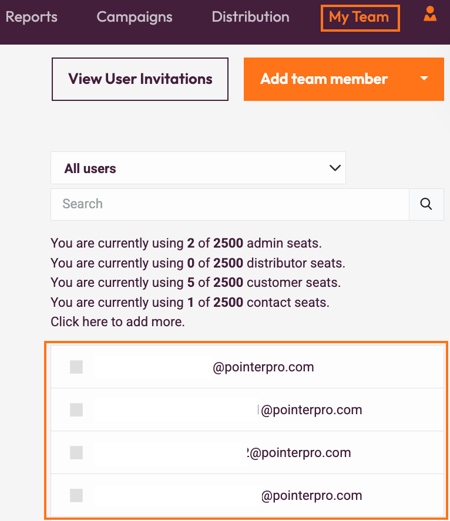
As an administrator or distributor, you can manage users and assign them roles and permissions. Just select the user from the list on the right of the My Team page.
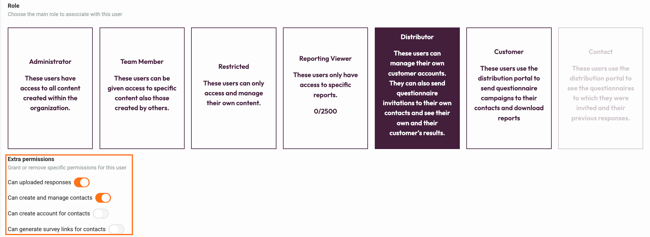
You can then select the new role you want to assign. Below the role, you can configure extra permissions for the selected user.
NOTE
The list of extra permissions is different depending on the role.
Extra permissions for Distributor role: Can uploaded responses, Can create and manage contacts, Can create account for contacts, Can generate survey links for contacts, Can delete contacts.
Extra permissions for Customer role: Can uploaded responses, Can create and manage contacts, Can create account for contacts, Can export response data, Can create campaigns from scratch, Can generate survey links for contacts, Can delete contacts.
In addition, you are able to configure the authorizations for the questionnaires, reports, and dashboards.
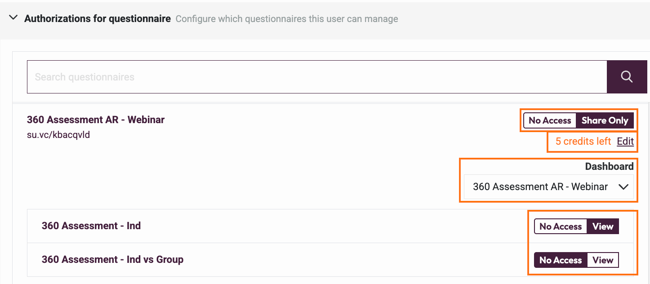
Select if the user will have No Access or Share Only authorization for each questionnaire separately.
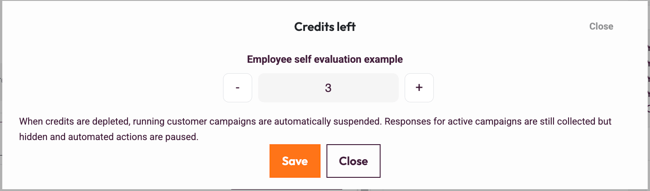
The credits field allows you to control the number of responses that this member will be able to collect for this questionnaire. Click Edit to assign the number of credits for the questionnaire. When credits are depleted, running customer campaigns are automatically suspended. Responses for active campaigns are still collected but hidden and automated actions are paused.
If you built a dashboard for the questionnaire using our Dashboard Builder functionality, you will be able to select it from the dropdown menu.
No Access or View for the personalized PDF report. When a questionnaire has more than one PDF report, all PDFs are displayed under the questionnaire and you will have to give permission for each PDF separately. This allows you to determine which users see which reports.
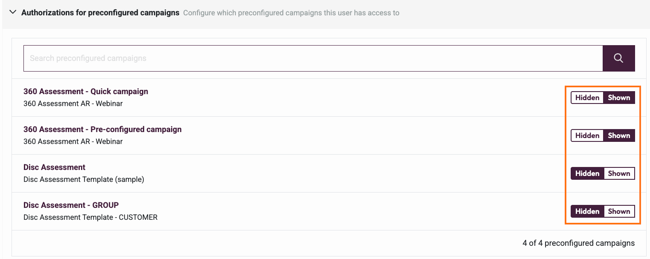
Next you can configure the authorizations for preconfigured campaigns. Select if it will be Hidden or Shown for the user.
If needed, you can add extra level of security for your users by configuring Two Factor Authentication.

And last, you can delete selected user. Please, use this with caution!

WARNING
5. Customer zone
The Customer zone's interface is completely different from the one the Super Administrator, Administrator, and Distributor use. It was created to be self-explanatory and built around their way of working.
This is what a customer first sees when he accesses the Customer Zone of the Distribution Portal.
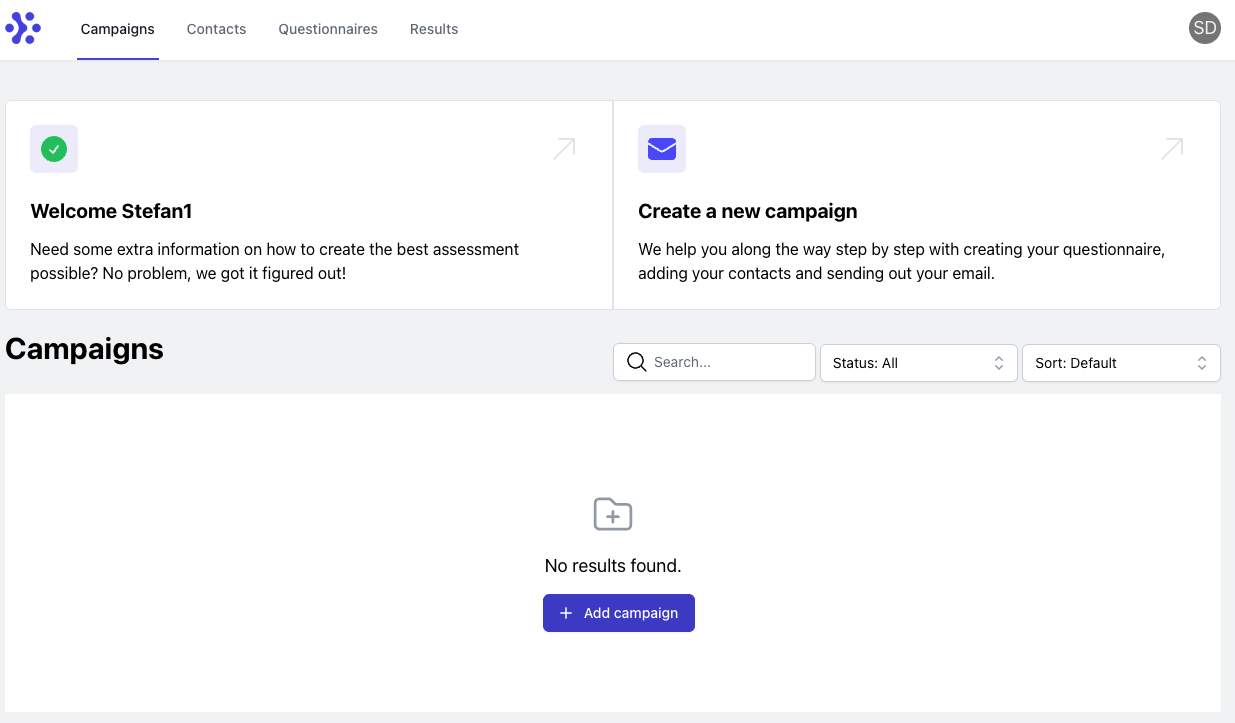
Customers are able to create their own campaigns to invite people to participate in a questionnaire. They can only use the questionnaires that were assigned to them.
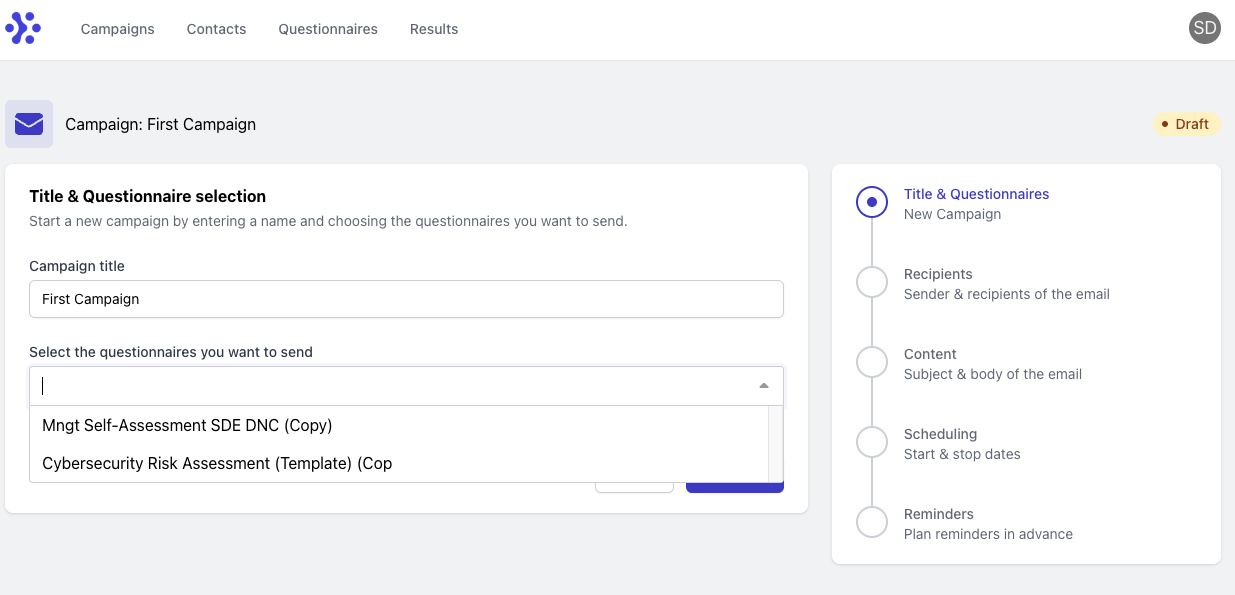
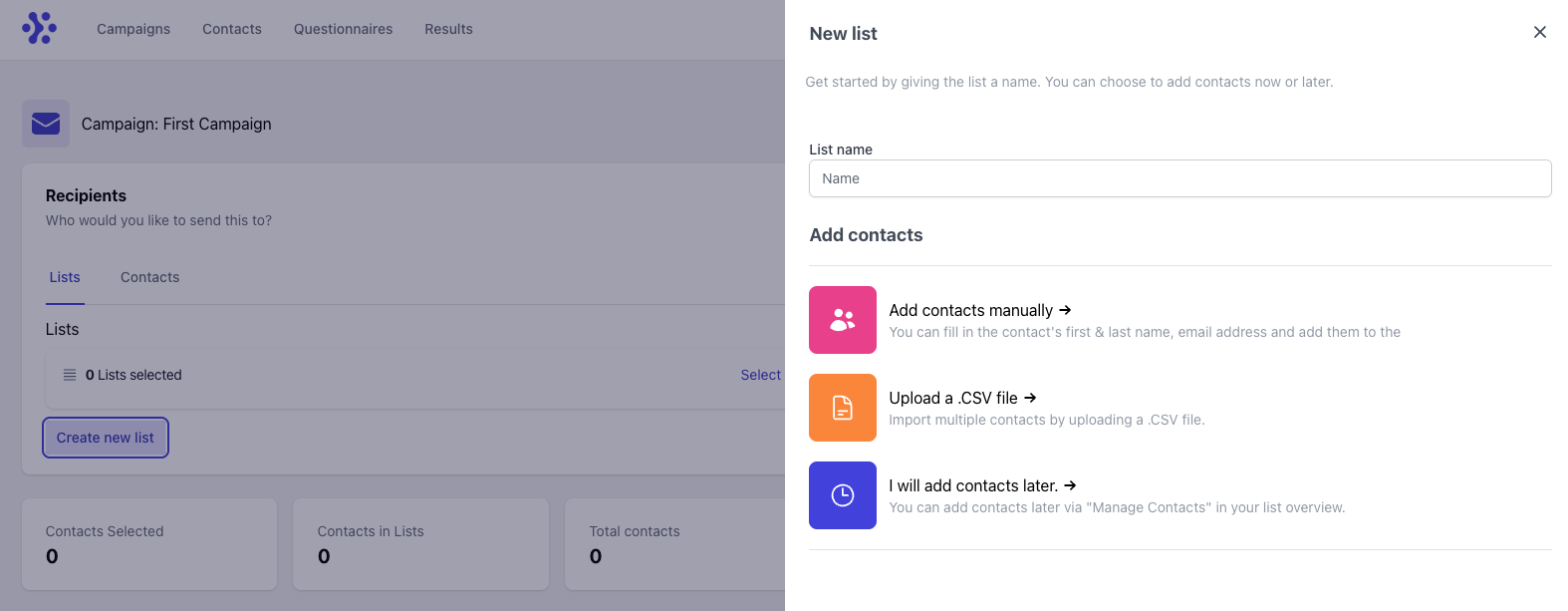
They can add contacts directly while creating a campaign. It's up to them if they want to use Lists to organize these contacts, upload them via a CSV, create them manually, or if they go for a hybrid setup.
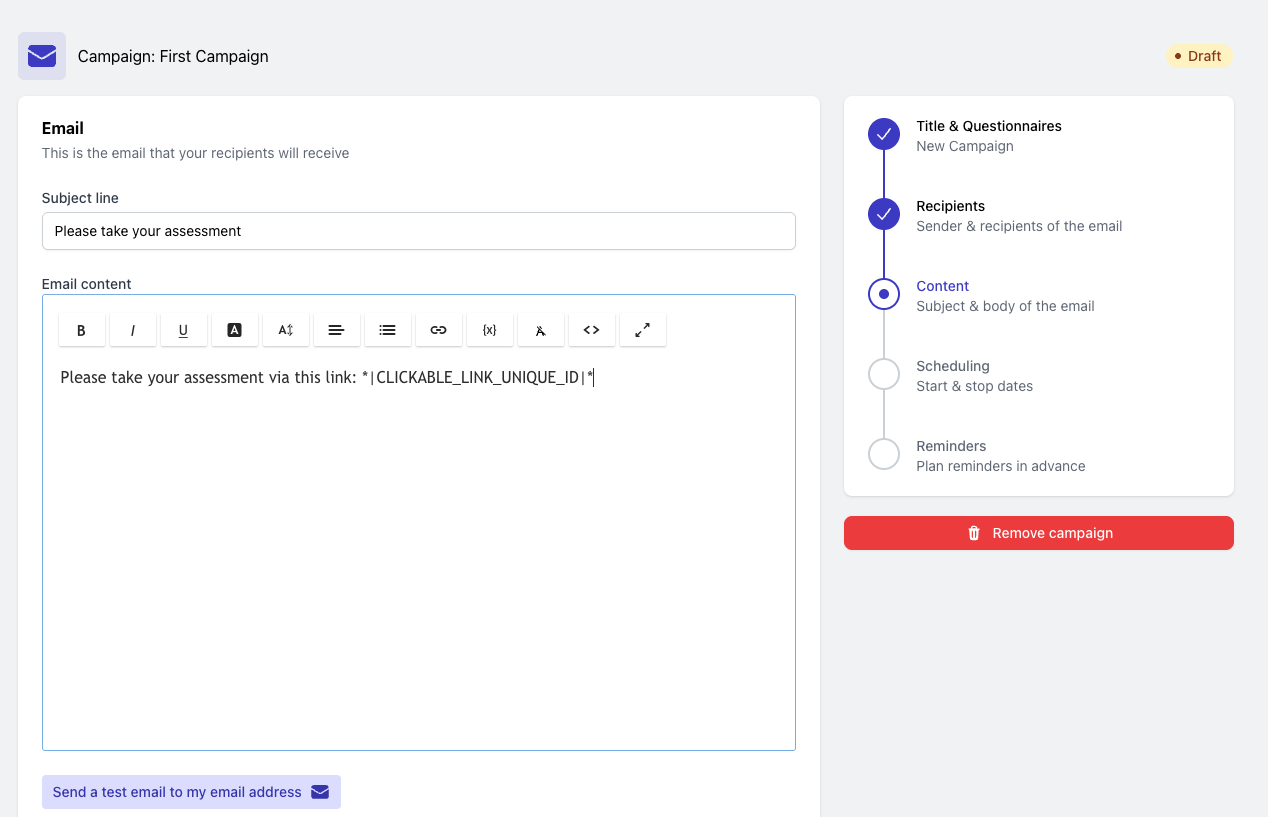
They can configure the invitation email just like the other roles.
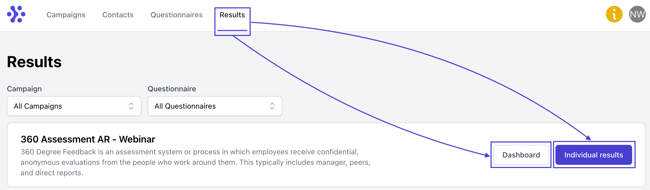
On the results page, they can view the dashboard, all collected individual responses and download the PDF reports that were granted to them.
It is possible to run different campaigns at the same time and control when those start and end. The status of each campaign can easily be found in the overview and within the campaign details.
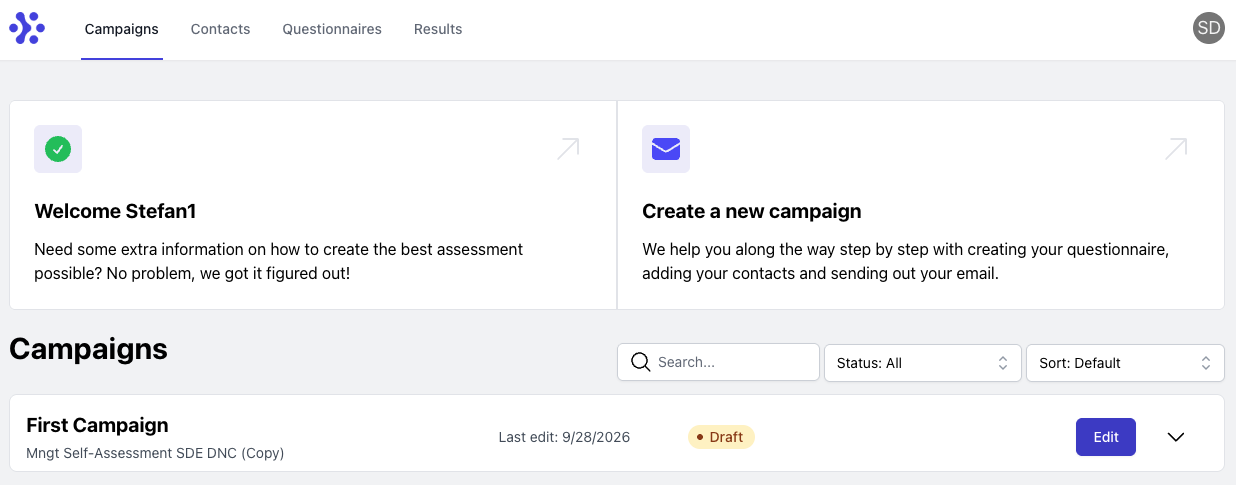
More information about the Customer Zone is available in the Customer-facing help guide we've prepared for you.
6. Contact zone
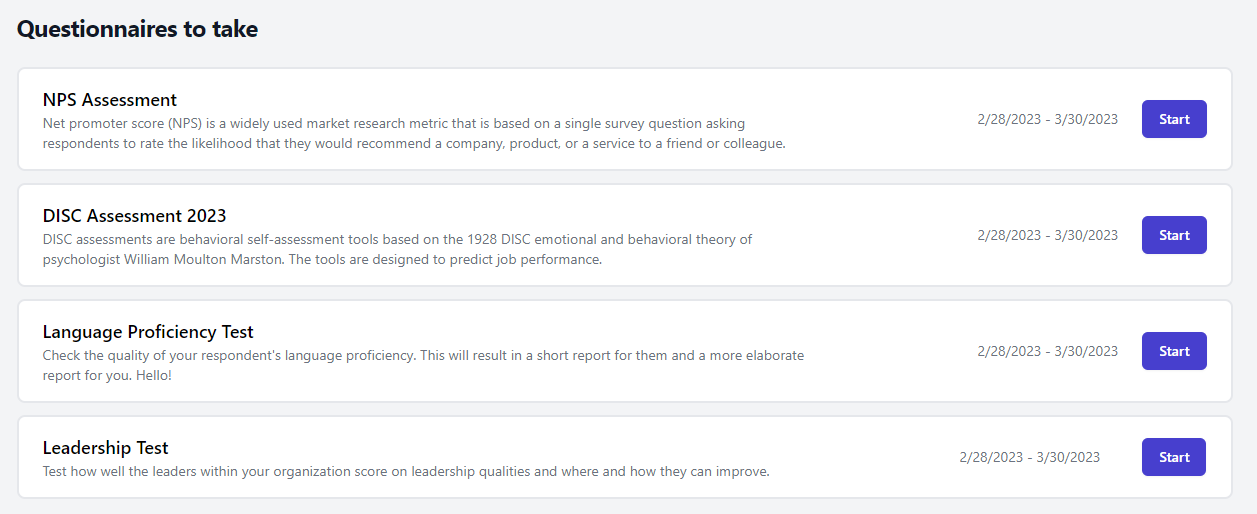
Contact zone has a standard view and there are no configuration options to adjust the Contact's interface.
The 'Questionnaires to take' section shows any active invitations.
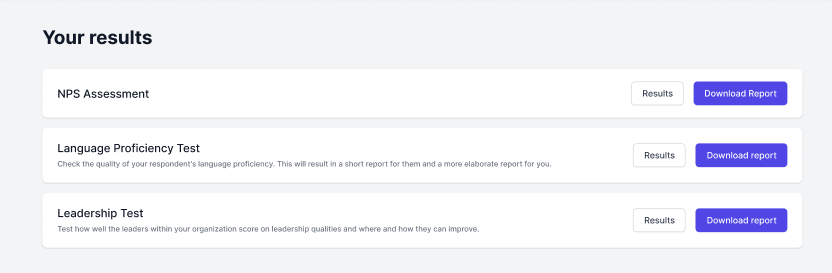
Below they will see the reports for different questionnaires that they have completed in the past.
What is next?
- When you've collected your results and you want to download them, there are different download options available. You can either download a bulk of survey results or choose to download files relating to individual responses. Read our guide Download your results to learn how you can do it.
- Require Contact is a feature that allows you to control who can access your survey and makes the questionnaire only accessible to contacts. If validation fails, the participant is not able to fill in the survey but a configurable message will be displayed instead.
- Do not forget to monitor your results with Google Analytics. Google Analytics is a freemium web analytics service offered by Google that tracks and reports website traffic. Google Analytics is currently the most widely used web analytics service on the Internet.
Don't want to build it yourself? Contact our professional services team