
When you start working with Pointerpro Core, you create an account once you go above a certain number of transactions. That account starts as a trial account, which is active for two weeks. After that, we ask you to subscribe to one of our plans. This guide shows you where to manage your account and how to start your subscription.
You'll need this:
- One of these Pointerpro plans: A trial account
On this help guide page:
- Open your account
- Check your account and subscription
- Choose your plan
- Fill in your billing details
- Add your card and start your subscription
1. Open your account
Click the circle with your initial in the top right corner of the screen, then click Account.
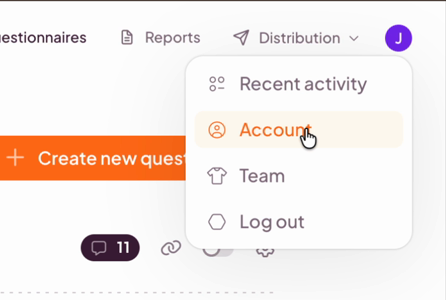 The menu in the top right corner, with Account.
2. Check your account and subscription
You land on your personal account. At the top you see the email address you signed up with. Below it, you can change your First name, Last name, and Organization name, and click Save changes to keep your changes.
The Subscription section shows your current plan. During your trial, it shows the plan with a Trial label. In this example, the account is on an Enterprise trial.
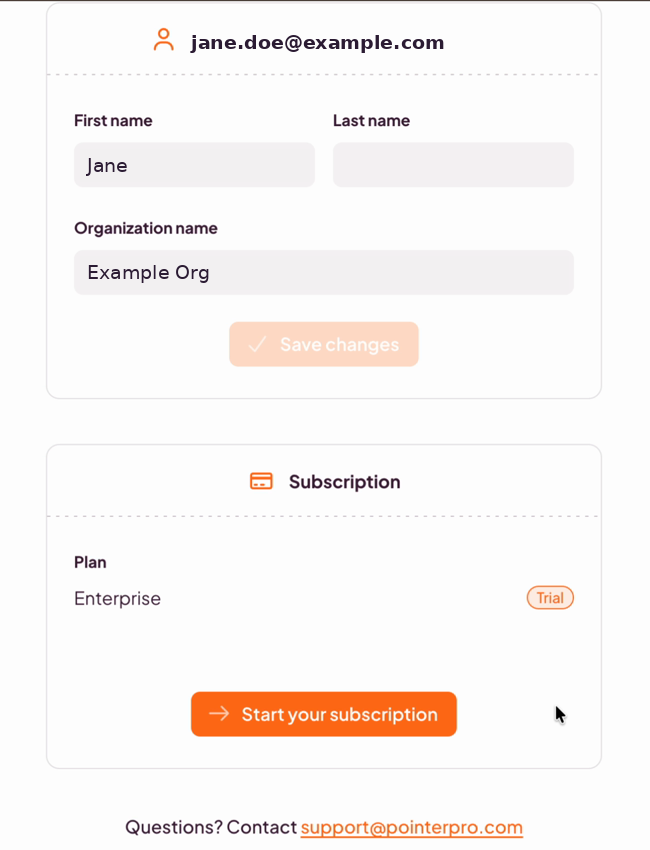 Your account, with the Subscription section at the bottom.
To change your subscription, click Start your subscription.
You land on the Start your plan page. We propose a plan for you and show what you get with it.
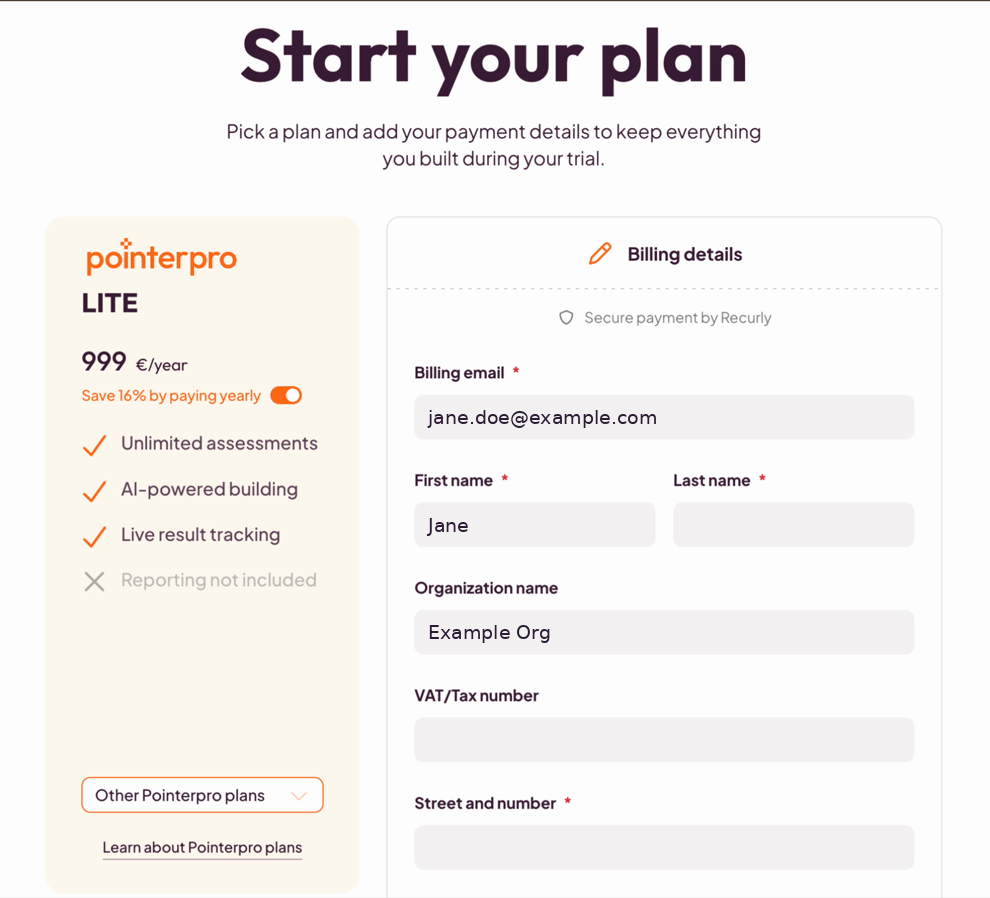 The Start your plan page, with a proposed plan and your billing details.
To pick a different plan, open Other Pointerpro plans and select one from the list. The plan on the left updates, so you can see what you get with it.
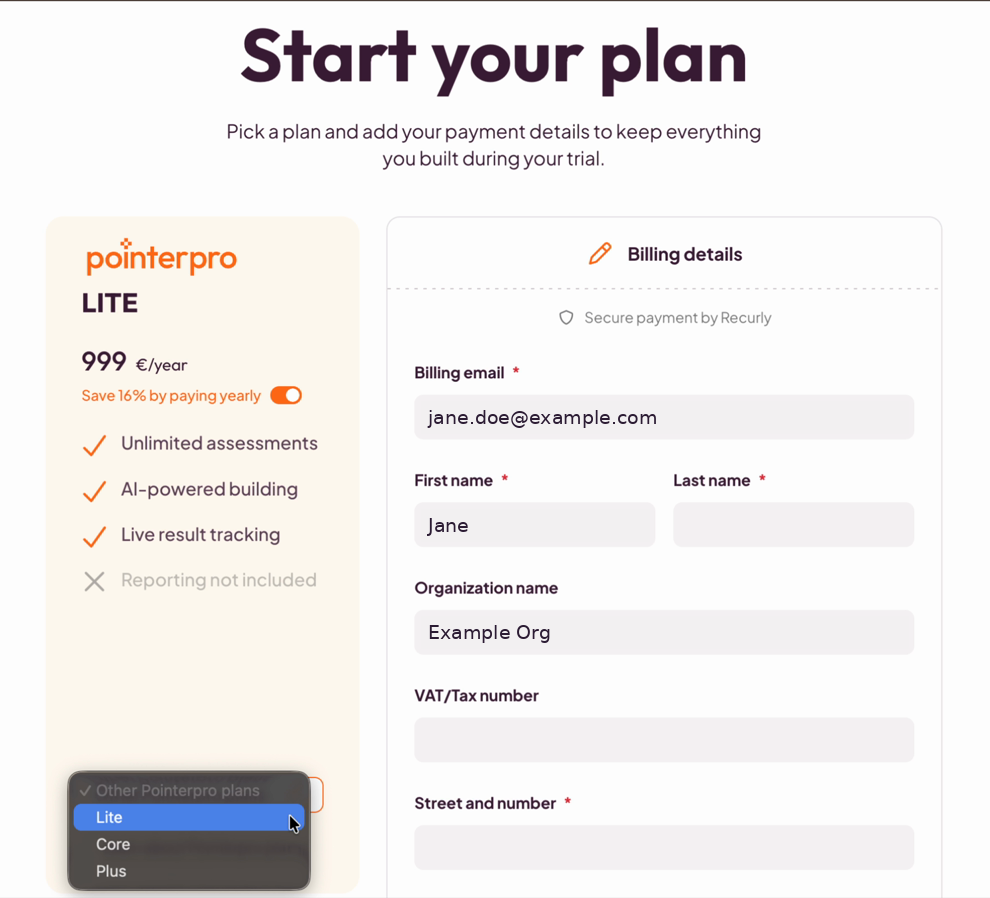 Selecting another plan from the list.
TIP
Not sure which plan fits? Click Learn about Pointerpro plans under the plan list to read more about the plans.
4. Fill in your billing details
Under Billing details, fill in your billing information. Fields marked with a red asterisk (*) are mandatory, such as your billing email, name, street and number, postal code, city, and country. The other fields, such as VAT/Tax number, are optional. It's a regular, simple billing request.
5. Add your card and start your subscription
Under Card details, add your credit card details. If your credit card uses different holder names, select My credit card uses different holder names. Then select I accept the terms of use and click Start subscription.
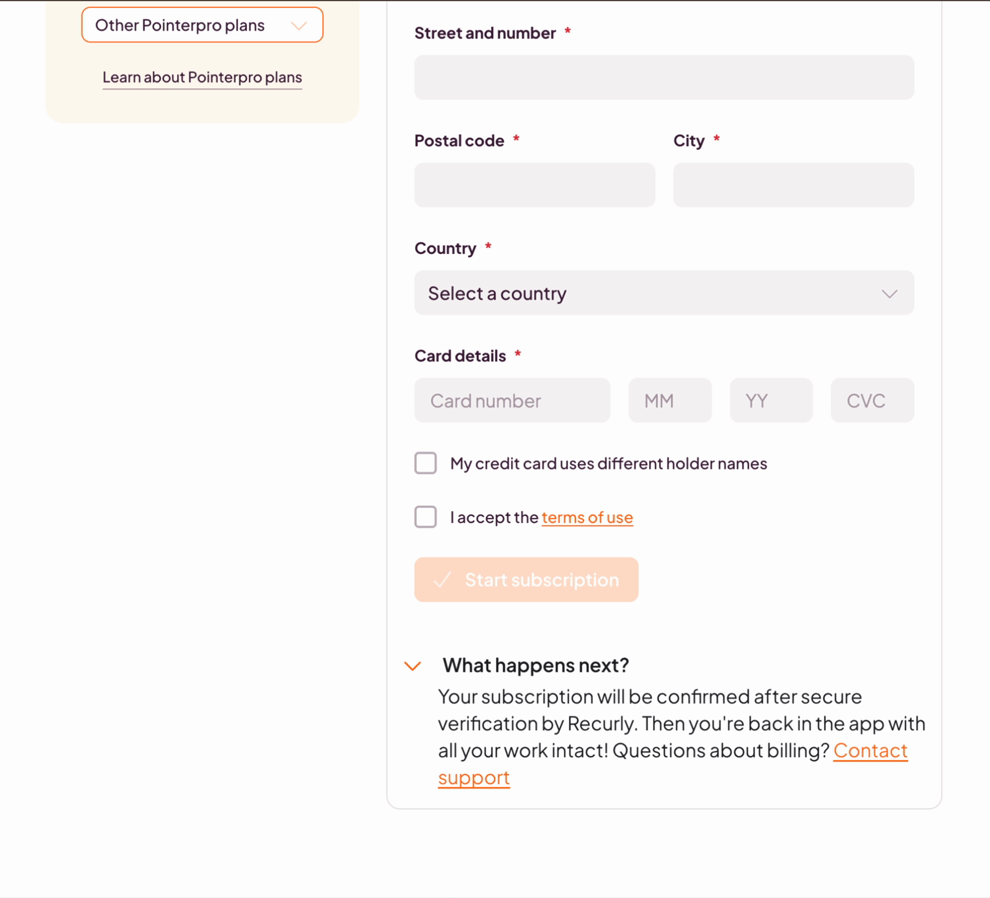 Card details, the terms of use, and the Start subscription button.
TIP
Under What happens next? you can read how it works: your subscription is confirmed after secure verification by our billing system, and then you're back in the app with all your work intact.
Once you've signed up, we sign you in automatically and keep you informed by email. If you have more questions after you've signed up, don't hesitate to contact us via our support page.
What's next?
- The assessment overview screen
- How to build and publish your assessment in the Build editor
- How to design your assessment's look and feel
- How to send your assessment to respondents
Don't want to build it yourself? We offer professional services. Our team can help you design and set up your assessment from scratch. Find out more and get in touch.