
Once you've created, branded, and published your assessment, the Review tab shows you what respondents did with it. You get an overall dashboard with the number of responses, the average score, and how people scored, plus the results for every question and the individual responses. This guide walks you through each of them.
You'll need this:
- One of these Pointerpro plans: Any plan, including a free account
- These additional assets: A published assessment that has received responses — see How to build and publish your assessment in the Build editor
On this help guide page:
- Open the Review tab
- Check your overall results
- See how respondents scored and when they responded
- Review the results per question
- Look at individual responses
- Open a respondent's individual dashboard
1. Open the Review tab
Click Review at the top of the screen. You land on the Dashboard, the overall view of the responses to your assessment. Next to it, Responses shows the individual responses.
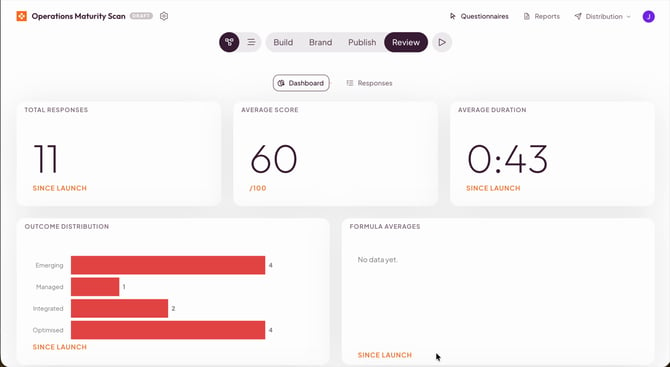 The Review tab, with the overall dashboard of your assessment.
2. Check your overall results
At the top of the dashboard you see three numbers:
- Total responses: the number of responses you've gathered from your respondents since launch.
- Average score: the average score respondents reached. You see a score because you added scoring to your assessment.
- Average duration: how long people took on average to complete your assessment.
Below that, Outcome distribution shows how many respondents ended up in each of the outcomes you defined.
3. See how respondents scored and when they responded
Scroll down for two more charts. Score distribution shows how respondents' scores are spread, in steps of ten points. Responses over time shows when your responses came in.
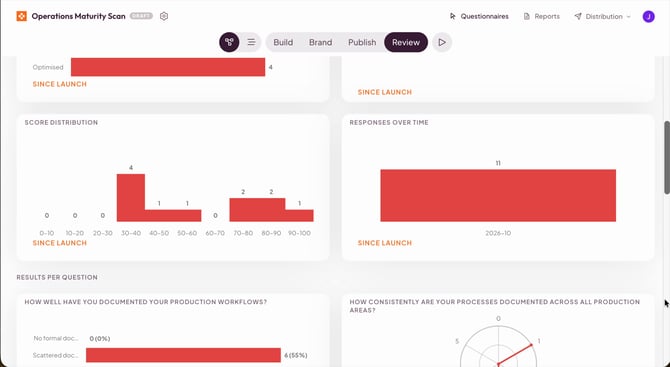 The score distribution and the responses over time.
4. Review the results per question
Under Results per question, scroll down to see how people responded to each and every question individually. For every question you see how many respondents picked each answer, as a number and a percentage, and how many respondents answered the question.
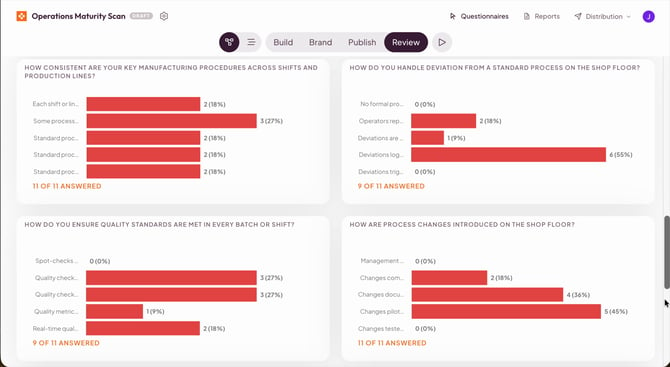 The results for each question, with the answers respondents gave.
5. Look at individual responses
Click Responses to go from the overall view to the individual responses. Here you see who responded, their score, and the outcome they reached. Use Last updated and the search box above the list to sort and find responses.
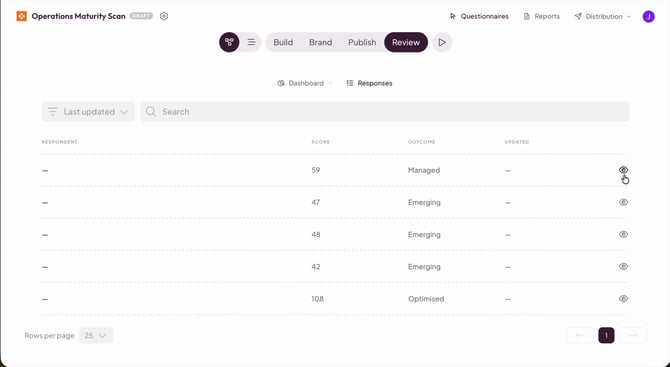 The list of individual responses, with score and outcome.
6. Open a respondent's individual dashboard
Click the eye icon at the end of a response to open the individual dashboard this respondent received. It shows how they scored, including their overall score and outcome and the score and advice for each question group.
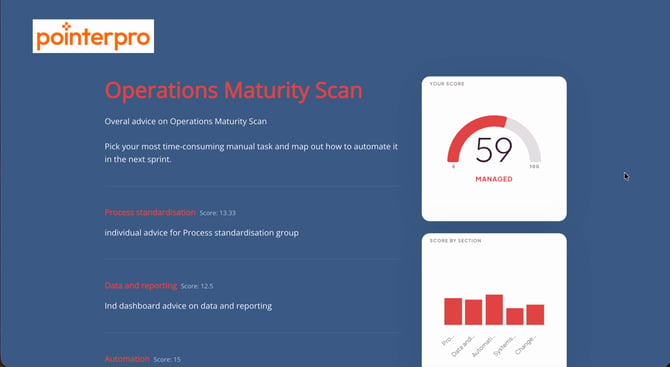 The individual dashboard of one respondent.
TIP
Use the individual dashboard to see exactly what a respondent saw, for example when you want to follow up with them about their results.
What's next?
- The assessment overview screen
- How to build and publish your assessment in the Build editor
- How to design your assessment's look and feel
- How to send your assessment to respondents
Don't want to build it yourself? We offer professional services. Our team can help you design and set up your assessment from scratch. Find out more and get in touch.