
 Professional Enterprise ReportR DistributR
 On this help guide page:
- Step 1: Enable custom integrations and select your app
- Step 2: Choose your integration scenario
- Step 3: Grant access to your app
- Step 4: Set up the webhook connection
- Step 5: Configure what data to send
- Step 6: Activate your integration
TIP
The custom integrations are built directly into Pointerpro, so you don't need to manage separate accounts or subscriptions with external automation tools like Zapier or Make. This means faster setup, fewer points of failure, and no additional costs for your integrations.
NOTE
Custom integrations work great for straightforward data transfers between Pointerpro and your apps. For complex multi-step workflows, conditional logic, or apps not yet supported, you may need a dedicated automation platform like Zapier or Make.
Step 1: Enable custom integrations and select your app
You need to enable the custom integrations feature so your questionnaire can communicate with other apps.
From your questionnaire's landing page, go to Extra Options > Integrations > Custom Integrations and toggle Enable Custom Integrations to On.

You'll see a dropdown menu appear. You can either search for the app you want to connect, or select one of the apps already displayed, like Slack. Click on the orange Install button to go to the next step.
Step 2: Choose your integration scenario
Integration scenarios are the triggers that determine what happens when someone submits your questionnaire.
After installing your app, you'll see available integration scenarios. Select the scenario that matches what you want to accomplish (e.g., "Send Slack Notification").
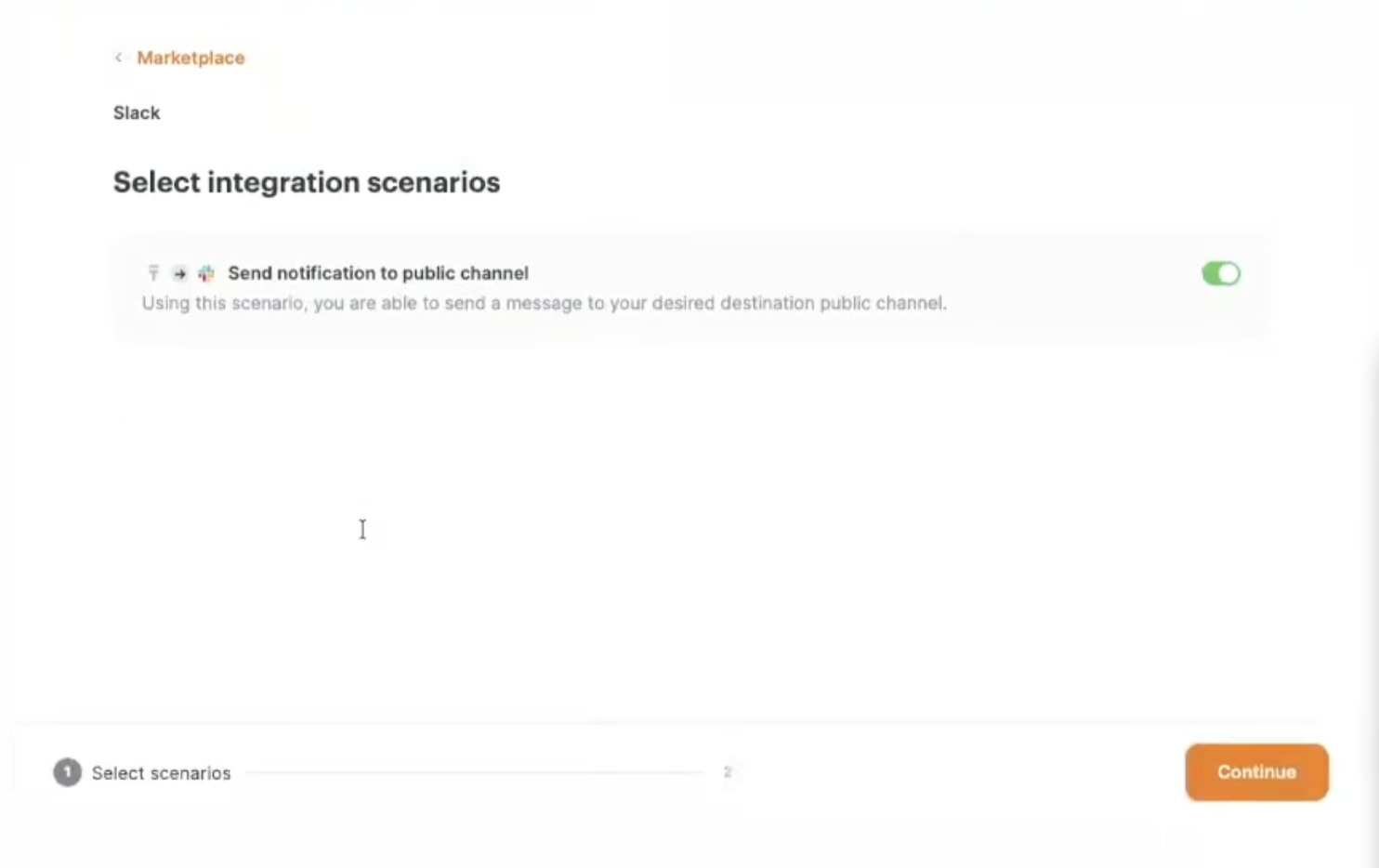
This will trigger the integration to interact with your chosen app every time a survey is submitted.
Step 3: Grant access to your app
Now you'll connect your app account so the integration can send data to it.
You should see a + Grant Access button. Click it, name your connection as you like, and click Grant Access. Follow any prompts from your app to authorize the connection.
You're now ready to configure how your data flows to the app.
Step 4: Set up the webhook connection
The integration system needs to learn what data structure to expect from your questionnaire.
Click on the Settings gear icon, then on the next screen you'll see a column of widgets representing your integration flow. Click on the pulsating yellow (!) icon.
Click on Wait for webhook. The system will display a waiting status.
Open your questionnaire in a new browser tab, complete it with test data, and submit. Return to the integration setup screen – it should now show "Webhook received" with your test response data displayed.
That's it! The system has captured your questionnaire's data structure.
The integration system waits 15 minutes of inactivity before processing webhook data. If you submit multiple test responses, the system will capture the most recent one after the 15-minute window.
Step 5: Configure what data to send
Now you'll map which data from your questionnaire should go where in your target app.
You may see a default action already set up (like "Send a message to a public channel"). You can delete this and add your own by clicking Add an Action: do this in the selected app.
Select your app, choose the action you want to perform (e.g., Send a message to a user), connect your app account, and click Continue.
Mapping your data fields:
Click on any empty field in the action (e.g., Unformatted Text Message). A dropdown menu will appear. Select the Other tab, then Pointerpro: New Survey Response. You'll see all the data from your survey. Select the specific response field you want to use (e.g., response-text for a text answer).
TIP Be sure to double-check that you've selected the correct variable name. There are several variables with similar names, and selecting the wrong one will prevent your integration from working as expected.
Working with user identification:
If your target app requires a user ID (like Slack does), you'll need to add an intermediate step. On Step 1, click the + icon and select Action. Choose your app and select an action like Find user by email. Map the email field from your questionnaire (e.g., 1-responses-0-response) to this lookup action.
Then, in your final action step, click the Settings gear icon, click on the User – ID field, select the Other tab, choose the step you just created, and select ID User.
Hit Save after configuring each step.
Step 6: Activate your integration
You're ready to make your integration live!
Click the Start button at the bottom of the screen. Your integration is now running and will trigger automatically each time someone completes your questionnaire.
Testing your integration
Before relying on your integration, test it thoroughly. Submit a real response through your questionnaire, wait 15-20 minutes for the system to process it, and check your target app to confirm the data arrived correctly.
TIP You can test each step individually before activating the full integration. Click the Test icon on any step to simulate running that part of the integration and verify it's working correctly.
You can test each step individually before activating the full integration. Click the Test icon on any step to simulate running that part of the integration and verify it's working correctly.
If something doesn't look right, review your field mappings and adjust as needed. You can always click Settings on any step to modify it.
What's next?
- How to integrate Google Sheets – Push your response data directly to a Google Sheet to track and analyze all your responses
- How to set up Zapier integration – Connect Pointerpro with hundreds of apps like Mailchimp, Salesforce, and Trello for more complex workflows
- How to use webhooks for custom integrations – Send response data to any API endpoint for maximum flexibility with your own systems
Don't want to build it yourself? We offer professional services.
Our team can help you set up complex multi-step integrations, connect with enterprise systems, or build custom workflows tailored to your needs.
Find out more and get in touch here: sales@pointerpro.com