
You'll need this:
-
One of these Pointerpro plans:
 Professional Enterprise ReportR DistributR
To add a new inquiry go at the Questions tab and click the button ? Questions.
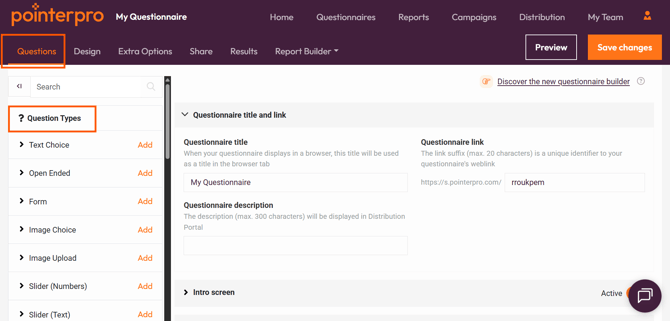
Question types are included in all plans unless indicated otherwise.
On this help guide page:
- Text Choice
- Open-Ended
- Image Choice
- Radio Button Rating
- Rating
- Text Only
- Form
- Ranking
- NPS
- Image Upload
- Slider (Numbers)
- Slider (Text)
- Scratch Card
- Continuous Sum
- Slot Machine
- Typeahead Autosuggest
- Typeahead Form
- Interactive Image
- File Upload
- XY Drag and Drop
- Signature
- Stripe Payment Processing
1. Text Choice
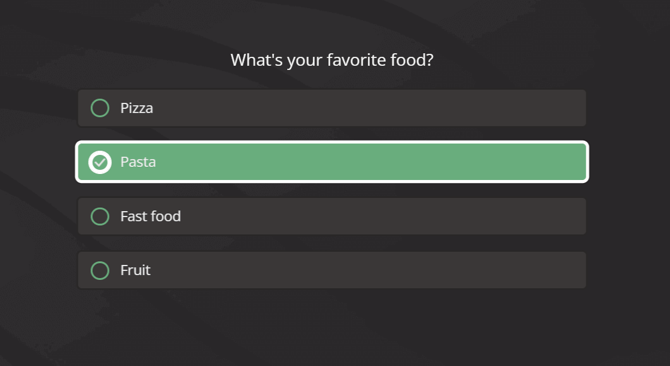
Text Choice is the most popular question type. You can ask almost everything with this type of inquiry. It consists of an inquiry and some preset answers from which respondents can choose from. You can allow respondents to choose more than one answer and turn it to a multiple choice or turn it to a quiz inquiry.
Text Choice might be an easy choice, but don't use it throughout your entire survey because your respondents might get bored with the same view. Switch between question types to keep the survey interesting. The respondent will have to push different buttons to answer the questions, which will keep them attentive and enthusiastic, lowering drop-out rate.
2. Open-Ended
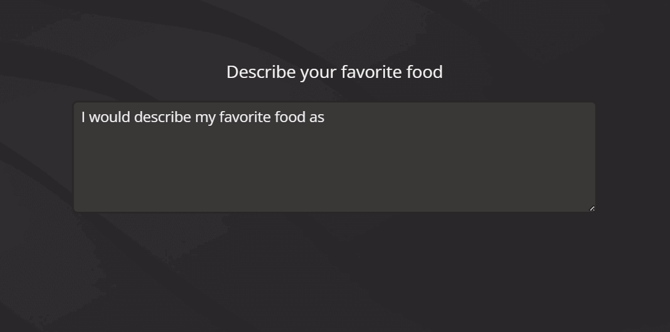
Open-Ended is the second most used inquiry. It's used to get unbiased answers since respondents are not bound by preset answers.
Switch between Ratings and open-ended inquiries to quantify the open responses and to get the best view on the feedback of your respondents.
3. Image Choice
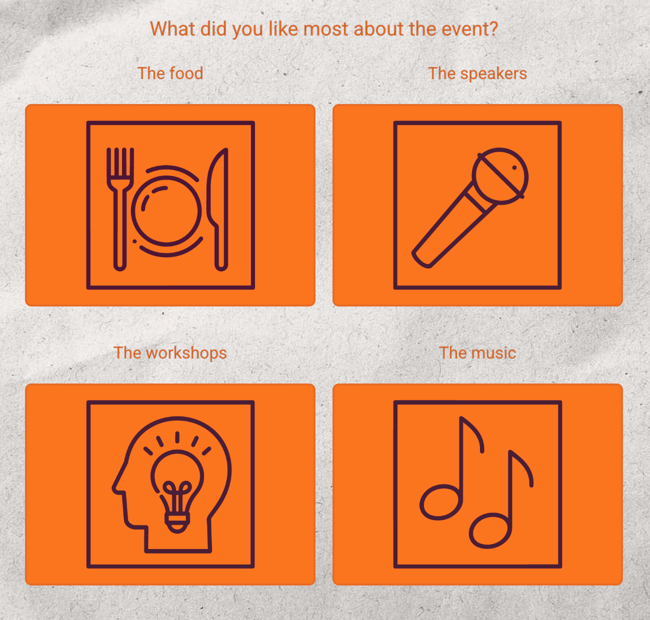
Image Choice works the same way as a Text Choice, only you have the advantage of adding images to the answers. This way you can clarify the options by adding an image or example. It also makes the survey or quiz more entertaining. You can add JPEG, PNG, or even GIFs.
4. Radio Button Rating
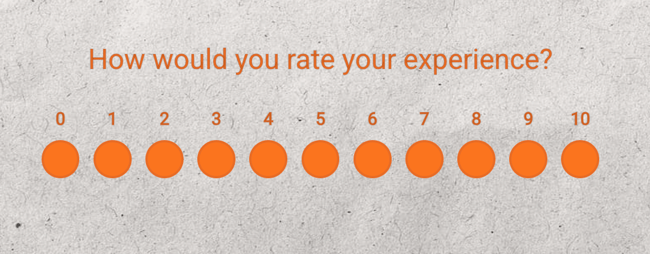
Use a Radio Button Rating to give respondents radio buttons between 0 and 10 to rate a product or service.
5. Rating
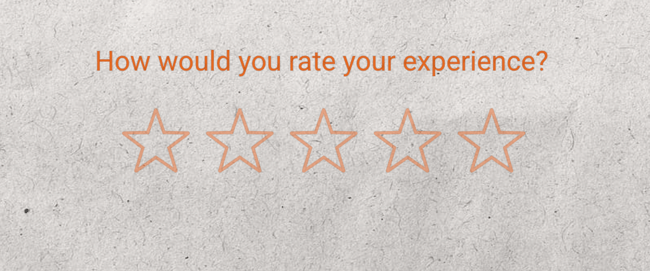
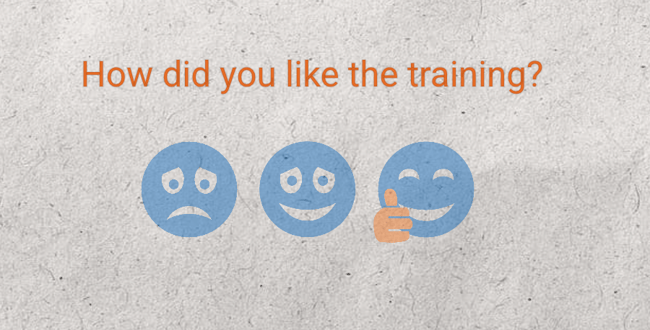
You can use Rating and choose which answer icon you want, either stars, smileys, or emojis. Let's see when you might want to use each type of icon.
Star rating is a playful way to obtain a score for a certain subject such as service, customer satisfaction, etc.
The smiley and emoji rating is mostly used to get a feeling of what the respondent thinks or feels concerning a certain subject. Choose the icons that best suit your design.
6. Text Only
Text Only is not used to ask something, but to add a content box with extra information. Enter text and an image to announce a new chapter or to give extra information to a question or case.
7. Form
A Form is used to collect data. The different form fields make it easy and clear for the respondent what they need to fill in.
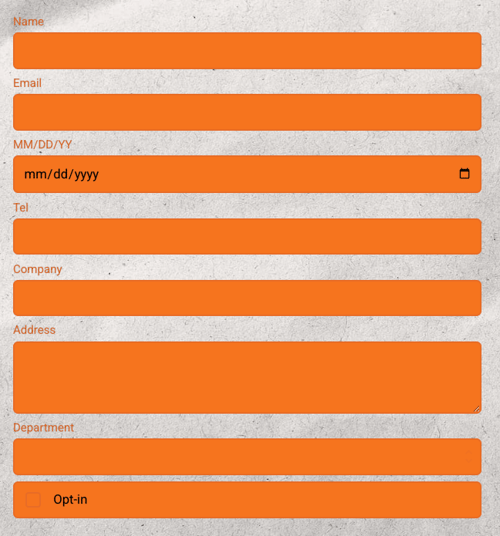
These are the different form field options available:
- Text - Single Line: A small text box where the respondent can only type a single line of text. Mostly used for a name, company name, job title, etc.
- Email: The respondent will have to fill in his or her email address. The address has a validation check on the '@' and the extension.
- Date: To make sure everyone writes the date in the same way, you can use a Date Field. This field allows the respondent to choose a date from a calendar.
- Number: In this box, the respondent will only be able to fill in numbers. Mostly used for phone numbers or age.
- Dropdown: A list of preset items. These can be names, countries, cities, etc. If you have a large list, you can use a Typeahead.
- Text Area: This field gives the respondent a large area to fill in the answer or specifics you asked for.
- Opt-in: A box with preset text that the respondent can choose to check or leave unchecked. Mostly used for newsletter subscriptions and agreements with terms of use.
8. Ranking
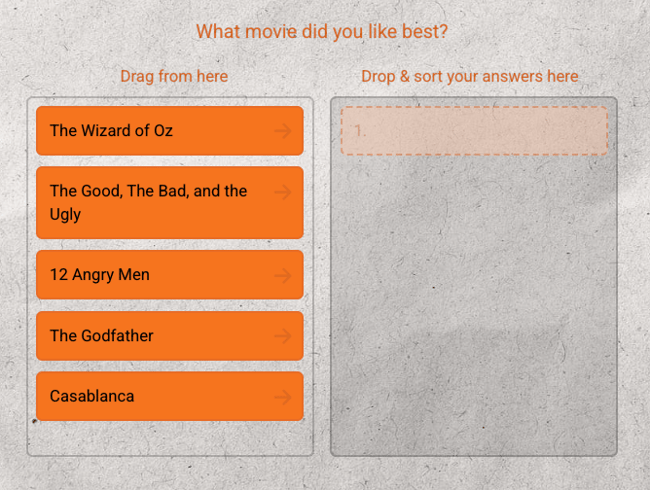
Ranking is mostly used to ask for preferences (What movie did you like best?) or knowledge (Order the presidents of the US). The answers you insert will appear in boxes that the respondent can drag and drop where they feel it belongs.
9. NPS
Calculate your Net Promoter Score using a 0-10 scale: “How likely is it that you would recommend [brand] to a friend or colleague?”.
In the reports, you'll find the results of the NPS adjusted to indicate the detractors, passives, and promoters.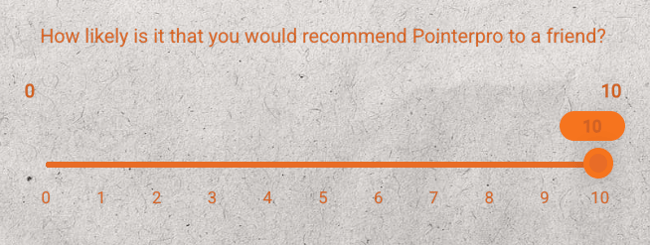
10. Image Upload
Image Upload is used to receive images or photos from your respondents.
You can ask your respondents to show you how they use your product, and the respondent can either upload a picture or take a picture at that moment.

11. Slider (Numbers)
With the Number Slider, you can ask your respondent for a score or rating.
The difference between a Number Slider and Star Rating is that the numbers on a Number Slider are unlimited, whereas the Star Rating can only go to 10.
You can also add labels to the slider, which could be numbers or text labels such as "Not good at all" to "Very good".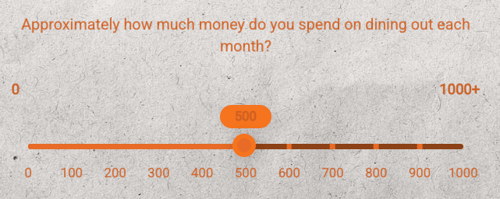
12. Slider (Text)
If you want to know a degree of opinion instead of a score, you can use the Text Slider.
The answers you add will appear on the slider from left to right. Add degrees of statements such as "Not good at all" to "very good".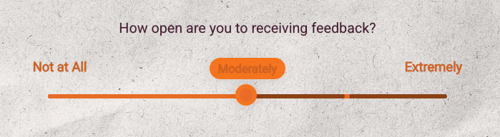
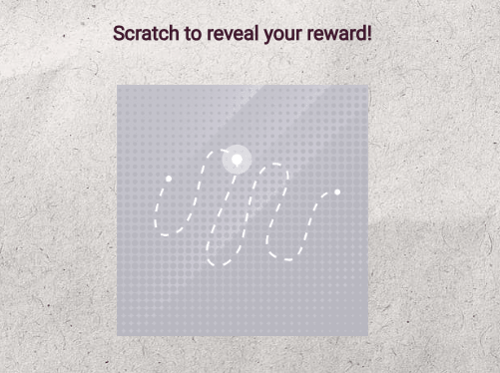
13. Scratch Card
The Scratch Card adds an interactive element to your questionnaire by giving participants the chance to reveal a prize or incentive.
Add as many prizes or outcomes as you'd like, then assign a probability to each one. The percentage you assign determines the likelihood that participants will reveal that outcome.
14. Continuous Sum
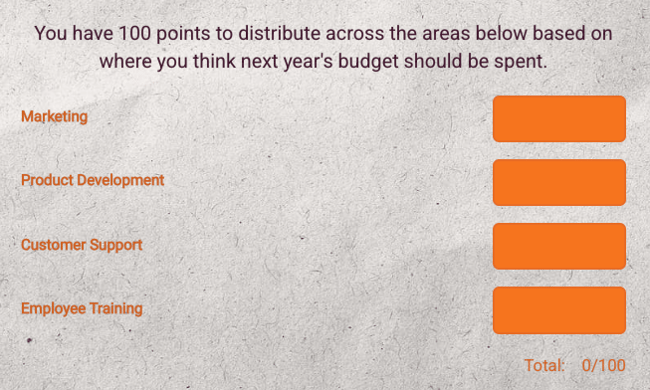
A Continuous Sum lets the respondent give a score to options/answers which add up to a total you defined.
This will allow the respondent to add a certain weight to each answer possibility.
15. Slot Machine
This feature is only available for paying plans.
Slot machines let participants spin for a chance to win a prize or incentive, adding an engaging, interactive element to your questionnaire.
Set the probability of winning and determine how many times each participant can play. Offering rewards can help increase participation and reduce drop-off.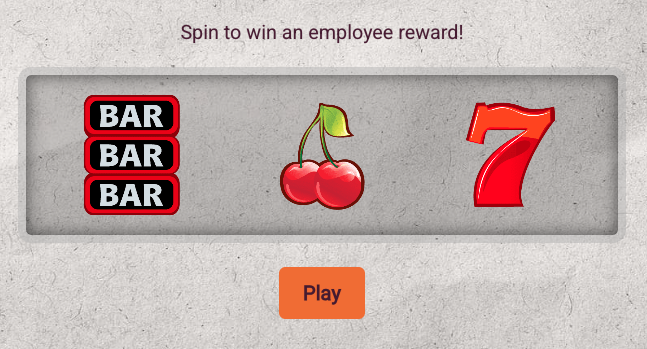
16. Typeahead Autosuggest
This feature is only available for paying plans.
The Typeahead is used for lists of possible answers such as countries or departments. This list is made in Excel or CSV and uploaded into the inquiry. The respondent can scroll down the list or start typing to see the results that correspond with the typed letters.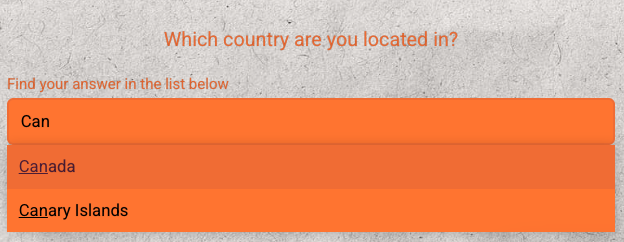
17. Typeahead form
This feature is available on the Enterprise and ReportR plans only.
The typeahead form is similar to the Typeahead Autosuggest but has an added benefit, as you can upload extra information which will be automatically filled in when the respondent chooses the answer from the first field.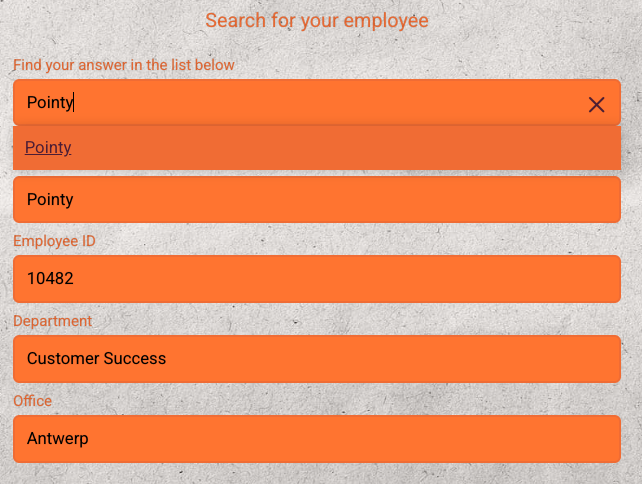
18. Interactive Image
This feature is available on the Enterprise and ReportR plans only.
Use an Interactive image to let respondents select a part of an image. Here's another way you can make your survey more interesting than simply selecting a place from a drop-down list, for example.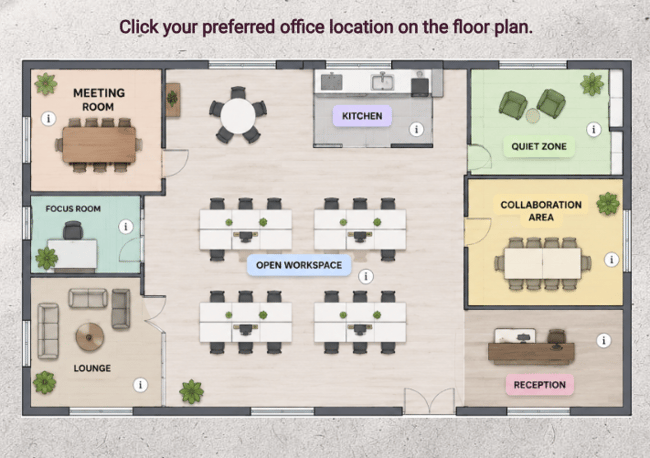
19. File Upload
This feature is available on the Enterprise and ReportR plans only.
File Upload is the perfect way to get the extra documents you require from your respondent: a work history, an agenda, the yearly numbers, etc.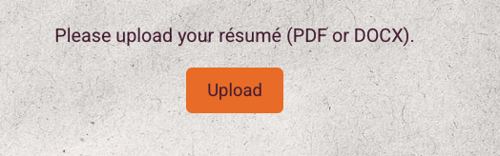
20. XY Drag and Drop
This feature is available on the Enterprise and ReportR plan on request.
Let your respondents drag and drop items on a XY axis and collect the X, Y coordinates in the results section.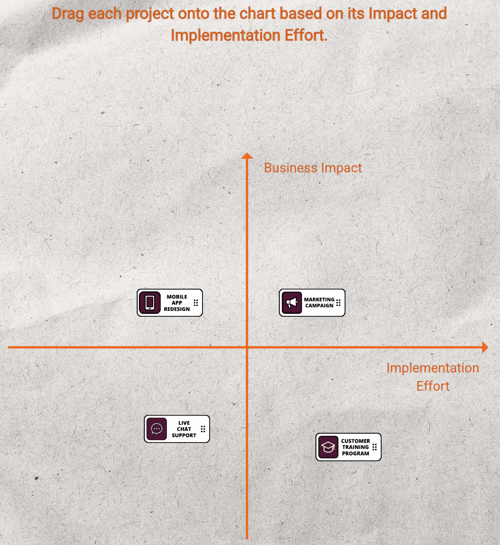
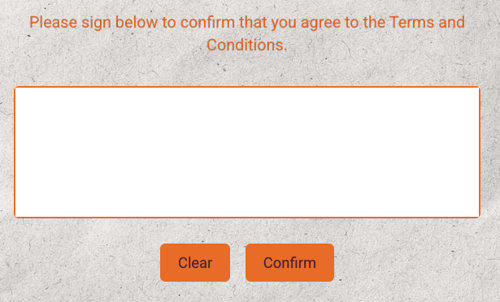
21. Signature
This feature is available on the Enterprise and ReportR plans only.
Collect the respondent's signature as part of the survey. You can use it to gain consent or to fill out a petition.
22. Stripe Payment Processing
This feature is available on the Enterprise and ReportR plans only. Pointerpro has teamed up with Stripe so that you can seamlessly and smoothly charge customers with no need to leave the survey.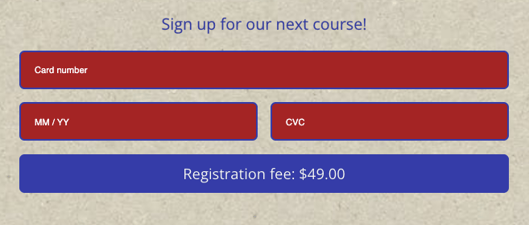
What's next?
- Download your results to see and analyze all the data you collected from your survey. There are different options available, choose either a bulk download of survey results or files relating to individual responses. You can choose between CSV format, Excel format, PDF format, or use Report Scheduler.
- Use Question grouping & Question blocks: You might want to show more than one inquiry on the screen to make your survey seem shorter. Question grouping is just what you need! You can also activate or deactivate all inquiries in the block with one click of a button.
- The intro screen is the first screen your respondents will see when they're taking your survey. When you're sending out a survey, you'll want to give your respondents a bit of information before they start. You can do this with the Intro screen.