
You'll need this:
-
One of these Pointerpro plans:
 Professional Enterprise
  ReportR DistributR
On this help guide page:
1. What are Native Integrations
2. Add a new Native Integration (Slack example)
3. Create a new Automation (Slack example)
1. What are Native Integrations
In modern work environment it is crucial to be able to connect all the apps you use into one smooth flow.
Native Integrations allow you linking Pointerpro to more than 1,000 different apps. HubSpot, Salesforce, or Slack? We got all of them (and many more) covered!
When enabled on a questionnaire, collecting a new response will act as a trigger to activate the flow and send selected information to a connected app. Simple as that!
2. Add a new Native Integration (Slack example).
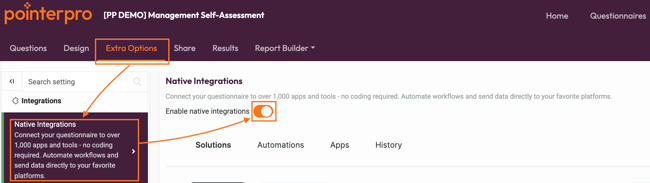
Native Integrations and set the toggle ON.
After wait for a few second while apps marketplace is loading.
IMPORTANT
Make sure you have browser cookies enabled. It is required for Native Integrations to work in your questionnaire.
In this example, we will connect Pointerpro to Slack as such we receive a notification each time a new response is submitted.
NOTE
At least one response is required before enabling native integrations. Responses are needed to determine the structure of your survey data, ensuring accurate field mapping with your connected apps.
Please go to the Share tab > Copy your questionnaire link > Submit your first response.
Step 1. Click Apps and then Add a connection
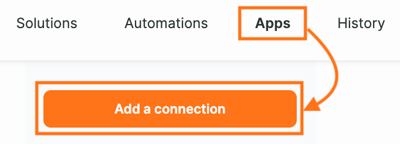
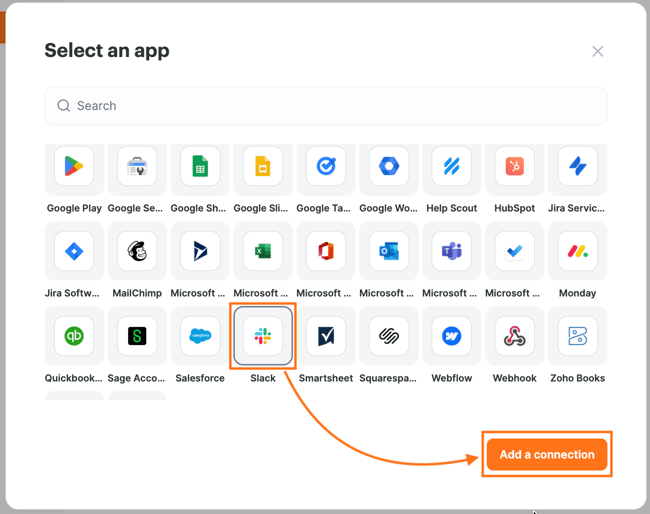
Step 2. Select an app (over 1,000 apps and tools are available) and click Add a connection.
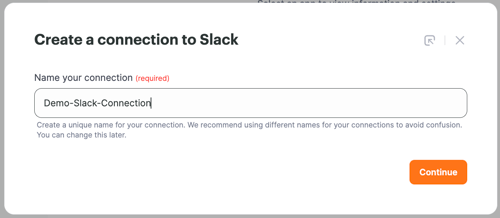
Step 3. Name your connection and click Continue.
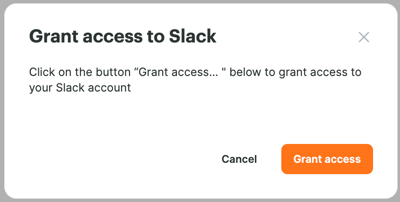
Step 4. Grant access to the app.
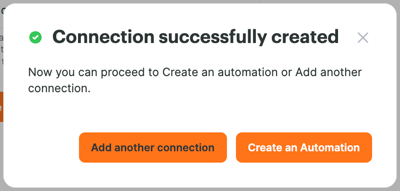
Step 5. Success! You have now created your first connection. Now you can either Add another connection to another app or Create an Automation.
3. Create a new Automation (Slack example)
An automation consists of two parts: Trigger and Action. If trigger happens then automations will do a certain action.
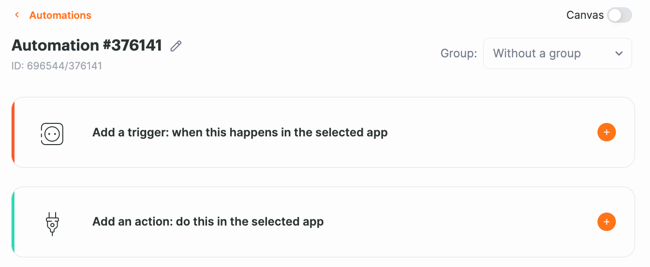
For example, if new response is submitted (trigger) send a message to a selected Slack channel (action).
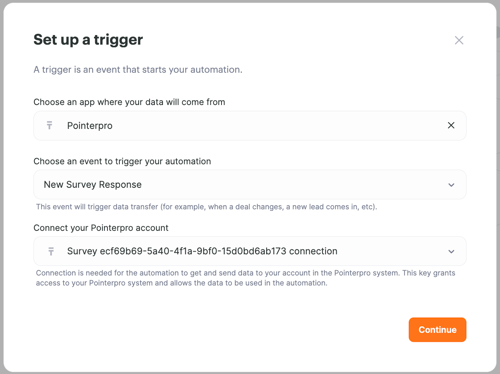
We will start by setting up the trigger - new survey response (see example below).
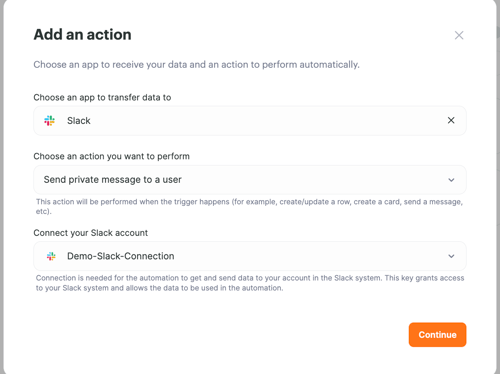
And then we add an action - send a message to a Slack channel or to a certain user.
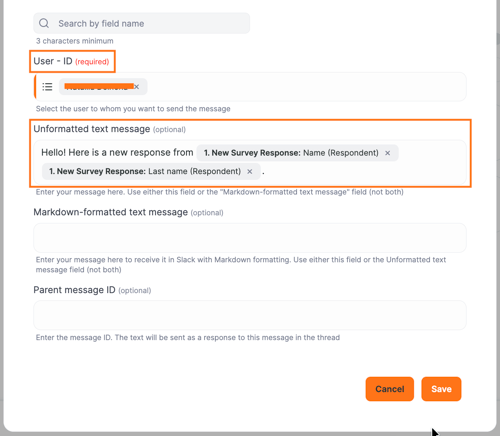
 If needed you can even include a custom text message and use questionnaire Variables in it (like respondents name). And click Save.
You can add multiple actions, just click '+' (plus button). Once all your actions are added click Start.
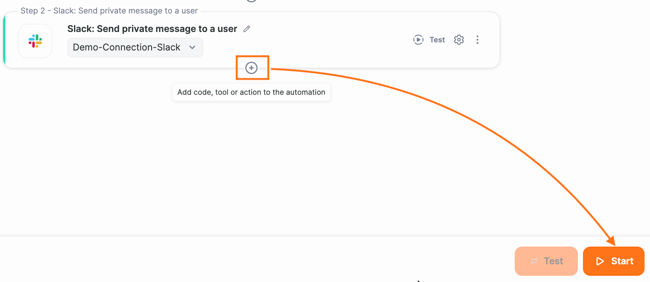
Success! Your automation is now enabled and will be visible under Automations tab.
NOTE
You can not edit active automations. First pause the automation > do the edits > start it again.
This is the message we received when a new response was submitted.

Try linking Pointerpro to more apps you use for your organisation, good luck!
What's next?
- Google Tag Manager is a tag system that can be used for tracking and analytics on websites. It can be used to track respondents' behavior in your survey or to find out how effective an advert promoting your survey has been.
- Zapier is a tool that enables the transfer of data from one web app to another one. By using Zapier in combination with Pointerpro, you can send the data collected within your survey to create contacts in Pointerpro or send data to apps such as Mailchimp, Salesforce, Trello, and many more. For example, to transfer email addresses collected in a survey to a Mailchimp email list.
- Integromat allows you to automate many processes and simplifies the transfer of information between apps, saving you bags of time! Integromat offers similar features to Zapier but is more powerful as you can set a single event to trigger a number of different actions to be taken simultaneously.
Don't want to build it yourself? Contact our professional services team