
You'll need this:
-
One of these Pointerpro plans:
 Professional Enterprise ReportR DistributR
Predefined filters are available for accounts with Aggregate Reports. Aggregate Reports are an add-on with an additional fee. Don't hesitate to contact sales@pointerpro.com for more information.
On this help guide page:
- What are predefined filters
- How to create
- How to use
- Common use cases
- Filter by demographics
- Filter by teams/companies
- Filter by date
1. What are predefined filters
Predefined filters allow you to reuse the same formula for different groups of respondents. Instead of creating multiple formulas, you can create one formula and apply different predefined filters when displaying the results.
For example, suppose your questionnaire asks respondents which department they work in:
- Marketing
- Communications
- Finance
You want to calculate the average score for Question 1 for each department.
To do this, you would create:
- 1 formula: *|q1_custom_score|*
- 3 predefined filters:
- Marketing
- Communications
- Finance
When using the formula in your PDF report, you can apply each predefined filter separately to display:
- Average Question 1 score for Marketing
- Average Question 1 score for Communications
- Average Question 1 score for Finance
The following sections walk through this step-by-step.
2. How to create
In your questionnaire, go to the Extra Options tab and select Predefined filters.

In the Predefined filters page, click +Create filter.
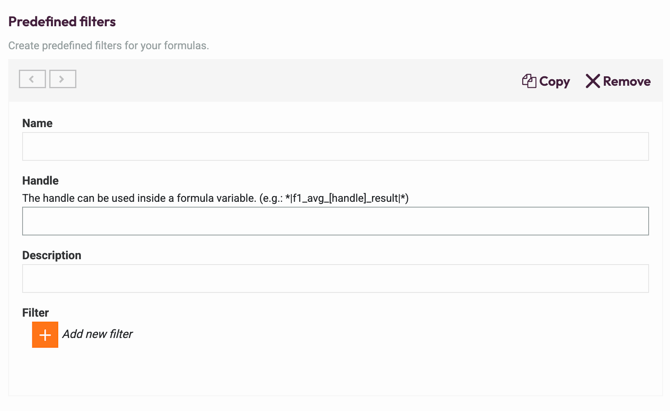
When creating a new filter, the following fields are required:
- Name
- Handle: Handles are variables that are inserted into your formula variables. You can think of it as a predefined filter's ID for the formulas to look for the correct filter(s) and get the right data for the calculation. Once the handle is configured and used with the formulas in the reports, be careful not to change the handles, as it will impact the results in your report.
- Description
- Select the filter(s)
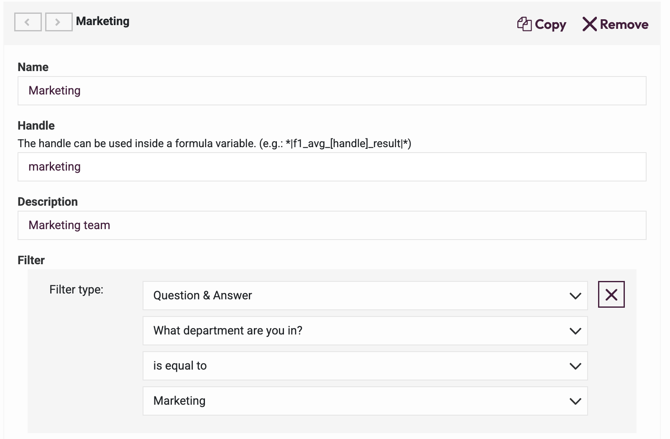
3. How to use
Make sure you have configured the formulas, for example:
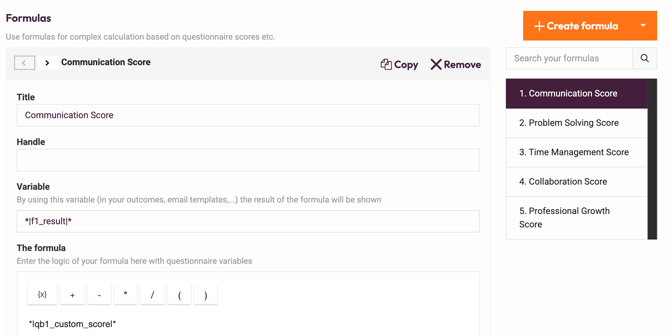
Go back to Predefined filters and check your filters:
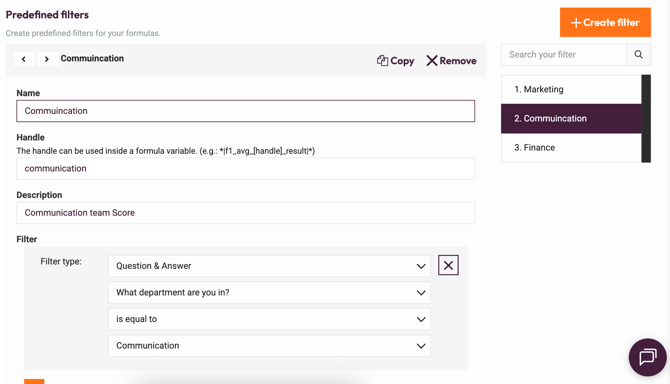
After adding all needed predefined filters, go to the Report Builder associated with this questionnaire and insert variables. You will see a variable menu list:
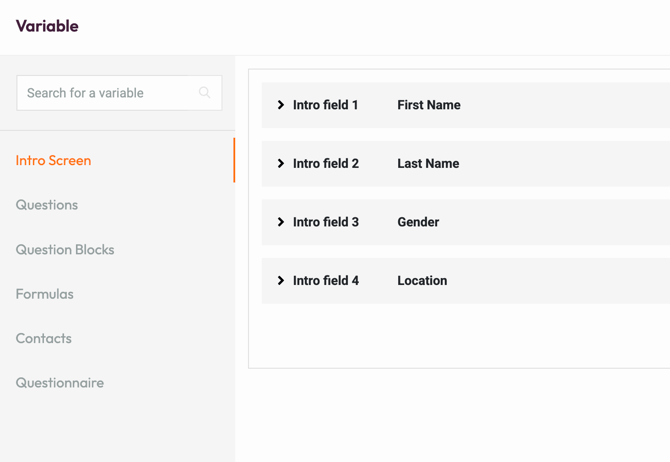
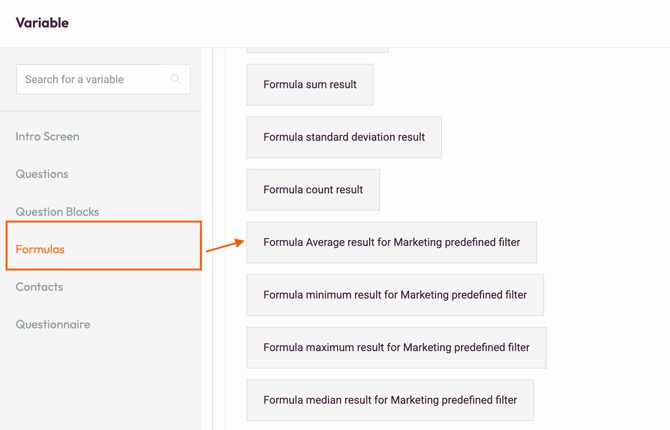
In this example, I want to insert the formula of average communication skills with the predefined filters that include only people from the marketing team:
Once selected, it will show up in your report as follows. The handles are inserted between the formula variables and applied to the formulas for calculation.
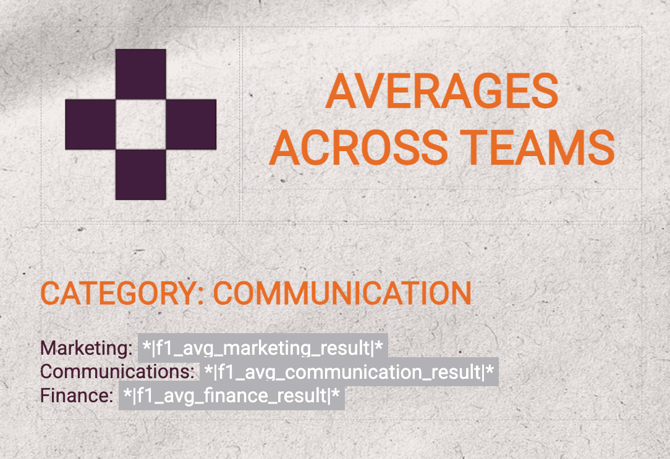
In this example, you can see why handles should not be changed once you have used them in your report. Changing the handles in the Questionnaire Builder will result in incorrect data and calculation in the Report Builder.
4. Common use cases of predefined filters
4.1 Filter by demographics
If your questionnaire has questions about certain demographics, such as gender, age, location, etc., and you want to group a certain dataset for formula calculation, you can create predefined filters.
4.2 Filter by teams/companies
If you manage several teams or have multiple companies as customers and you want to see an overview of results per team / per company, you can create predefined filters.
4.3 Filter by date
You can create different filters with Custom Date to filter response data submitted in Q1/Q2/Q3/Q4 2024, for example. In this way, you can display the calculation results in your report if your goal is to understand the changes over time.
This can be used when creating a 360 report to evaluate a person's performance over time.
Check our article How to create an Individual vs Group Report on how to create a 360 report.
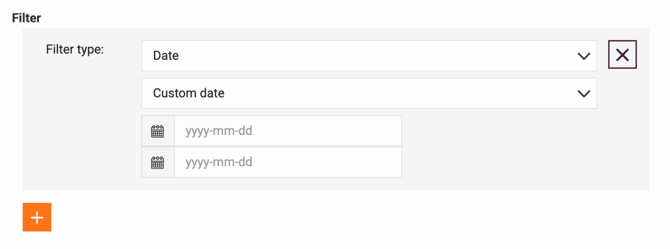
You can also filter by dates in the following ways if you want to show results from recent responses
- Last 24 hours
- Last week
- Last month
- Last year
What's next?
- Double check the formulas you have create and ensure seamless calculation in your report with the predefined filters.
- Check out Aggregate Report Types Explained to understand which type of report meets your needs and set up relevant predefined filters.
- Create Individual vs. Group Reports combined with predefined filters to easier management and formula calculation and provide insights from the responses.