
You'll need this:
-
One of these Pointerpro plans:
 Professional Enterprise
  ReportR DistributR
On this help guide page:
1. Add a XY chart
To add a column chart to the page, all you have to do is click on it and drag and drop it on the page.
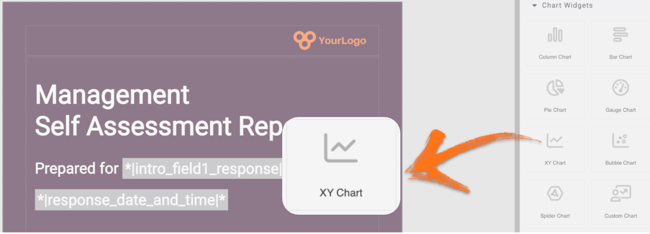
Once you add the widget a pop-up window will open where you can add your content.
2. Setup the widget
The key building blocks of this graph are Dimensions and Metrics. Let's set it up together!
Start by clicking Add Dimension. Give each dimension a label and and color. Then you can proceed by adding Metrics.
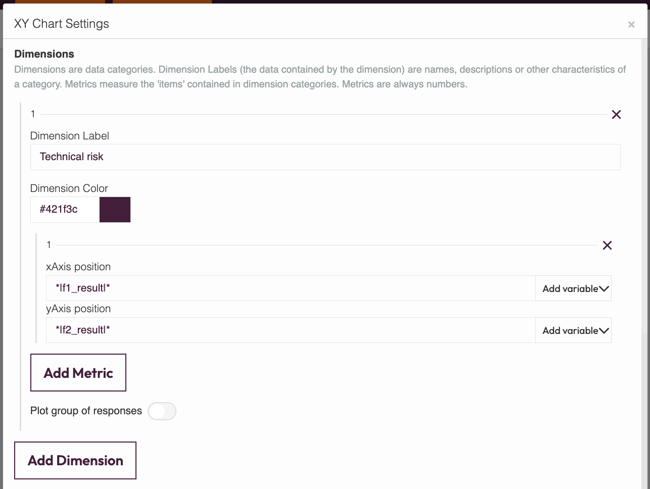
- Dimension Label - give a different name to each dimension to ensure you are looking at the correct data.
- Dimension color - choose a color by clicking on color selector. Take care to choose distinctly different colors for each point, so it will be easy to tell the difference between them!
-
X/Y Axis position - you can choose variables from the Add variables dropdown to set the x-Axis and y-Axis values of each point or you can add numerical values.
-
Add Metric - click Add metric to add more variables to your dimensions.
- Plot group of responses - toggle this button to enable filters to plot multiple points.

-
Add Dimension - click to add more dimensions.
If you change your variable data, you must collect a new response in order to preview your chart.
Now you've set up your graph, you can also configure the last settings.

- Chart title - This title will be displayed above your chart
- Show Legend - Toggle the button if you want to display the different score names associated with your data matrix
- Y-Axis title - Add a title to your Y-axis
- X-axis title - Add a title to your X-axis
Don't forget to click Save and close to save your work and preview your chart.
3. Additional settings
Select the widget and then at the right of the screen click on the Settings button. The widget list will be replaced by the additional settings.
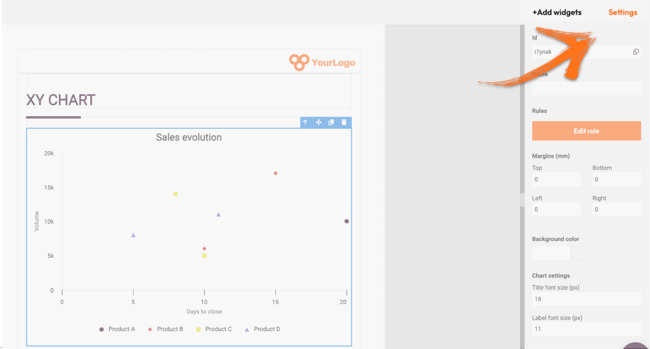
Here you can find the following settings:
1. ID
This is the ID of the widget.
2. Name
You can name your widget in order to identify it easier.
3. Rules
You can add your widget logic rules to ensure that your content will be visible only when the conditions are true.
4. Margins
Add margins to create space around elements and move them in your page. By default the margins are set to 0, but you can change that anytime and add the margin you prefer.
You can add margins left and right to make your chart smaller. The bigger the margins, the smaller the chart. Note that the margins should be equal, in order for the chart to be centered in the page.
5. Background color
You can change the background color of this specific widget by clicking the color selector.
6. Chart settings
You can change the default title and label font size if you want. This is very useful if you are placing your chart inside a column, or you adjust its size. In this case you will have a smaller chart but your text will still be readable.
4. Additional buttons
When you click on your widget 4, blue buttons appear.
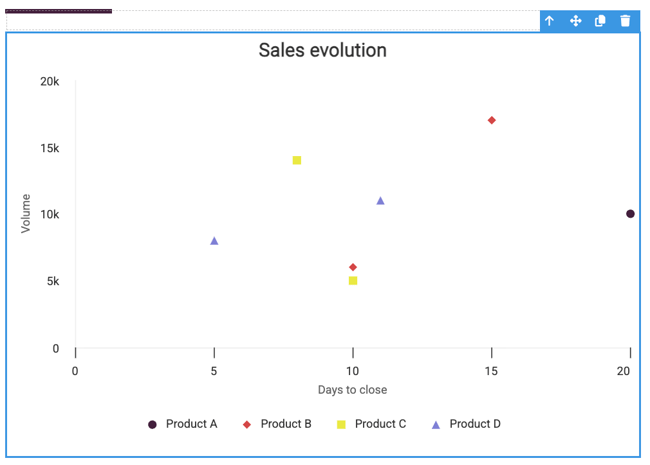
The Arrow allows you to move between the different layers of the page. For example if you add a widget in a column then you have 3 layers: the page, the column and the widget. The arrow allows you to quickly select a different layer.
The second icon, the four arrow sign, allows you to move your widget up or down to the page.
The third icon, the page, allows you to copy this widget and the forth icon, the bin, to delete it.
What's next?
- Chart Widgets: Bubble chart: The bubble chart widget allows your respondents to see their results from different questions but also compare them to other components. A bubble chart stands out because it allows a comparison between three variables.
-
Chart Widgets: Bar chart: Add a Bar Chart widget to your customized report to show respondents' results or another data set at a glance. This way you will display your data with rectangular bars. It allows you to show data separated into categories with relative numbers.
- Chart Widgets: Gauge chart: Add a gauge chart to your personalized PDF report to represent average or actual scores or percentage results for question blocks or formulas. Respondents can see at a glance if they've scored towards the top-end or bottom-end of the scale. It allows you to display a large data set visually.
Don't want to build it yourself? Contact our professional services team