
You'll need this:
-
One of these Pointerpro plans:
 Professional Enterprise
  ReportR DistributR
You can add logic rules to individual widgets so that content is only displayed when certain conditions are met, such as a respondent's answers, score, outcome, language, or other information.
For example, you could show different feedback depending on a respondent's score. Respondents with a lower score could receive one recommendation, while respondents with a higher score receive different content.
If you don't add a logic rule to a widget, the widget will always appear in the report.
On this help guide page:
- Setting up a widget
- Set up logic rules (Previous Report Builder - deprecated)
- Set up logic rules (Renewed Report Builder)
- Available logic conditions
- Test your logic rules
1. Setting up a widget
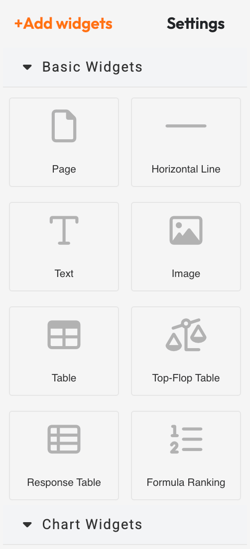
Start by adding the widgets you want to include in your report.
Widgets allow you to personalize the content of each respondent’s PDF report with text, charts, scores, and other content.
For an overview of the available widgets and how to use them, see our guide to Report Builder widgets.
2. Set up logic rules (Previous Report Builder - deprecated)
NOTE
This section applies to reports created with the Legacy Report Builder.
You can add logic rules to widgets to control when specific content appears in a respondent’s PDF report.
For example, you can create multiple text widgets with different content for each questionnaire outcome. Logic rules determine which version is displayed based on the respondent’s results.
Click the widget to expand it, then click Add rule. Select the condition you want to use from the dropdown menu and define the criteria that must be met for the widget to appear.
To create more complex logic, click the + icon to add another condition. Choose:
- AND when both conditions must be met.
- OR when either condition can be met.
3. Set up logic rules in the Renewed Report Builder
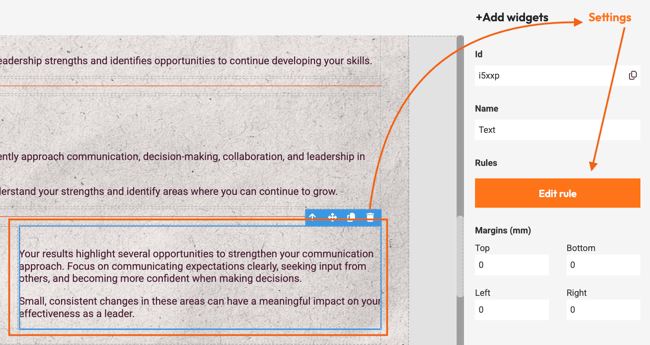
Select the widget you want to apply logic to and click Settings on the right side of the screen to open the widget settings.
Click Edit rule to open the widget logic settings.
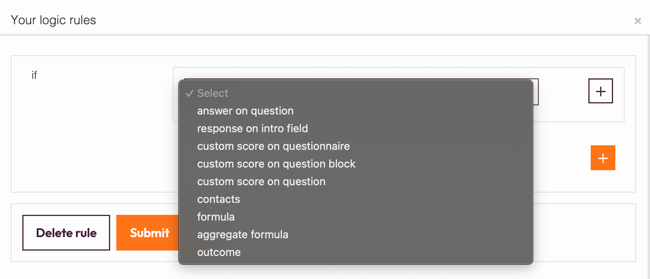
Select a condition from the dropdown menu and complete the required fields. When you’re finished, click Submit.
To create more complex logic, click the + icon to add another condition. Choose:
- AND when both conditions must be met.
- OR when either condition can be met.
Once a logic rule has been added, the widget will display its logic rule in the Report Builder instead of its content.
To view or edit the widget content again, click the rule to expand the widget. To change the logic rules, open the widget settings and click Edit rule.
To remove a logic rule, open Edit rule and click Delete rule.
4. Available logic conditions
Both Report Builders offer several conditions that you can use to control when a widget is displayed:
- Answer to a question
- Response on Intro field
- Custom score
- Language
- Contacts
- Formula and aggregate formula
- Outcome
The following sections explain how each condition can be used.
4.1 Answer to a question
Display the widget based on a respondent’s answer to a specific question. Select the question, then define the answer or value that should trigger the content.
4.2 Response on Intro field
If you’re using the Intro fields, you can display content based on the information entered in an Intro field.
Select the Intro field and define the response that should or should not display the widget.
4.3 Custom Score
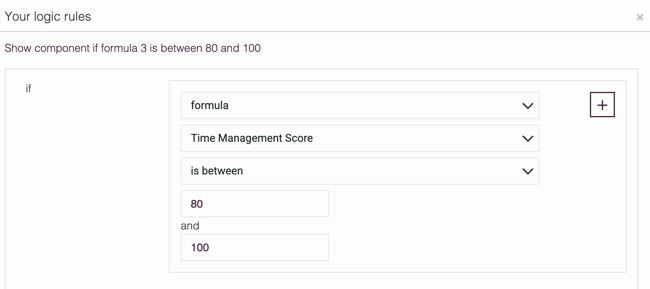
Display content based on a custom score from a question, question block, or the entire questionnaire.
You can also combine multiple score conditions to create more specific logic.
When using is between, the values you enter are included in the range. For example, 80 to 100 includes both 80 and 100. Enter the values from lowest to highest.
4.4 Language
For multiple language questionnaires, you can use the same PDF report while displaying different content depending on the respondent’s language.
4.5 Contacts
Display content based on information associated with a contact, such as their email address, Unique Identifier, or Personal ID.
4.6 Formulas
If you’ve created formulas or aggregated formulas, you can use their results as conditions for displaying content.
For aggregate formulas, you can use:
- Average
- Minimum
- Maximum
- Standard deviation
WARNING
Server-side formulas cannot be combined with widget logic.
Average formula logic cannot be combined with other logic rules.
4.7 Outcome
If you’ve set up outcomes, you can display content based on the respondent’s outcome.
Select Outcomes as the condition, then define which outcome should or should not display the widget. You can use an outcome on its own or combine it with other conditions using AND or OR.
5. Test your logic rules
After setting up your logic rules, submit a new response to test that the correct content is displayed.
What's next?
- You can pre-fill the Intro fields (learn more about Intro fields ) to save respondents time and get their attention. If you have a field asking for the respondent's name, use a URL parameter to pre-fill this field if you already know their name and simply ask respondents to check the spelling, rather than making them enter data unnecessarily.
- Conditional Rendering is a way of displaying elements based on a condition. It allows you to create simple conditions and reduce the number of widgets and rules. With Conditional Rendering, you can render different UI markups based on certain conditions.
- Piping Variables are expressions within the site to reference other information that has already been provided. These variables can be used to display the score on a specific question or total questionnaire. You can, for example, add *|total_quiz_score|* to your final screen to say something about the respondent's quiz score.
Don't want to build it yourself? Contact our professional services team
Our team can help you design and set up your assessment from scratch. Find out more and get in touch.