---
title: "Chart Widgets: Column Chart"
description: Add a Column Chart widget to your report to show respondents' results at a glance. This is a great way of displaying data. Discover it now👉
---
[Skip to content](https://help.pointerpro.com/report-builder-column-chart#main-content)
[](https://pointerpro.com/)
- [Pricing](https://pointerpro.com/pricing)
- [Customer stories](https://pointerpro.com/case-studies)
Open main navigation
Close main navigation
- [Pricing](https://pointerpro.com/pricing)
- [Customer stories](https://pointerpro.com/case-studies)
- [New here? Explore what Pointerpro can do](https://www.pointerpro.com/)
[New here? Explore what Pointerpro can do](https://www.pointerpro.com/)
How can we help you?
- There are no suggestions because the search field is empty.
1. [Knowledge Base](https://help.pointerpro.com/?hsLang=en)
2. [Report Builder](https://help.pointerpro.com/report-builder?hsLang=en)
3. [Widgets](https://help.pointerpro.com/report-builder?hsLang=en#widgets)
# Chart Widgets: Column Chart
## Column Chart widget is useful to compare survey results across different categories in a neat way!
##### You'll need this:
- One of these Pointerpro plans:
 Professional  Enterprise  ReportR  DistributR
---
Check this video for a step-by-step Column chart configuration:
##### On this help guide page:
1. [Add a column chart](https://help.pointerpro.com/report-builder-column-chart#column-chart)
2. [Setup the widget](https://help.pointerpro.com/report-builder-column-chart#setup-widget)
3. [Additional settings](https://help.pointerpro.com/report-builder-column-chart#additional-settings)
4. [Additional buttons](https://help.pointerpro.com/report-builder-column-chart#additional-buttons)
---
#### 1. Add a column chart
To add a column chart to the page, all you have to do is **click** on it and **drag and drop** it on the page.
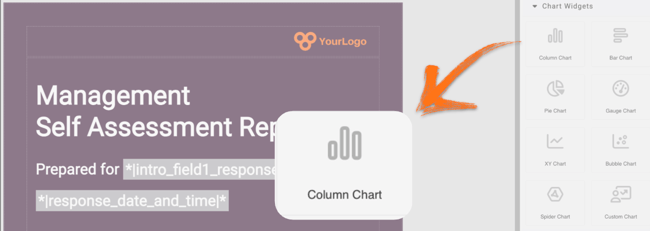
Once you add the widget a pop-up window will open where you can add your content.
#### 2. Setup the widget
The key building blocks of this graph are **Dimension Groups**, **Dimension Labels**, and **Metrics**. Let's set it up together!
Start by clicking **Add Group** to create your columns. Give each group a label and continue to add groups until you have the number that you need. You can include as many groups as you want!
In the example below we added four groups as such our widget will have four columns.
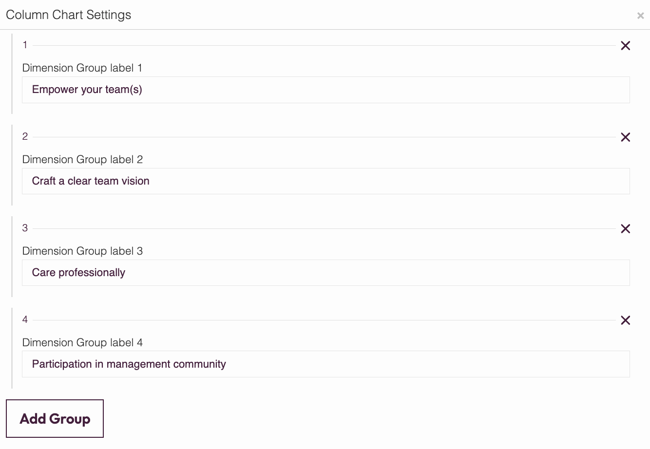
Now it's time to **Add Dimension**. Fill in Dimension Label, for example, '*Own Score*'. This will be shown in the legend underneath the graph.
Moving on to **Add Metric.** Note that the number of metrics must correspond to the number of groups so that you'll have a numeric value for each column.
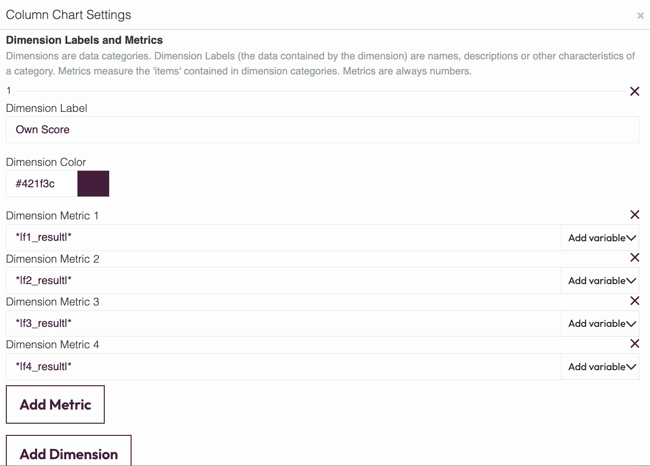
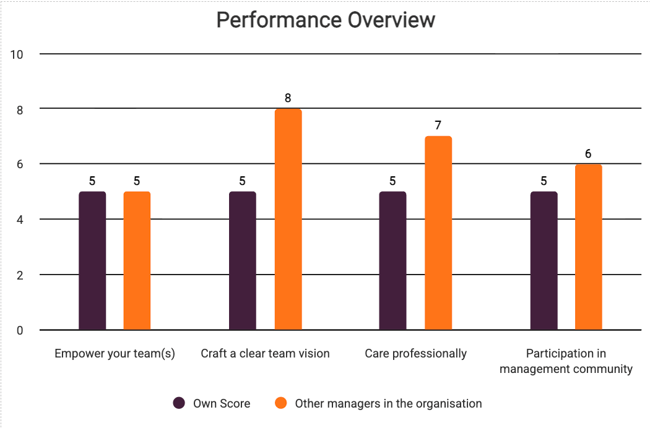
For example, in a column chart of four categories, there are four groups (columns), so for each dimension there are four metrics.See the example below:
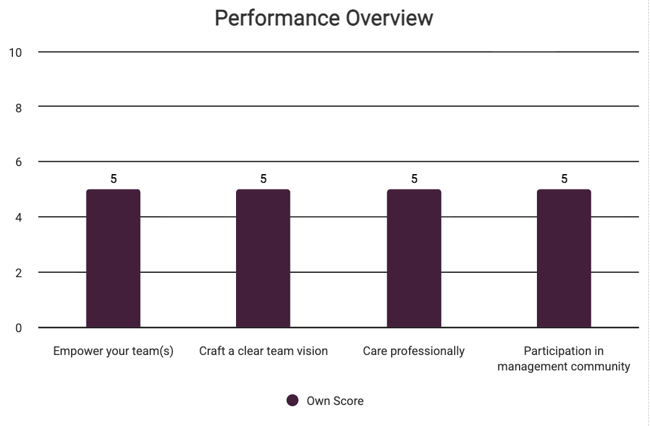
You can also add extra dimensions, for example, if you want to compare respondent's score vs average. Below we add a second dimension '*Other managers in the organisation*' with static numbers as metrics:
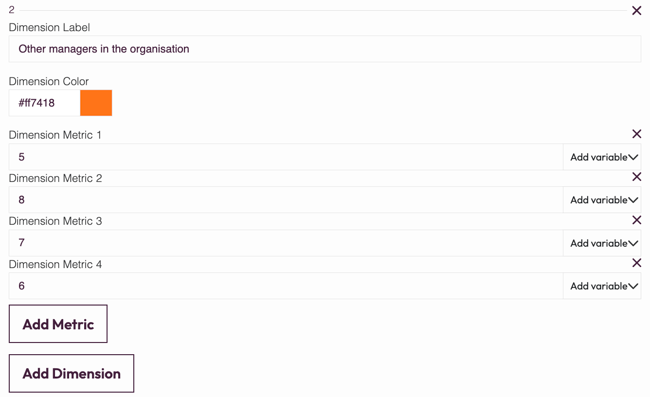
After saving this is how our column chart will look like:
NOTE
If you change your variable data, you must collect a **new response** in order to preview your graph.
TIP
You can also add **negative values** into your dimension metrics as shown below.
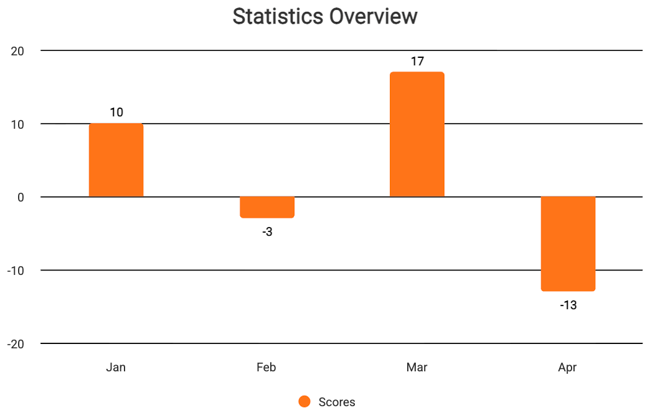
Now you've set up your graph, you can also configure the last settings.
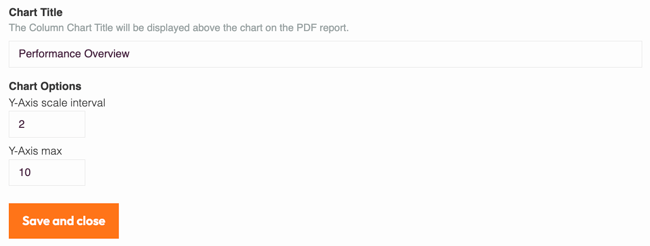
1. **Chart title** - give it a meaningful name
2. **Y-Axis scale interval** - choose the interval spacing for gridlines marking the vertical axis. Make sure you have a few to make the graph easy to read.
3. **Y-Axis max** - until which value do you want your y-axis to display? Enter it here.
#### 3. Additional settings
Select the widget and then at the right of the screen click on the **Settings** button. The widget list will be replaced by the additional settings.
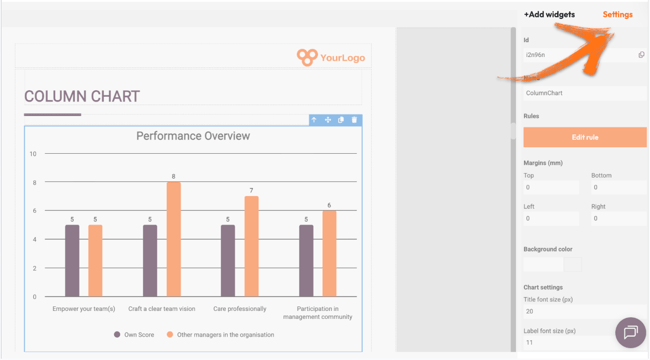
Here you can find the following settings:
1. [ID](https://help.pointerpro.com/report-builder-column-chart#id)
2. [Name](https://help.pointerpro.com/report-builder-column-chart#name)
3. [Rules](https://help.pointerpro.com/report-builder-column-chart#rules)
4. [Margins](https://help.pointerpro.com/report-builder-column-chart#margins)
5. [Background color](https://help.pointerpro.com/report-builder-column-chart#bg-color)
6. [Chart settings](https://help.pointerpro.com/report-builder-column-chart#settings)
##### 1. ID
This is the ID of the widget.
##### 2. Name
You can name your widget in order to identify it easier.
##### 3. Rules
You can add your [widget logic rules](https://help.pointerpro.com/en/support/solutions/articles/35000174860-pdf-widget-logic?hsLang=en) to ensure that your content will be visible only when the conditions are true.
##### 4. Margins
Add margins to create space around elements and move them in your page. By default the margins are set to 0, but you can change that anytime and add the margin you prefer.
TIP
You can add margins left and right to make your chart smaller. The bigger the margins, the smaller the chart. Note that the margins should be equal, in order for the chart to be centred in the page.
##### 5. Background colour
You can change the background colour of this specific widget by clicking the color selector.
##### 6. Chart settings
You can change the default title and label font size if you want. This is very useful if you are placing your chart inside a column, or you adjust its size. In this case you will have a smaller chart but your text will still be readable.
#### 4. Additional buttons
When you click on your widget four blue buttons appear to the right.
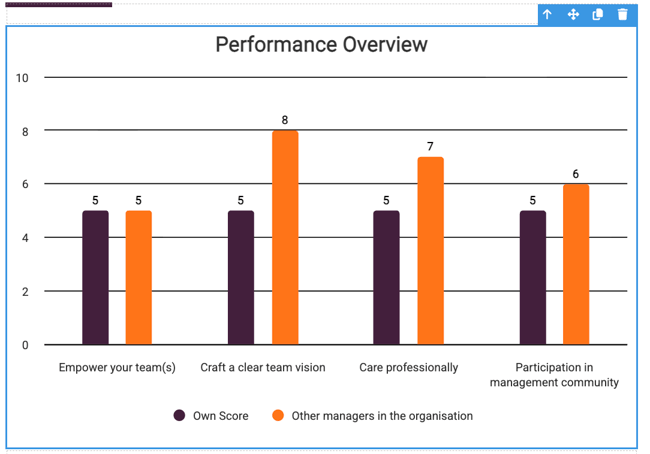
The **Arrow** allows you to move between the different layers of the page. For example if you add a widget in a column then you have 3 layers: the page, the column and the widget. The arrow allows you to quickly select a different layer.
The second icon, the **four arrow sign**, allows you to move your widget up or down to the page.
The third icon, **the page**, allows you to copy this widget and the forth icon, **the bin**, to delete it.
#### What's next?
- [Chart Widgets: Bar chart](https://help.pointerpro.com/report-builder-bar-chart?hsLang=en): Add a Bar Chart widget to your customized report to show respondents' results or another data set at a glance. This way you will display your data with rectangular bars. It allows you to show data separated into categories with relative numbers.
- [Chart Widgets: Gauge Chart](https://help.pointerpro.com/report-builder-gauge-chart?hsLang=en): Add a gauge chart to your personalized PDF report to represent average or actual scores or percentage results for question blocks or formulas. Respondents can see at a glance if they've scored towards the top-end or bottom-end of the scale. It allows you to display a large data set visually.
- [Chart Widgets: Spider chart](https://help.pointerpro.com/report-builder-spider-chart?hsLang=en): A spider chart is a great graphic way to compare results from different questions and visualize performance, for example between school subjects or departments of a business. You can include as many axes as you want, but the most visually appealing and clear would be between three and six axes.
#### Don't want to build it yourself? Contact our professional services team
[](https://calendly.com/anna-golumbovskaia-pointerpro/let-s-discuss-your-project)
- [Getting Started](https://help.pointerpro.com/getting-started?hsLang=en#main-content)
- [Getting Started](https://help.pointerpro.com/getting-started?hsLang=en#getting-started)
- [How To Guides](https://help.pointerpro.com/getting-started?hsLang=en#how-to-guides)
- [Glossary](https://help.pointerpro.com/getting-started?hsLang=en#glossary)
- [Build & Design](https://help.pointerpro.com/build-design?hsLang=en#main-content)
- [Intro Screen & Final Screen](https://help.pointerpro.com/build-design?hsLang=en#intro-screen-final-screen)
- [Question Types](https://help.pointerpro.com/build-design?hsLang=en#question-types)
- [Media & Variables](https://help.pointerpro.com/build-design?hsLang=en#media-variables)
- [Design your survey](https://help.pointerpro.com/build-design?hsLang=en#design-your-survey)
- [Campaigns](https://help.pointerpro.com/build-design?hsLang=en#campaigns)
- [FAQ](https://help.pointerpro.com/build-design?hsLang=en#faq)
- [Extra Options](https://help.pointerpro.com/extra-options?hsLang=en#main-content)
- [Text options](https://help.pointerpro.com/extra-options?hsLang=en#text-options)
- [Question logic](https://help.pointerpro.com/extra-options?hsLang=en#question-logic)
- [Custom scoring](https://help.pointerpro.com/extra-options?hsLang=en#custom-scoring)
- [Quiz Options](https://help.pointerpro.com/extra-options?hsLang=en#quiz-options)
- [Kiosk mode options](https://help.pointerpro.com/extra-options?hsLang=en#kiosk-mode-options)
- [Data collection options](https://help.pointerpro.com/extra-options?hsLang=en#data-collection-options)
- [Other options](https://help.pointerpro.com/extra-options?hsLang=en#other-options)
- [Integrations & API](https://help.pointerpro.com/extra-options?hsLang=en#integrations-api)
- [FAQ](https://help.pointerpro.com/extra-options?hsLang=en#faq)
- [Share & Results](https://help.pointerpro.com/share-results?hsLang=en#main-content)
- [Sharing your questionnaire](https://help.pointerpro.com/share-results?hsLang=en#sharing-your-questionnaire)
- [View Results](https://help.pointerpro.com/share-results?hsLang=en#view-results)
- [Results Dashboard](https://help.pointerpro.com/share-results?hsLang=en#results-dashboard)
- [Uploading and Downloading Results](https://help.pointerpro.com/share-results?hsLang=en#uploading-and-downloading-results)
- [FAQ](https://help.pointerpro.com/share-results?hsLang=en#faq)
- [Report Builder](https://help.pointerpro.com/report-builder?hsLang=en#main-content)
- [General](https://help.pointerpro.com/report-builder?hsLang=en#general)
- [Widgets](https://help.pointerpro.com/report-builder?hsLang=en#widgets)
- [Aggregate Reports](https://help.pointerpro.com/report-builder?hsLang=en#aggregate-reports)
- [FAQ](https://help.pointerpro.com/report-builder?hsLang=en#faq)
- [Legacy Report Builder \[deprecated\]](https://help.pointerpro.com/report-builder?hsLang=en#legacy-report-builder-deprecated)
- [Dashboard Builder](https://help.pointerpro.com/dashboard-builder?hsLang=en#main-content)
- [General](https://help.pointerpro.com/dashboard-builder?hsLang=en#general)
- [Widgets items](https://help.pointerpro.com/dashboard-builder?hsLang=en#widgets-items)
- [Distribution Portal](https://help.pointerpro.com/distribution-portal?hsLang=en#main-content)
- [Configuration](https://help.pointerpro.com/distribution-portal?hsLang=en#configuration)
- [Management & Administration](https://help.pointerpro.com/management-administration?hsLang=en#main-content)
- [Account & Billing](https://help.pointerpro.com/management-administration?hsLang=en#account-billing)
- [GDPR compliance](https://help.pointerpro.com/management-administration?hsLang=en#gdpr-compliance)
- [FAQ](https://help.pointerpro.com/management-administration?hsLang=en#faq)
[](http://pointerpro.com)
Can't find what you're looking for? Contact us at [support@pointerpro.com](mailto:support@pointerpro.com)
Copyright © 2026, Pointerpro