
Blocks, also called question groups, let you group related questions together so your questionnaire stays easy to navigate as it grows. You'll create, name, and manage blocks directly in the Questionnaire Builder.
You'll need this:
- One of these Pointerpro plans:
 Professional Enterprise ReportR DistributR
On this page:
3. Duplicate or delete a block
4. Change how questions in a block are displayed
Step 1: Create a block
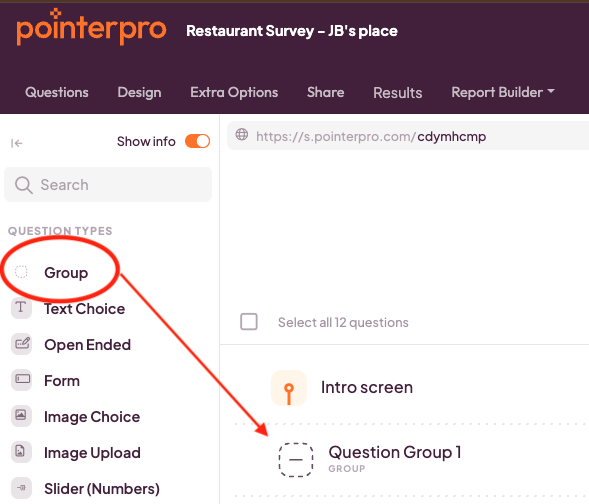
In the Questionnaire Builder, Click/Drag a new ‘Group’ to add a new block. Type a name for it directly — there's no separate naming step.
Step 2: Collapse or expand a block
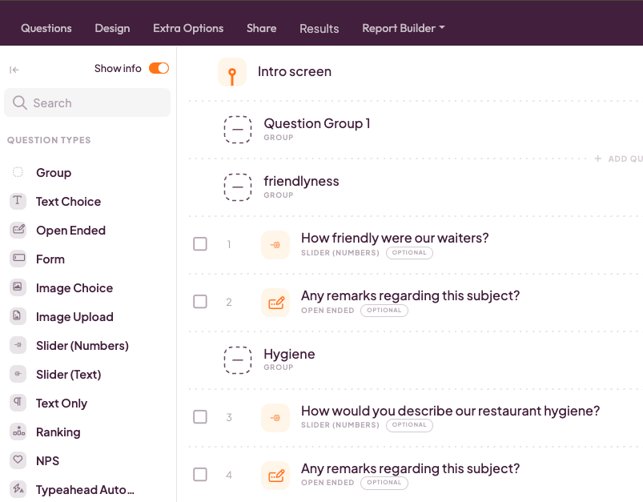
Click a block's header in the sidebar to collapse it once you're happy with it, or expand it again whenever you need to make changes. This keeps long questionnaires easy to navigate — you can collapse every section you're not actively working on.
Step 3: Duplicate or delete a block
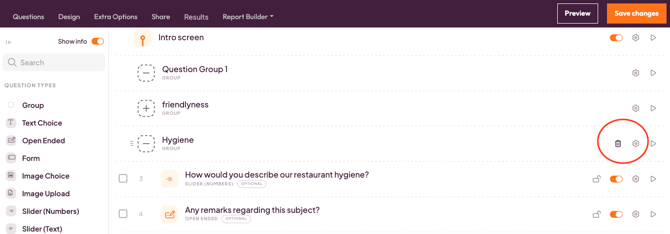
Each block has its own actions menu. Open it to duplicate the block or delete it, along with everything inside it.
Step 4: Change how questions in a block are displayed
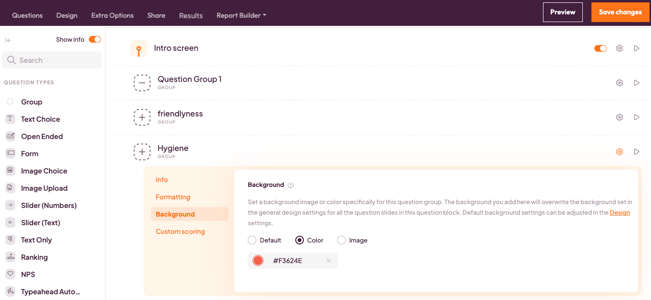
You can toggle how the questions within a block are displayed to respondents. Use this if you want a section to feel different from the rest of your questionnaire.
What's next?
- How to add and manage questions in the new Questionnaire Builder — add, duplicate, and delete individual questions.
- How to reorder questions and question blocks — move questions and entire blocks around with drag and drop.
- Sidebar and navigation in Pointerpro (Questionnaire Builder) — get familiar with the rest of the builder's interface.